Set up the robot's WiFi
On this page, you set the name, the password and the channel of the robot's WiFi network in your code. If you need to, you then change the channel from the Driver Station without uploading code.
Before you start
- Arduino IDE is installed and set up for Probot: Set up Arduino IDE for Probot.
- If you generate your code in Blocks, you make these settings in Blocks: Set up the robot WiFi. The Competition day channel plan applies there too.
Write the network name, password and channel
Warning
The three lines come before the #include <probot.h> line. The library reads these values when the code is compiled. If they come after it, compiling stops with the error "Driver station AP password not provided."
- At the very top of the sketch, write the three
#definelines below. - In
PROBOT_WIFI_AP_SSID, write your robot's network name. - In
PROBOT_WIFI_AP_PASSWORD, write a password of at least 8 characters. - In
PROBOT_WIFI_AP_CHANNEL, write a channel from 1 to 13. Which channel to pick: Competition day channel plan. - Upload the code to the board.
#define PROBOT_WIFI_AP_SSID     "Probot"      // network name, at most 32 characters
#define PROBOT_WIFI_AP_PASSWORD "Probot1234"  // at least 8 characters
#define PROBOT_WIFI_AP_CHANNEL  1             // 1-13
#include <probot.h>
Result: When the board starts, it writes the network name and the channel to the Serial Monitor (115200 baud). The robot's network appears in the WiFi list with the name Probot.
[DS   ] WiFi SSID: Probot
[DS   ] Password:  ********
[DS   ] Channel:   1 (macro)
[DS   ] IP Address: 192.168.4.1
| Line | Required | Rule | If you leave it out |
|---|---|---|---|
PROBOT_WIFI_AP_SSID |
No | 1-32 characters | The network name is Probot- plus 6 characters from the board's MAC address, for example Probot-1A2B3C. Compiling gives a warning. |
PROBOT_WIFI_AP_PASSWORD |
Yes | At least 8 characters | Compiling stops with the error "Driver station AP password not provided." |
PROBOT_WIFI_AP_CHANNEL |
Yes | 1-13 | Compiling stops with the error "WiFi AP channel not provided." |
If the password or the channel breaks the rule, compiling stops too: Compile errors. Other connection settings: Settings macros.
Upload the same code to several robots
Robots that get the same code broadcast the same network name, and they get mixed up in the WiFi list. PROBOT_WIFI_AP_SSID_MAC_SUFFIX adds a suffix from each robot's own board to its name. The code stays the same.
- Under the
PROBOT_WIFI_AP_SSIDline, add the line#define PROBOT_WIFI_AP_SSID_MAC_SUFFIX. - Keep the network name at 25 characters or fewer. The suffix adds 7 more characters.
- Upload the code to each robot.
- On each robot, change the channel separately in the Logs tab: Change the channel without uploading code.
#define PROBOT_WIFI_AP_SSID     "Probot"
#define PROBOT_WIFI_AP_SSID_MAC_SUFFIX           // adds -XXXXXX to the name
#define PROBOT_WIFI_AP_PASSWORD "Probot1234"
#define PROBOT_WIFI_AP_CHANNEL  1
#include <probot.h>
Result: Each robot broadcasts as Probot- plus a 6-character suffix, for example Probot-1A2B3C. The full name is shown in the "WiFi SSID:" line of the Serial Monitor and in Logs > SSID on the Driver Station.
The same code also gives every robot the same channel. If you skip step 4, the robots interfere with each other on the same channel.
Change the channel without uploading code
You can change the channel from the Driver Station without uploading the code again. The robot saves the new channel on the board and uses it every time it starts.
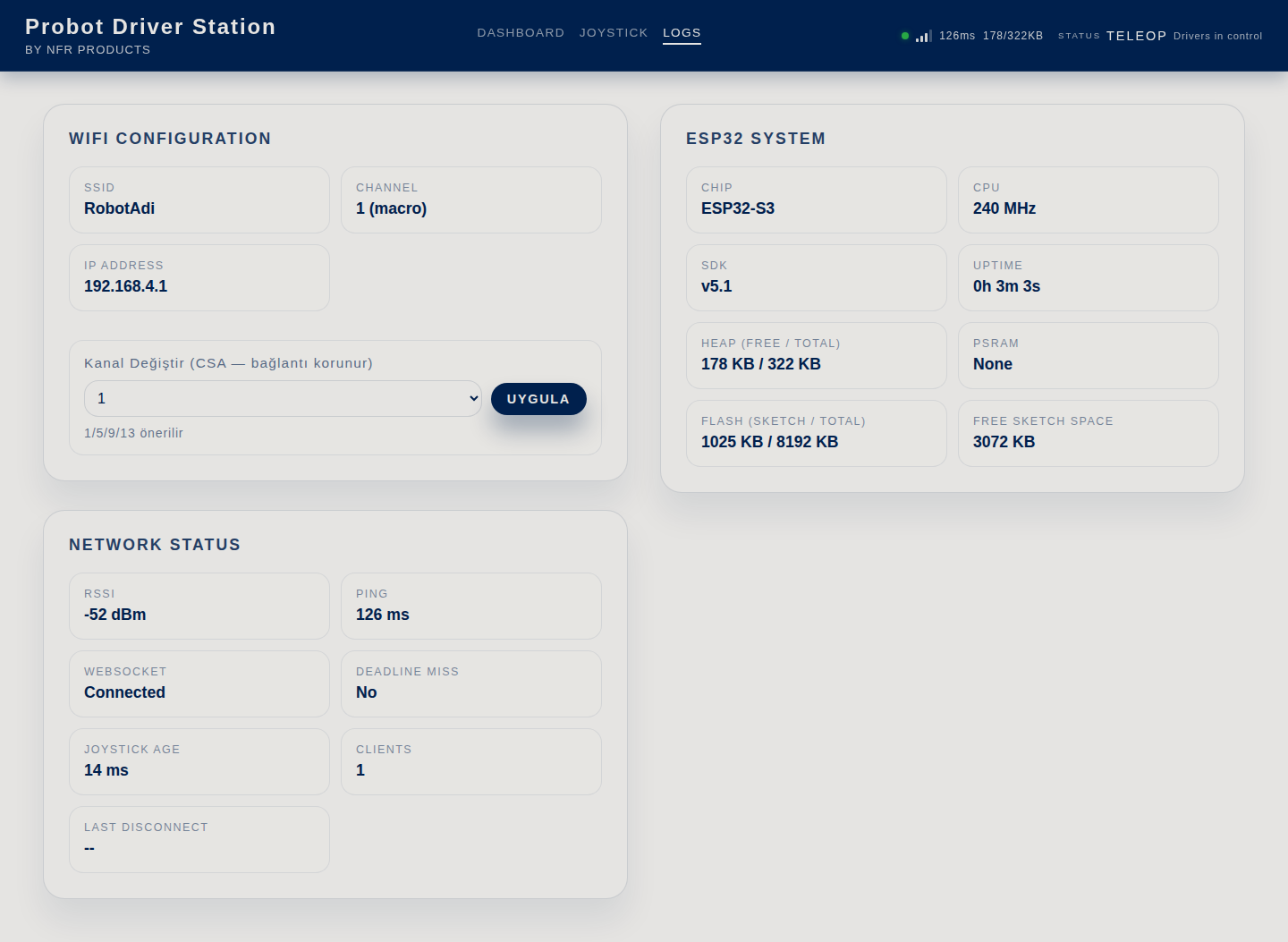
The channel controls in the Logs tab are in Turkish. This page quotes them in Turkish, with their meaning in parentheses.
Warning
Do not change the channel during a match. Some tablets do not follow the switch to the new channel and lose the connection for a few seconds.
- Connect to the robot's network and open the Driver Station: First 10 minutes.
- Select the Logs tab.
- In the WiFi Configuration section, select the new channel in the Kanal Değiştir (Change channel) list. The list starts with Varsayılana dön (açılışta) (Back to default, at startup), followed by 1, 5, 9 and 13.
- Press Uygula (Apply).
Result: Under the list, "Kanal 5 (canlı geçiş)" (Channel 5, live switch) appears. The Channel row changes to "5 (nvs)". The robot switches to the new channel; compatible devices follow it without losing the connection.
If the channel you select is the robot's current channel, the robot does not switch; it only saves the channel.
The word in parentheses in the Channel row shows where the channel comes from:
| In parentheses | Where the channel comes from |
|---|---|
| macro | PROBOT_WIFI_AP_CHANNEL in the code |
| nvs | The channel saved on the board with Kanal Değiştir |
| auto | The channel picked automatically at startup: Automatic channel selection |
Go back to the channel in the code
A channel saved on the board takes priority over the channel in the code. Even if you upload new code, the robot uses the saved channel. To go back to the channel in the code, delete the saved one.
- On the Driver Station, select the Logs tab.
- In the Kanal Değiştir list, select Varsayılana dön (açılışta).
- Press Uygula.
- Turn the robot off and on again.
Result: The Channel row shows the channel from the code with "(macro)", for example "1 (macro)".
Automatic channel selection
If you write #define PROBOT_WIFI_AUTO_CHANNEL 1, the robot scans the band at every startup. It picks the channel that looks the least busy among 1, 5, 9 and 13. Startup takes a few seconds longer. You still have to write the PROBOT_WIFI_AP_CHANNEL line.
Warning
Do not use automatic selection where there are several robots. When the robots start together, none of them is broadcasting yet, so they all see an empty band and can end up on the same channel. Automatic selection is for a single robot at home or in a workshop.
If there is a saved Kanal Değiştir choice, the robot does not scan; it uses the saved channel.
Having trouble?
- The robot's network is not in the list: If the channel is 12 or 13, some devices do not see these channels. Give the robot a channel from 1 to 11.
- The network is there, but the Driver Station does not open: See The interface does not open.
- The connection drops often: See Improve the signal quality.
Next step
Improve the signal quality: the competition day channel plan and the robot's antenna.