Give motors and servos a name and a port
On this page you will give each motor and servo on your robot a name to use in code. You will also set the hub it is connected to and its port. This information is saved with the project and goes with the robot to Sim.
Before you start
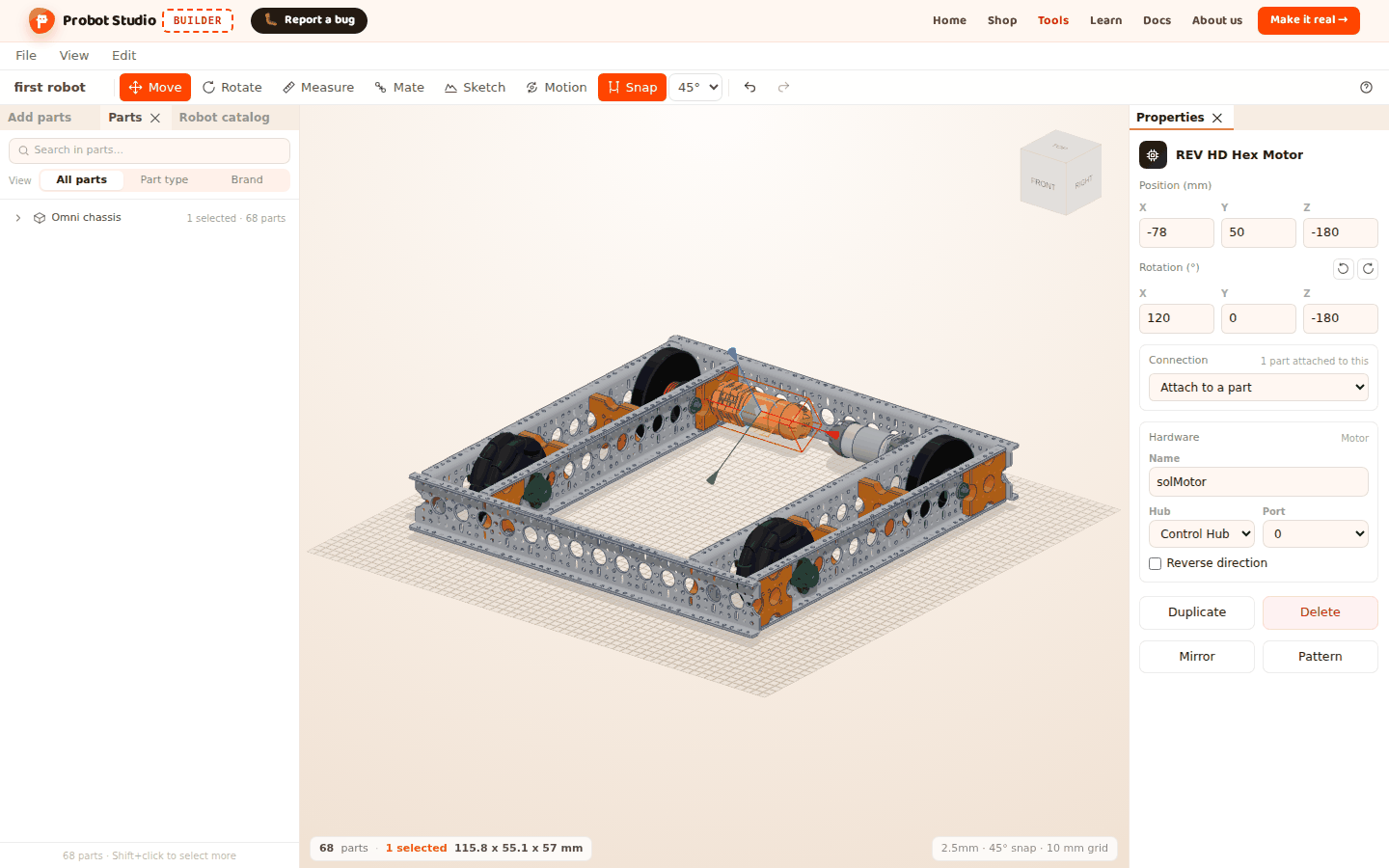
- The Omni chassis is open in the scene (see Start with a ready-made robot). This robot has two REV HD Hex Motor parts.
- The Hardware section of the Properties panel appears only when a motor or a servo is selected.
Name a motor
- In the Left panel, select the Parts tab.
- Type
Motorin the Search in parts... box. - In the list, select the first REV HD Hex Motor row.
- In the Hardware section of the Properties panel, type
solMotorin the Name box. - Press Enter.
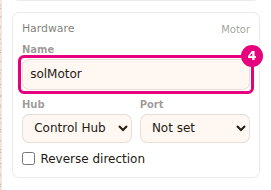
Result: In the Parts list, the motor's row shows "solMotor" next to its name.
- A name can be at most 40 characters long. An empty box shows an example: "e.g. leftFrontMotor" for a motor, "e.g. armServo" for a servo.
- Esc cancels what you typed. If you empty the box and press Enter, the name is removed.
- If you give the same name to two parts, "Another part has this name too" appears below the box.
- The Search in parts... box also searches hardware names. Type
solMotorto find the motor.
Select the hub, port and direction
- In the Hardware section, select Control Hub or Expansion Hub from the Hub list. At first it shows Control Hub.
- Select
0from the Port list. The first option is Not set. - If the motor turns the wrong way, check the Reverse direction checkbox.
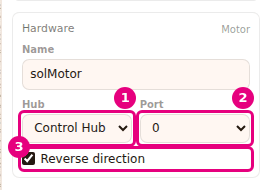
Result: The Hardware section shows the hub and port you selected and the Reverse direction check mark.
- A motor uses ports 0 to 3. A servo uses ports 0 to 5.
- Only a motor has Reverse direction. It reverses the motor's direction in code.
- The part's type appears next to the section heading: "Motor" or "Servo".
- Each change is one undo step.
Fix a port conflict
Two motors on the same hub cannot use the same port. Motor ports and servo ports are counted separately: motor port 0 and servo port 0 can be on the same hub.
- In the Parts list, select the second REV HD Hex Motor row.
- Type
sagMotorin the Name box and press Enter. - From the Hub list, select the same hub as the first motor.
- Select
0from the Port list. The warning "Port 0 is used by another motor" appears below the section. - Select
1from the Port list.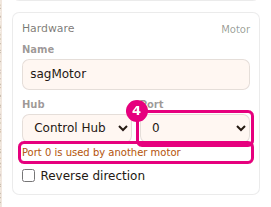
Result: The warning goes away. Each motor has its own name and its own port.
Find out where this information goes
- Project file: The name, hub, port and direction are saved with the project. They are also in the file you download with File > Save (download JSON).
- Copies: If you copy, duplicate, mirror or pattern a motor, only the hub goes to the copy. The name, port and Reverse direction stay empty in the copy, because two parts cannot use the same name or port.
- Sim: File > Try in Sim sends the robot to Sim with this name, hub, port and direction. If you left a name empty, Sim gives one in order (motor0, motor1, servo0). If you did not select a port, the next number is used. If you did not select a hub, Control Hub is used.
Having trouble?
- The Hardware section does not appear: The selected part is not a motor or a servo, or more than one part is selected. Select a single motor or servo.
- "Port N is used by another motor" appears: Another motor on the same hub uses this port. Select another port or another hub. For a servo, the warning is "Port N is used by another servo".
- "Another part has this name too" appears: Each name can be used only once, across all motors and servos. Type a different name.
- There is no Reverse direction checkbox: A servo is selected. Only a motor has Reverse direction.
- The copied motor has no name and no port: Only the hub goes to the copy. Set the name and the port again.
Next step
- Attach the motor to the wheel shaft: Set up joints and try the motion
- Drive the robot: Try the robot in Sim