Move around the scene
On this page you rotate the camera around the robot, zoom in and pan. You switch to standard views, fit the robot or a part in view and select the view settings.
Before you start
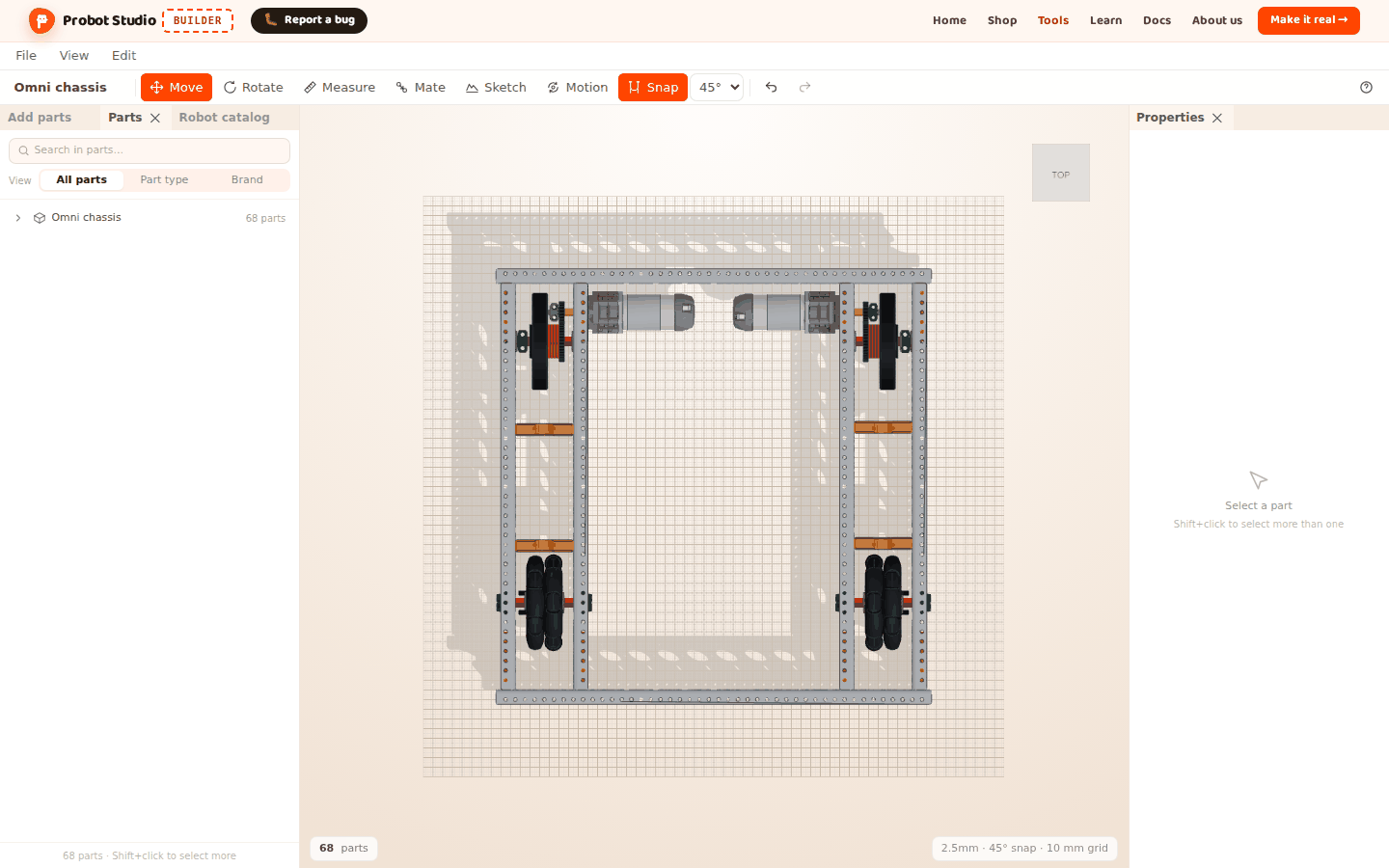
- The Omni chassis is open in the scene. See Start with a ready-made robot.
- A three-button mouse is recommended. The camera moves with the right and middle buttons.
Move the camera with the mouse
By default, the mouse controls are set to Onshape. The left button does not move the camera. It only selects.
- In the Scene, hold down the right mouse button and drag. The camera rotates around the robot.
- Turn the mouse wheel. The camera zooms in or out.
- Hold down the middle button (the wheel) and drag. The view pans.
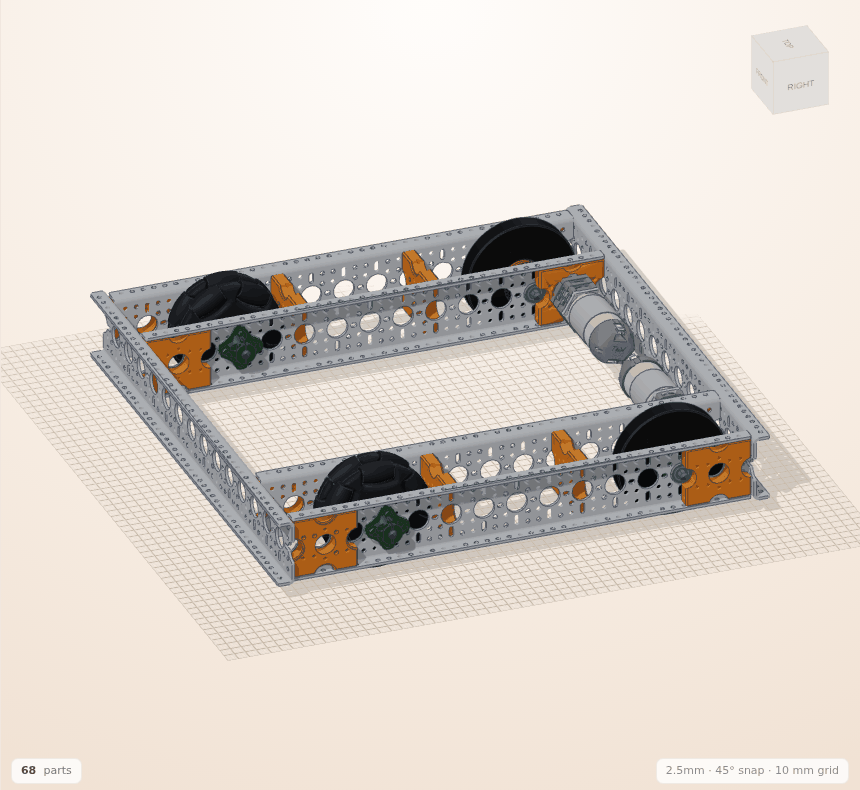
Result: You see the robot from the angle and distance you want.
After you let go, the camera keeps gliding for a moment. You can also look under the robot.
With the Perspective camera, the camera does not get closer than 40 mm to its pivot point or farther than 2500 mm. The default Orthographic camera also has a lower and an upper zoom limit.
Each mouse controls option uses these buttons:
| Mouse controls | Rotate | Pan | Zoom |
|---|---|---|---|
| Onshape (default) | Drag with the right button | Drag with the middle button | Mouse wheel |
| SolidWorks | Drag with the middle button | Ctrl + drag with the middle button | Mouse wheel |
| Fusion 360 | Shift + drag with the middle button | Drag with the middle button | Mouse wheel |
In all three options, the left button selects a part, and dragging with it on empty space makes a box select. Pressing and releasing the right button without dragging opens the context menu. In SolidWorks and Fusion 360, dragging with the right button does not move the camera.
Switch to a standard view with the view cube
The view cube is in the corner of the Scene. Its faces say RIGHT, LEFT, TOP, BOTTOM, FRONT and BACK. The cube is hidden in assembly mode and comes back when you press Switch to editing.
- Move the mouse pointer over the view cube. The face under the pointer changes color.
- Press the TOP face.
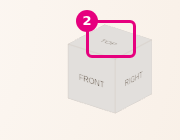
- For a diagonal view, press a corner or an edge of the cube.
Result: The camera looks at the robot from the direction you picked. The pivot point does not change.
Fit the robot or the selection in view
Use Focus to look closely at one part, and Fit view to see the whole robot.
- In the Scene, right-click a wheel. The part is selected and the context menu opens.
- In the context menu, select Focus. The camera moves close to the wheel and looks at it.
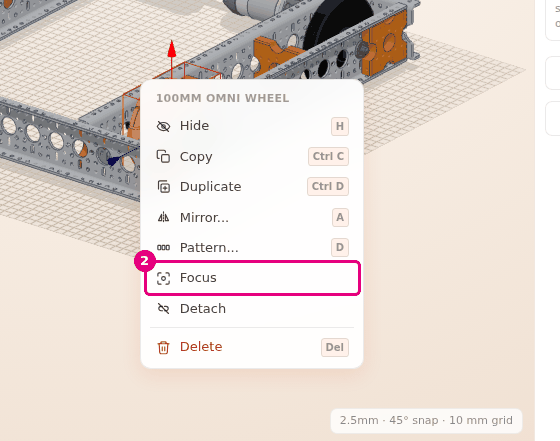
- Rotate the camera around the wheel (with the Onshape controls, drag with the right button).
- To go back to the whole robot, select View > Fit view.
Result: The camera keeps its viewing direction and fits the whole robot on the screen.
- Focus does not move the parts. It only moves the camera. After that, the camera rotates around the selection. If several parts are selected, it fits the whole selection in view.
- When the scene is empty, Fit view returns the camera to the starting view.
Select the view settings
The view settings are the first three groups of the View menu: CAMERA, MOUSE CONTROLS and OUTLINE. One option is selected in each group. This browser remembers all your choices.
- In the Menu bar, press View.
- In the MOUSE CONTROLS group, select the program you are used to: Onshape, SolidWorks or Fusion 360.
- Open View again and, in the CAMERA group, select Perspective or Orthographic.
- Open View again and, in the OUTLINE group, select Off, Rim or Line.
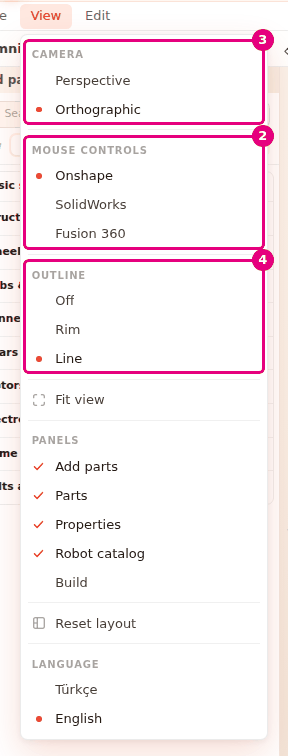
Result: A mark appears next to the selected option. The menu closes after you select.
| Group | Option | What it does |
|---|---|---|
| CAMERA | Orthographic (default) | A part far away does not get smaller. This helps you compare lengths. |
| Perspective | A part far away looks smaller, the way your eye sees it. | |
| OUTLINE | Line (default) | Draws a dark line along the edges of the parts. |
| Rim | Draws no line. Darkens the faces of a part where they turn toward its edge. | |
| Off | No edge highlight. |
When you change the camera type, the camera goes back to the starting view. To fit the robot in view again, select View > Fit view.
Having trouble?
- I drag with the left button and the camera does not rotate: The left button is for selecting. On empty space it makes a box select. With the Onshape controls, rotate the camera with the right button. See Troubleshooting.
- The right button opens a menu instead of rotating the camera: The SolidWorks or Fusion 360 controls are selected. To rotate, use the table above, or select Onshape in MOUSE CONTROLS.
- Right-clicking does not open the context menu: Press and release without moving the mouse. The menu does not open in assembly mode or while Measure, Mate or Sketch is open.
- The robot is not on the screen: Select View > Fit view.
- The camera does not zoom in close enough: You may have reached the zoom limit. With the Perspective camera, the pivot point may be far away. Right-click the part, select Focus, then zoom in with the mouse wheel.