Shortcuts
This page lists every keyboard key and mouse action in Builder. It also has keys that the "Keyboard shortcuts" window in the app does not list.
Before you start
- Builder is open (see First 10 minutes).
- Shortcuts are an extra way to do a job. Every job also has a button or a menu item (see Interface tour).
Open the Keyboard shortcuts window
Builder's own list of shortcuts is in the "Keyboard shortcuts" window.
- In the Toolbar, press the Help icon (?) (?).
- With the mouse wheel, scroll the key list in the "Keyboard shortcuts" window. The mouse row at
the bottom of the window stays in place.
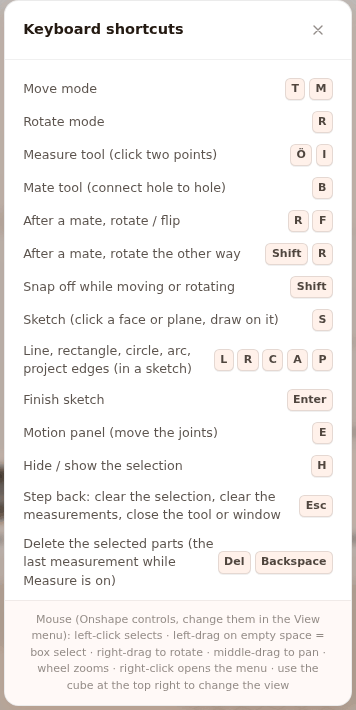
- Press the window's × to close it. Esc or ? also closes it (not while you are drawing a sketch).
Result: The window closes. Your selection and your open tools do not change.
Pressing the darkened area outside the window also closes it. The mouse row at the bottom changes with the mouse controls you selected.
Note
In the window, the Esc row says "Step back: clear the selection, clear the measurements, close the tool or window". The What Esc does, in order table shows what happens on each press.
When shortcuts do not work
- While you type in a text box (such as the project name, Position (mm) or Search parts...), the keys go into the box. Shortcuts do not work.
- In assembly mode (you start it with Build step by step), shortcuts are off. Only ← and → work.
- While the Mirror or Pattern window is open, only Esc works, and it closes the window.
- On a Mac, Cmd takes the place of Ctrl in all the Ctrl shortcuts below.
Tools
| Key | What it does | Where it works |
|---|---|---|
| T or M | Selects the Move tool. | Everywhere |
| R | Selects the Rotate tool. | Everywhere. After you mate a part with the Mate tool, it does something else (see Mate and Measure tools). |
| Ö or I | Opens or closes the Measure tool. When it opens, Mate and Sketch close. | Everywhere. On a Turkish keyboard, ı and İ also work. |
| B | Opens or closes the Mate tool. When it opens, Sketch closes. | Everywhere |
| S | Opens or closes the Sketch tool. | Except while drawing a sketch |
| E | Opens or closes the Motion panel. | Everywhere |
| ? | Opens or closes the "Keyboard shortcuts" window. | Except while drawing a sketch |
Selection and editing
| Key | What it does | Where it works |
|---|---|---|
| Left-click | Selects a part. Clicking empty space clears the selection. | Scene |
| Shift+click | Adds the part to the selection or removes it from the selection. | Scene, Parts tab |
| Ctrl+click | Same as Shift+click. | Scene, Parts tab |
| Left-drag on empty space | Box select. Every part the box touches is selected. With Shift or Ctrl, it adds to the selection. | Scene, while Measure, Mate and Sketch are closed |
| Right-click | Opens the context menu. If you drag with the right button, the menu does not open. In the default Onshape mouse controls, this drag rotates the camera. | Scene. It does not open in assembly mode or while Measure, Mate or Sketch is open. |
| Ctrl+A | Selects all parts. | Everywhere |
| H | Hides or shows the selected parts. | While something is selected |
| Del | Deletes the selected parts. | While something is selected. While Measure is open, it deletes the last measurement. |
| Backspace | Same as Del. | Same as Del |
| Ctrl+Z | Undoes the last change. Up to 59 steps. | Everywhere |
| Ctrl+Shift+Z | Redoes what you undid. | Everywhere |
| Ctrl+Y | Same as Ctrl+Shift+Z. The Edit menu shows this key. | Everywhere |
| Ctrl+C | Copies the selection. The notification "N parts copied" appears. | While something is selected |
| Ctrl+V | Pastes what you copied. The copy is placed 20 mm away from the original. | Everywhere |
| Ctrl+D | Duplicates the selection. | While something is selected |
| A | Opens the Mirror window. | While something is selected and Measure, Mate and Sketch are closed |
| D | Opens the Pattern window. | While something is selected and Measure, Mate and Sketch are closed |
| K | Puts a belt between the two selected pulleys. | While two pulleys are selected and Measure, Mate and Sketch are closed |
| Hold Shift | Turns Snap off while you hold it. The part does not snap to 2.5 mm steps or to holes. | While dragging with Move or Rotate |
Mate and Measure tools
| Key | What it does | Where it works |
|---|---|---|
| R | Rotates the last mate around the hole axis by the selected step. | Mate open, after a mate |
| Shift+R | Rotates the last mate the other way. | Mate open, after a mate |
| F | Flips the last mated part. | Mate open, after a mate |
| Shift+click | Selects a face instead of a hole. | Mate open |
| Shift+click | Places the point freely, without snapping it to the hole center. | Measure open |
| Del | Deletes the last measurement. | Measure open |
Warning
While Measure is open, Esc deletes all measurements, not only one. To delete one measurement, press Delete this measurement in the Measure panel. See What Esc does, in order.
Sketch and Extrude
| Key | What it does | Where it works |
|---|---|---|
| L | Line tool. | While drawing a sketch |
| R | Rectangle tool. | While drawing a sketch |
| C | Circle tool. | While drawing a sketch |
| A | Arc tool. | While drawing a sketch |
| P | Project tool. | While drawing a sketch |
| S | Select tool. | While drawing a sketch |
| Enter | Finishes the sketch. | While drawing a sketch |
| Esc | First drops an unfinished shape, then clears the selection. It does not close the sketch. | While drawing a sketch |
| Del or Backspace | Deletes the selected item. | While drawing a sketch |
| Ctrl+Z | Undoes the last step in the sketch. | While drawing a sketch |
| Ctrl+Y or Ctrl+Shift+Z | Redoes a step you undid in the sketch. | While drawing a sketch |
| Hold Shift | Places the point freely, without snapping it to endpoints, alignments or the 1 mm grid. | While drawing a sketch |
| Right-click | Drops an unfinished shape. | While drawing a sketch |
| Double-click (on a sketch) | Opens the sketch for editing. | Scene |
| Enter | Same as OK: makes the solid part. | While the Extrude panel is open |
| Esc | Closes the Extrude panel. | While the Extrude panel is open |
While you are drawing a sketch, the other shortcuts do not work. See Draw a sketch and make it solid with Extrude.
Assembly mode, panels and input boxes
| Key | What it does | Where it works |
|---|---|---|
| ← | Previous assembly step. | While the Assembly strip is open |
| → | Next assembly step. | While the Assembly strip is open |
| Esc | Goes back one level. | Inside a section of the Add parts tab |
| Enter | Applies the value you typed. | In number and name boxes (Position (mm), the project name...) |
| Esc | Drops what you typed and goes back to the old value. | In number and name boxes |
| Esc | Closes the open menu. | While a Menu bar menu is open |
| Double-click (panel divider) | Resets the panel to its default width. | The vertical line between panels |
Camera with the mouse
With any of the mouse controls, the left button only selects. Select the option in the MOUSE CONTROLS group of the View menu (see Move around the scene).
| Mouse controls | Rotate | Pan | Zoom |
|---|---|---|---|
| Onshape (default) | Drag with the right button | Drag with the middle button | Mouse wheel |
| SolidWorks | Drag with the middle button | Ctrl+drag with the middle button | Mouse wheel |
| Fusion 360 | Shift+drag with the middle button | Drag with the middle button | Mouse wheel |
When you press a face of the view cube in the corner of the Scene, the camera looks in that direction.
What Esc does, in order
Each time you press Esc, it does the first job in the list below that fits. Press it again until you get the result you want.
| Order | Situation | What Esc does |
|---|---|---|
| 1 | The context menu is open | Closes the menu. |
| 2 | The "Keyboard shortcuts" window is open | Closes the window. |
| 3 | The Make it real window is open | Closes the window. |
| 4 | Measure is open | First clears an unfinished measurement, then deletes all measurements, then closes the tool. |
| 5 | Mate is open | First drops the first hole you selected, then stops adjusting the last mate, then closes the tool. |
| 6 | Sketch is open | First drops an unfinished shape, then clears the selection. If no plane is selected yet, it closes the tool. Once the sketch is open, it does not close it: press Finish or Cancel. |
| 7 | Motion is playing | Stops playing. The next press closes the panel. |
| 8 | None of these | Clears the selection. |
While Mirror, Pattern or Extrude is open, Esc closes it first.
While a sketch is open, Esc and ? go only to the sketch. While you draw, Esc only does the job in row 6. It does not close the tool or any open window. If you open a window during this time, close it with its × or by pressing the darkened area outside it.