Arrange the panels
On this page you will move Builder's panels where you want them, close and open them, and change their widths. If the layout gets messy, you can put it back the way it was at the start.
Before you start
- Builder is open. You do not need a robot in the scene.
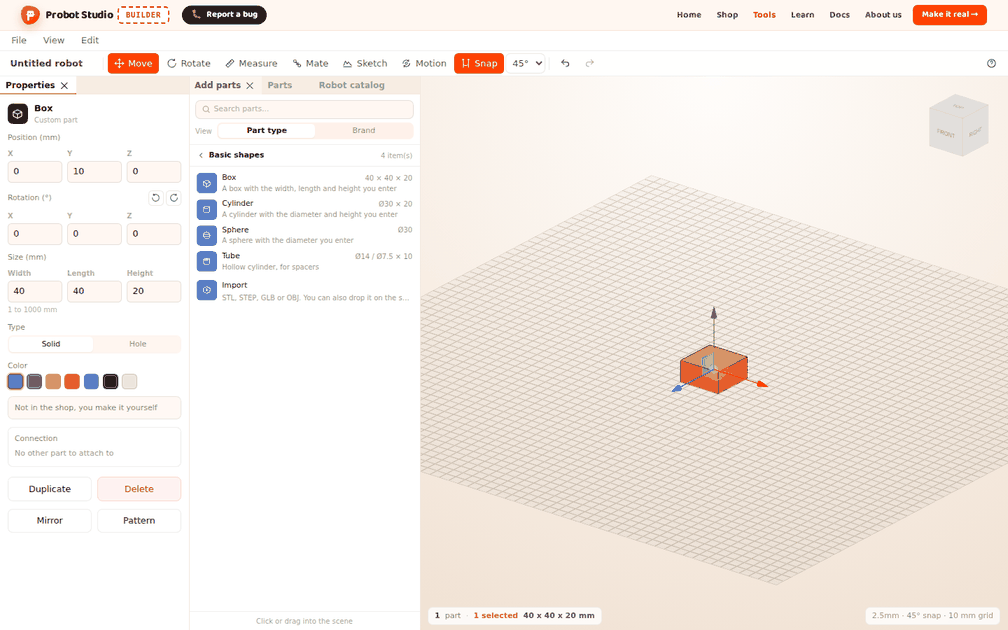
- The first time Builder opens, the layout looks like this: the Left panel has the Add parts (in front), Parts and Robot catalog tabs, the Scene is in the middle, and the Properties panel is next to it. The Build panel is closed.
Move a tab somewhere else
Every panel is a tab. To move it, hold the tab by its name and drag it.
- In the Left panel, hold the Parts tab by its name.
- Drag the tab to the edge of the Scene on the Properties side. A colored area shows where it will go.
- Let go of the mouse button.
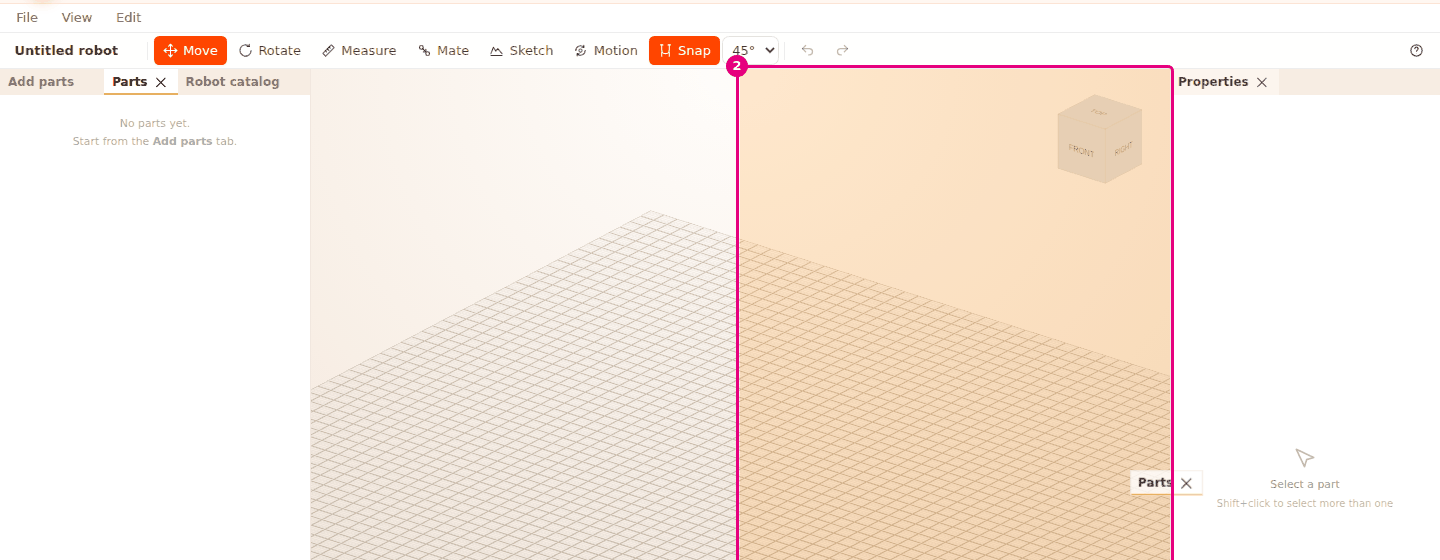
Result: Parts sits in its own column next to the scene. Add parts and Robot catalog stay in the Left panel.
The tab stays wherever you drop it:
- Onto another panel's tab row: It becomes a tab in the same group as that panel.
- Onto the edge of a panel: It becomes a separate panel next to or below that panel. If you drop it on the bottom edge, the two panels sit one above the other.
- Onto the edge of the scene: It becomes a new column or row on one of the scene's four edges. You cannot drop a tab in the middle of the Scene.
If you hold an empty spot on the tab row and drag, all the tabs in the group move together. Tabs that do not fit in the tab row go into the drop-down list at the end of the row.
Close a panel and open it again
- Move the mouse over the Robot catalog tab (or select the tab to bring it to the front). An × appears next to the tab. Press the × to close the panel.
- In the Menu bar, press View.
- In the PANELS group, check Robot catalog.
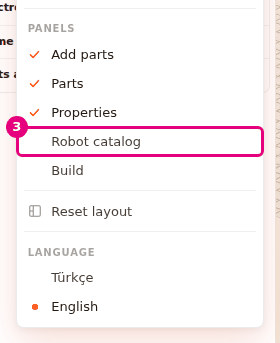
Result: Robot catalog opens again and comes to the front.
The PANELS group has five panels: Add parts, Parts, Properties, Robot catalog and Build. Open panels have a check mark next to them. Selecting a checked panel closes it. A panel you open again goes here:
- Add parts, Parts, Robot catalog: It opens as a tab in the group of one of these three that is open. If none of them is open, a new column opens next to the scene.
- Properties: It opens in its own column next to the scene.
- Build: It goes below Properties if Properties is open. If not, it goes next to the scene.
You cannot close the Scene. It has no tab and no ×.
Change a panel's width
- Move the mouse pointer over the divider line between the Left panel and the Scene.
- Drag the divider left or right.
- To give the panel back its comfortable width, double-click the divider.
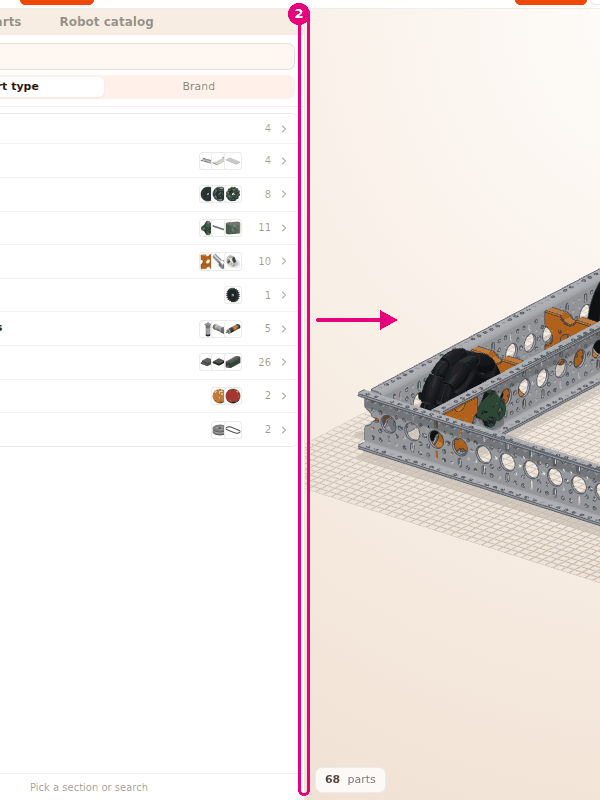
Result: The panel gets wider or narrower. The Scene takes up the difference, and the other panels stay where they are.
Panels do not get narrower than a set width. The Scene also stays at least 320 px wide.
| Panel | Narrowest | Width after a double-click |
|---|---|---|
| Add parts | 280 px | 310 px |
| Parts | 210 px | 240 px |
| Properties | 250 px | 270 px |
| Robot catalog | 300 px | 330 px |
| Build | 300 px | 330 px |
If a group has more than one tab, the group takes the value of its widest tab. That is why the default Left panel becomes 330 px when you double-click.
Reset the layout
- In the Menu bar, press View.
- Go down to the PANELS group near the end of the menu.
- Below the group, select Reset layout.
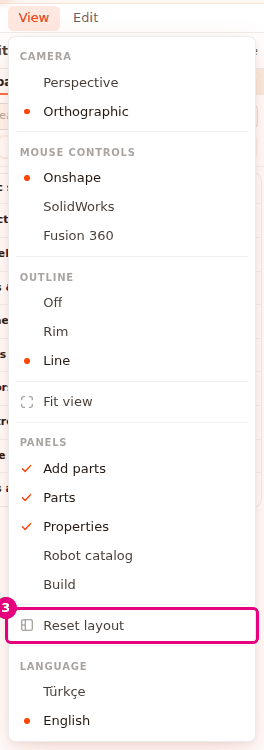
Result: The panels go back to the places and widths they had the first time Builder opened. Add parts comes to the front, and Build closes.
Resetting only changes where the panels are. It does not touch the robot in the scene, or the camera, mouse controls and outline choices in the View menu.
What the panels do by themselves
- Properties opens by itself: If you closed the Properties panel, it opens again when you select a part while nothing is selected. This way you have a place to change the selected part's settings. If Properties is open but is a tab at the back of another group, selecting a part does not bring it to the front. To see the settings, select its tab.
- The layout is remembered: This browser keeps the place and width of the panels. When you open Builder again, it comes back with the same layout. In another browser or on another computer, you get the first layout.
- Selecting a tab briefly frames the panel: Even if you select the tab that is already in front, you see which panel it is. Parts list and Robot catalog on the empty scene card ("The scene is empty") also show the panel this way.
- The Sketch tab is temporary: While Sketch or Extrude is open, a temporary tab joins the Left panel. When it closes, the tab you had before comes back. This tab is not saved in the layout.
Having trouble?
- A panel is gone: In the View menu, check that panel in the PANELS group. See Troubleshooting.
- I closed Properties and it opened again by itself: It opens when you select a part while the panel is closed. There is no setting for this. To keep the panel from taking up space, you can make it a tab in another group. Then, to see the settings, select the Properties tab.
- The panel does not get any narrower: The panel is at its narrowest width. Check the values in the table.
- The layout is a mess: Select View > Reset layout.
- I cannot drop the tab in the middle of the scene: A tab cannot go in the middle of the scene. Drop it on one of the scene's edges.