Start with a ready-made example
On this page you open one of the six ready-made examples in Probot Blocks. An example comes with the six lifecycle blocks, and the blocks that do the work are already inside them. You do not have to start from scratch.
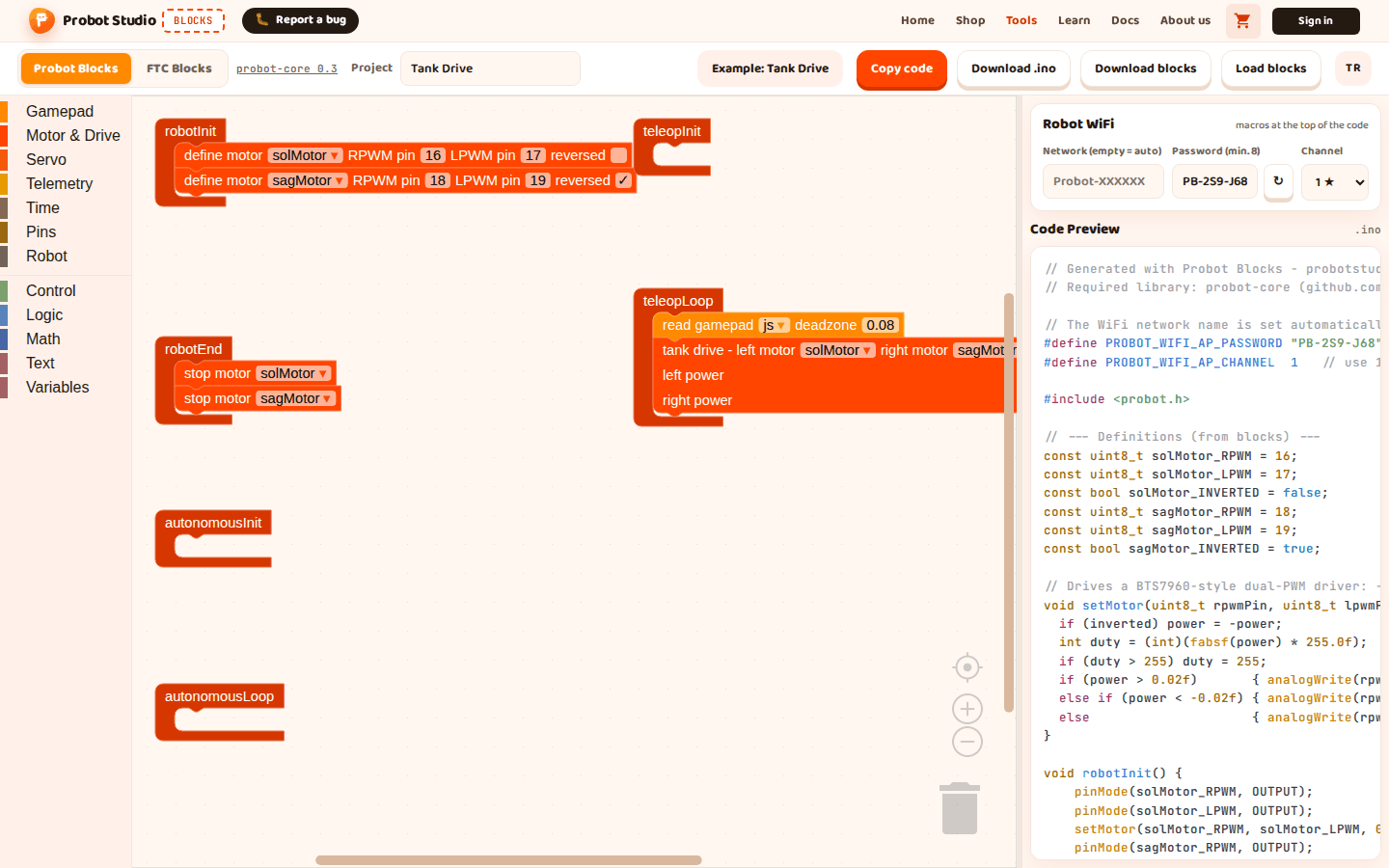
Before you start
- Computer and browser: What you need.
- Blocks is open. See First 10 minutes.
Open an example
Warning
An example replaces the project in the workspace, and it does not ask first. To keep your project, press Download blocks first. See Save the project, open it and start over.
- In the toolbar, select the Probot Blocks tab. On the FTC Blocks tab, Pick an example opens the FTC examples instead: Start with an FTC example.
- In the toolbar, press Pick an example.
- In the "Probot examples" window, select the Arcade Drive card. An "Arcade Drive example
loaded." notification appears in the corner and is gone after 5 seconds.
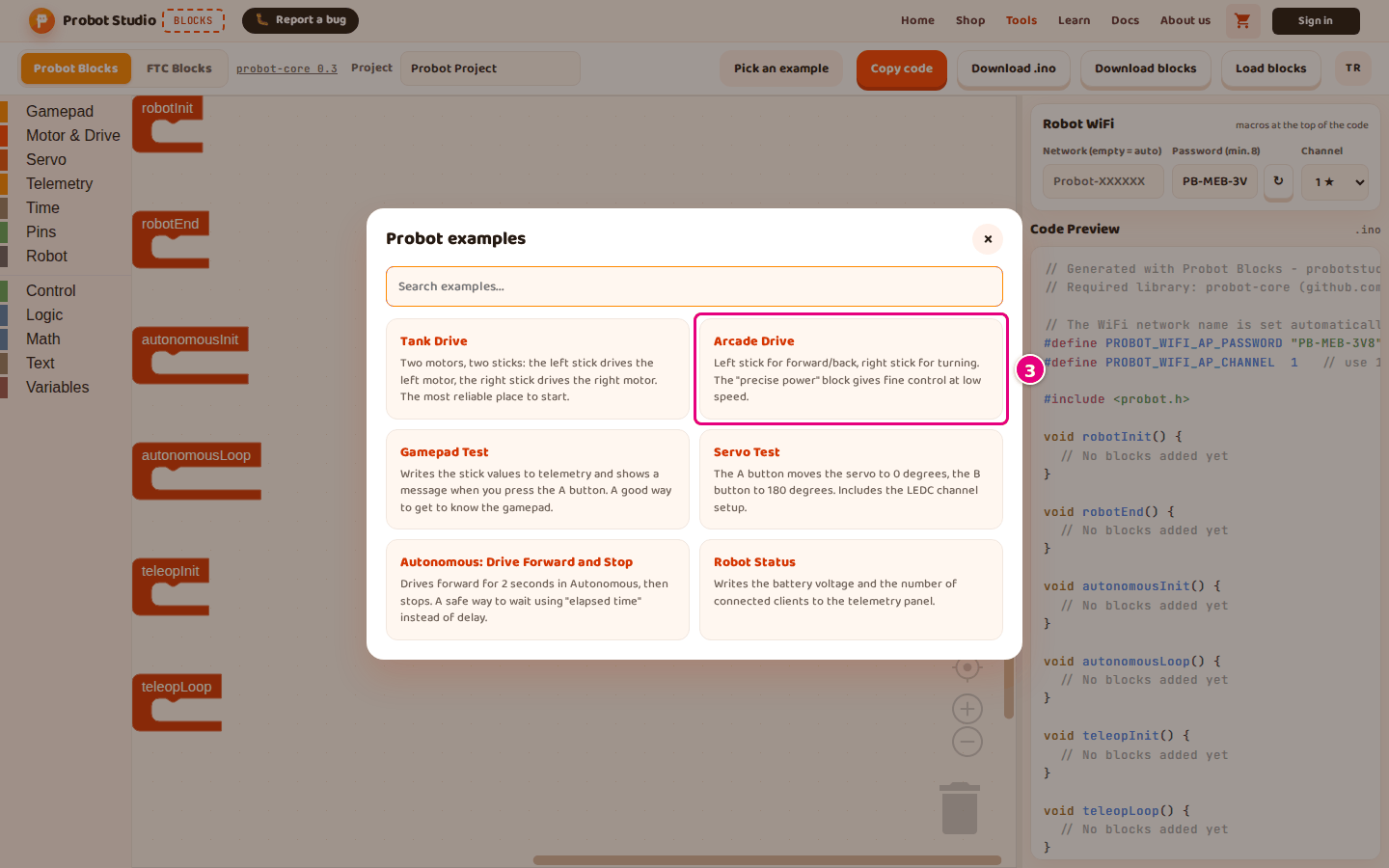
Result: The example's blocks appear in the workspace. In the toolbar, the Project box shows "Arcade Drive" and the button reads "Example: Arcade Drive".
Search for an example
- On the Probot Blocks tab, in the toolbar, press Pick an example. The cursor moves to the Search examples... box.
- Type
servoin the box. Only the Servo Test card stays in the list. - Select the Servo Test card.
Result: A "Servo Test example loaded." notification appears. In the toolbar, the button reads "Example: Servo Test".
The search looks in the example's name and in the description on its card. Upper and lower case do not matter. If nothing matches, "No matching examples." appears instead of the list.
To close the window without picking an example, press ×, click outside the window or press Esc. When the window closes, the search box is cleared.
What each example does
| Example | What it does | Filled blocks |
|---|---|---|
| Tank Drive | Two motors, two sticks: the left stick drives the left motor, and the right stick drives the right motor. | robotInit, robotEnd, teleopLoop |
| Arcade Drive | The left stick drives forward and back, and the right stick turns. The precise power block gives fine control at low speed. | robotInit, robotEnd, teleopLoop |
| Gamepad Test | Writes the Y value of the left stick to telemetry on a "left Y" line, and the X value of the right stick on a "right X" line. It writes "A pressed!" when you press the A button. | teleopLoop |
| Servo Test | The A button moves the servo to 0 degrees, the B button moves it to 180 degrees. | robotInit, robotEnd, teleopLoop |
| Autonomous: Drive Forward and Stop | When autonomous starts, it drives both motors at 0.4 power and stops them after 2 seconds. It measures the time with the elapsed time (ms) block. | robotInit, robotEnd, autonomousInit, autonomousLoop |
| Robot Status | Writes the battery voltage to telemetry on a "battery (V)" line, and the number of connected clients on a "clients" line. | teleopLoop |
In the examples, the define motor blocks connect the left motor to pins RPWM 16 and LPWM 17, and the right motor to pins 18 and 19. The right motor has reversed checked. The define servo block connects the servo to pin 4, LEDC channel 7.
If your robot is wired differently, change the pin numbers in these two blocks.
Save the example you changed
Warning
The browser does not save the loaded example's blocks until you change a block. If you refresh the page before that, the blocks of your previous project come back, but the Project box keeps the example's name.
- In the toolbar, delete the example name in the Project box.
- Type your own project name in the box, for example
Team Arcade. - In the toolbar, press Download blocks.
Result: A "Block project downloaded." notification appears. The file team-arcade.probot.json
arrives in your Downloads folder. The new project name is saved in the browser too.
Having trouble?
- "Could not load the example." appears: Refresh the page and pick the example again.
- A different project came back after a refresh: See Troubleshooting.
- "No matching examples." appears: The word in the search box is not in the name or the description of any example. Clear the box and look at the list.
- Picking an example deleted my program: See Troubleshooting.