Set up the robot configuration
An FTC program finds motors and sensors by their names on the Control Hub. On this page you make the Robot configuration list match the robot configuration on the Control Hub. If a name is different, the program cannot find the device.
Before you start
- Blocks is open and the FTC Blocks tab is selected.
- Know the device names in the Control Hub configuration (for example from the Configure Robot screen on the Driver Station).
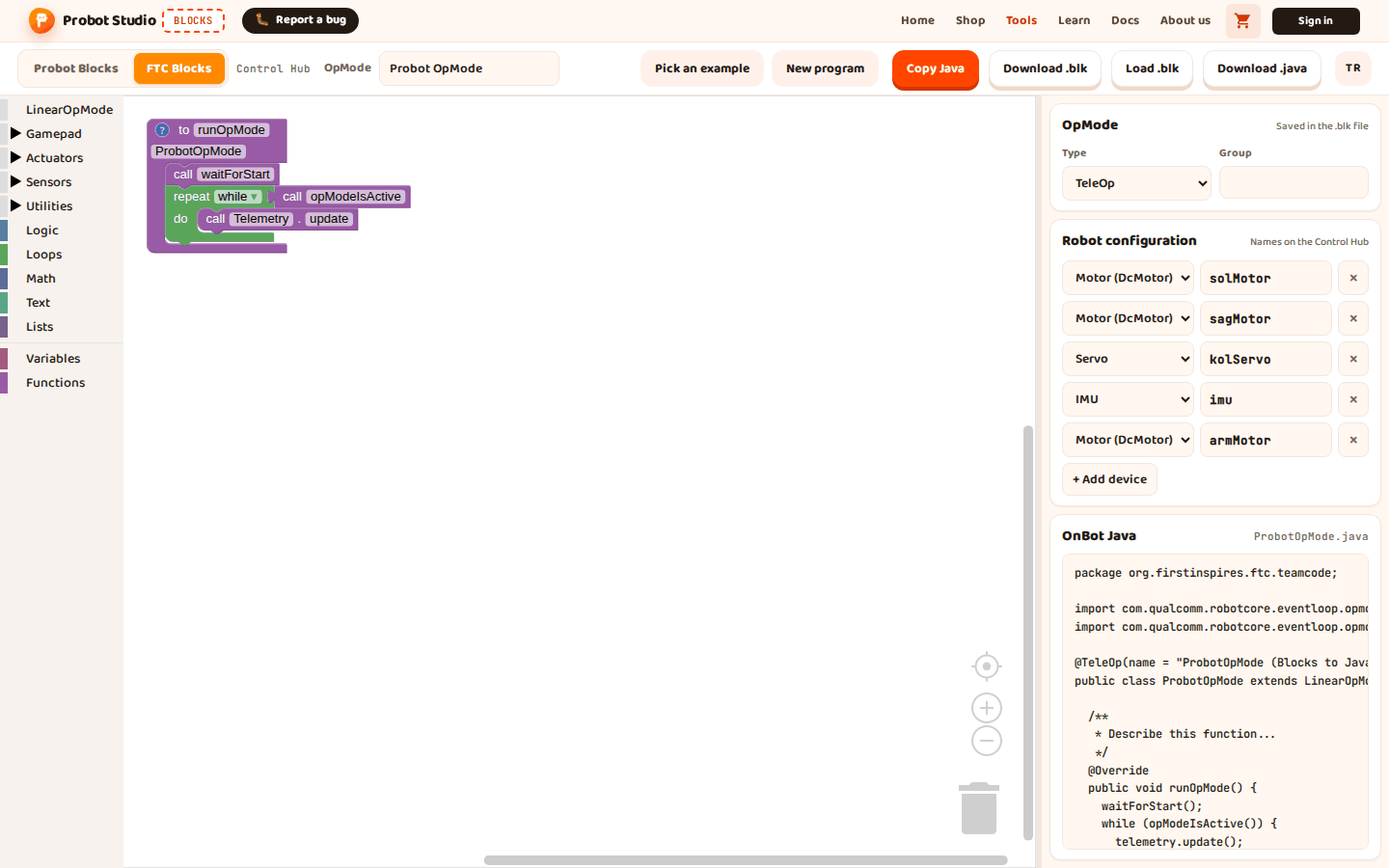
The default list has four devices: solMotor, sagMotor (Motor), kolServo (Servo), imu (IMU).
If you want to start with a ready-made list, open an example. The list fills with the example's devices. See
Start with an FTC example.
Add a device
+ Add device always adds a motor (motor1, motor2...). You change its type and name afterward.
- In the side panel, in the Robot configuration section, press + Add device.
- In the new row's type list, select the type: Motor (DcMotor), Servo, Continuous rotation servo (CRServo) or IMU.
- In the name box, type the name on the Control Hub, for example
armMotor. Turkish letters and spaces are not accepted. - Press Enter or leave the box.
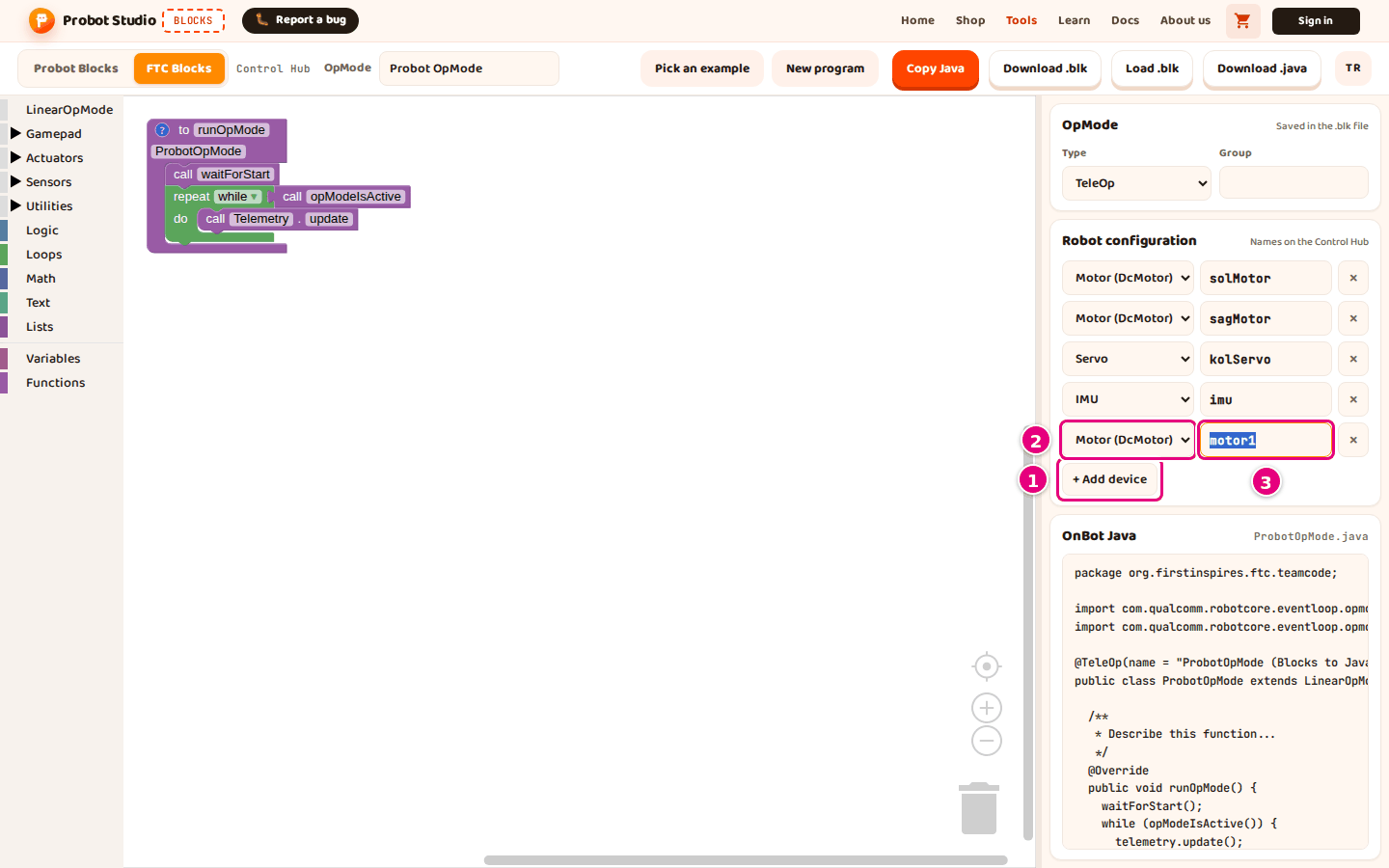
Result: The device is added to the list. In the block list, a category with the device's name appears under Actuators > DcMotor. Servos go under Servo or CRServo, and the IMU goes under Sensors > IMU.
Rename a device
A name starts with an English letter (A-Z, a-z) or _. It can only have English letters, digits and _.
Turkish letters (ç, ğ, ı, İ, ö, ş, ü) and spaces are not accepted. For example, sagMotor works and sağMotor does not.
- In the side panel, in the Robot configuration section, press the device's name box.
- Delete the old name in the box.
- Type the new name, for example
armMotor. - Press Enter or leave the box.
Result: Every block that uses that device gets the new name.
If the name breaks the rule, "A name must start with a letter and can only use letters, numbers and _." appears below + Add device. If the same name is already in the list, "This name is already in use." appears. In both cases the old name comes back in the box.
Remove a device
Warning
If blocks that use the device stay in the workspace, the device comes back to the list by itself when the page opens again. To remove a device for good, also delete the blocks that use it or switch them to another device.
- In the side panel, in the Robot configuration section, press × on the row of the device you want to remove. The blocks that use it are not deleted. A warning icon appears on them.
- In the workspace, select a block with a warning icon.
- Press Delete. Repeat steps 2 and 3 for each block with a warning icon.
Result: The device leaves the list and no block uses it. When the page opens again, the device does not come back to the list.
To switch the blocks to another device instead of deleting them, see Fix blocks with a warning icon.
Fix blocks with a warning icon
If a block uses a device that is not in the list, a warning icon appears on it. A warning bubble opens next to it by itself: "There is no ... named ... in the current robot configuration". You can press the icon to close the bubble and open it again.
- Read the device type and name in the bubble, for example
DcMotorandarmMotor. - In the side panel, in the Robot configuration section, press + Add device.
- In the new row's type list, select the type that matches the bubble, for example Motor (DcMotor) for
DcMotor. - In the name box, type the name from the bubble exactly, letter for letter.
- Press Enter or leave the box.
Result: The warning icon and the bubble go away. The block now finds the device.
If the Control Hub has no device with this name, do not add a device. Select an existing device from the dropdown on the block instead. You can also rename an existing device to the name in the bubble.
Note
When you open a program with Load .blk or paste one from Probot Blocks, its devices are added to the list by themselves. When you open an example with Pick an example, the example's devices replace the whole list.
Having trouble?
- The device you removed came back to the list: A block that uses it is still in the workspace. See Remove a device.
- The old name came back in the name box: The name breaks the rule or the same name is already in the list. See Troubleshooting.
- Device not found error at INIT: A name in Blocks is different from the one in the Control Hub configuration. Compare the names letter by letter. See Upload the program to the Control Hub.