Move blocks to FTC Blocks
You can copy the blocks you wrote in Probot Blocks into FTC Blocks. When you copy a block, Blocks also writes its FTC version to the clipboard. On this page you move a drive block to an FTC program.
Before you start
- Blocks is open.
- To try it with ready-made blocks, open Pick an example > Tank Drive. See Start with a ready-made example.
Warning
The example replaces the project in the workspace without asking. To keep your own project, press Download blocks first. See Save the project, open it and start over.
Copy the Probot block
Note
If you copy a block alone and it has no FTC version, nothing is written to the clipboard and no notification appears. The What each block becomes in FTC table shows which blocks have one.
- In the toolbar, select the Probot Blocks tab.
- In the workspace, select the block you want to move, for example tank drive inside teleopLoop.
- Press Ctrl+C (on a Mac, Cmd+C). A "Block copied. You can paste it in FTC Blocks too." notification appears. It appears only once per page.
Result: The selected block is copied to the clipboard together with the blocks plugged into its slots. The blocks attached below it are not copied.
To move a whole section, select a lifecycle block such as teleopLoop. All the blocks inside it are copied. To move a block and remove it from Probot, press Ctrl+X.
Paste into FTC Blocks
- In the toolbar, select the FTC Blocks tab.
- In the FTC workspace, move the mouse to where the block should go and click once.
- Press Ctrl+V (on a Mac, Cmd+V). The blocks appear where the mouse is.
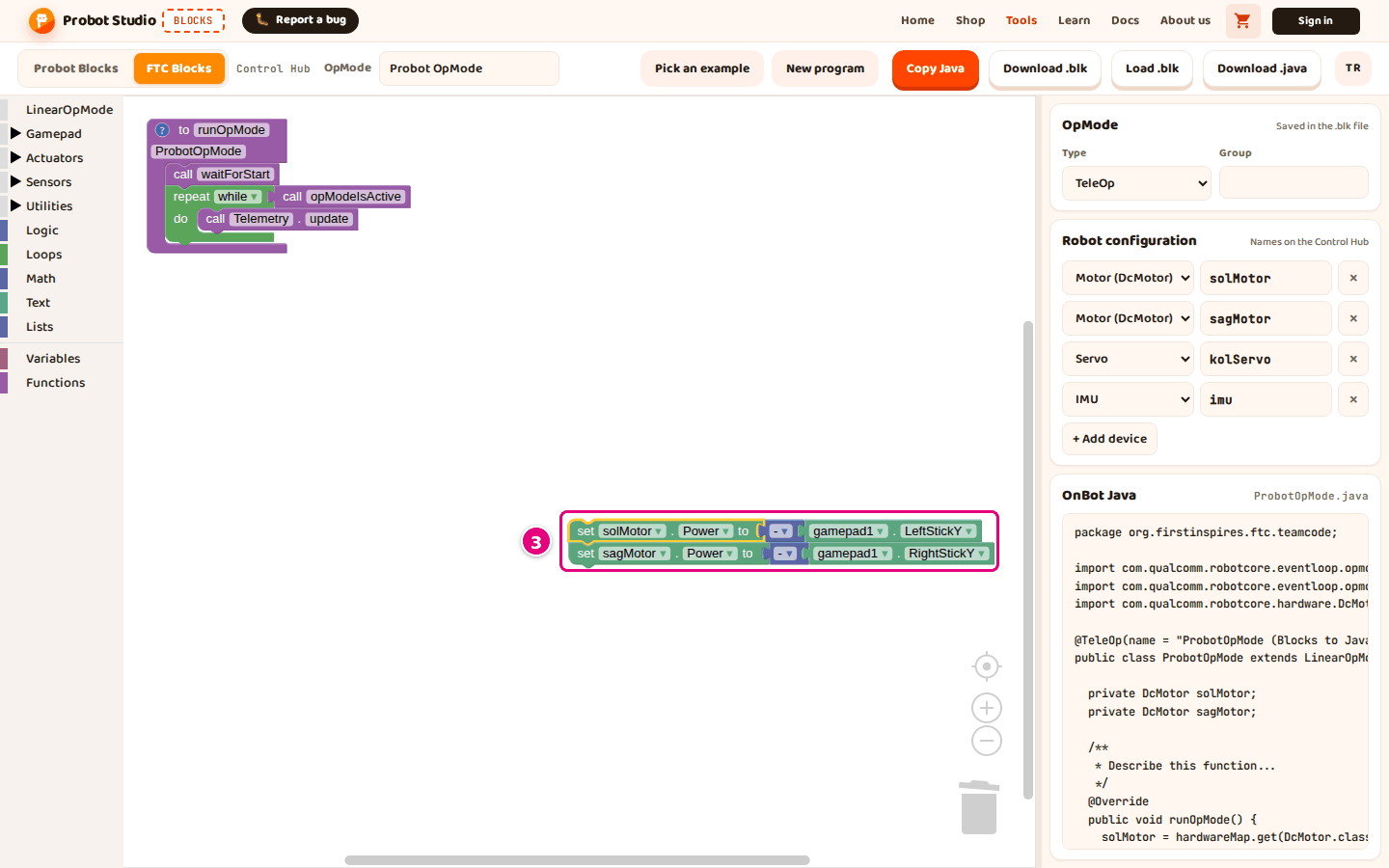
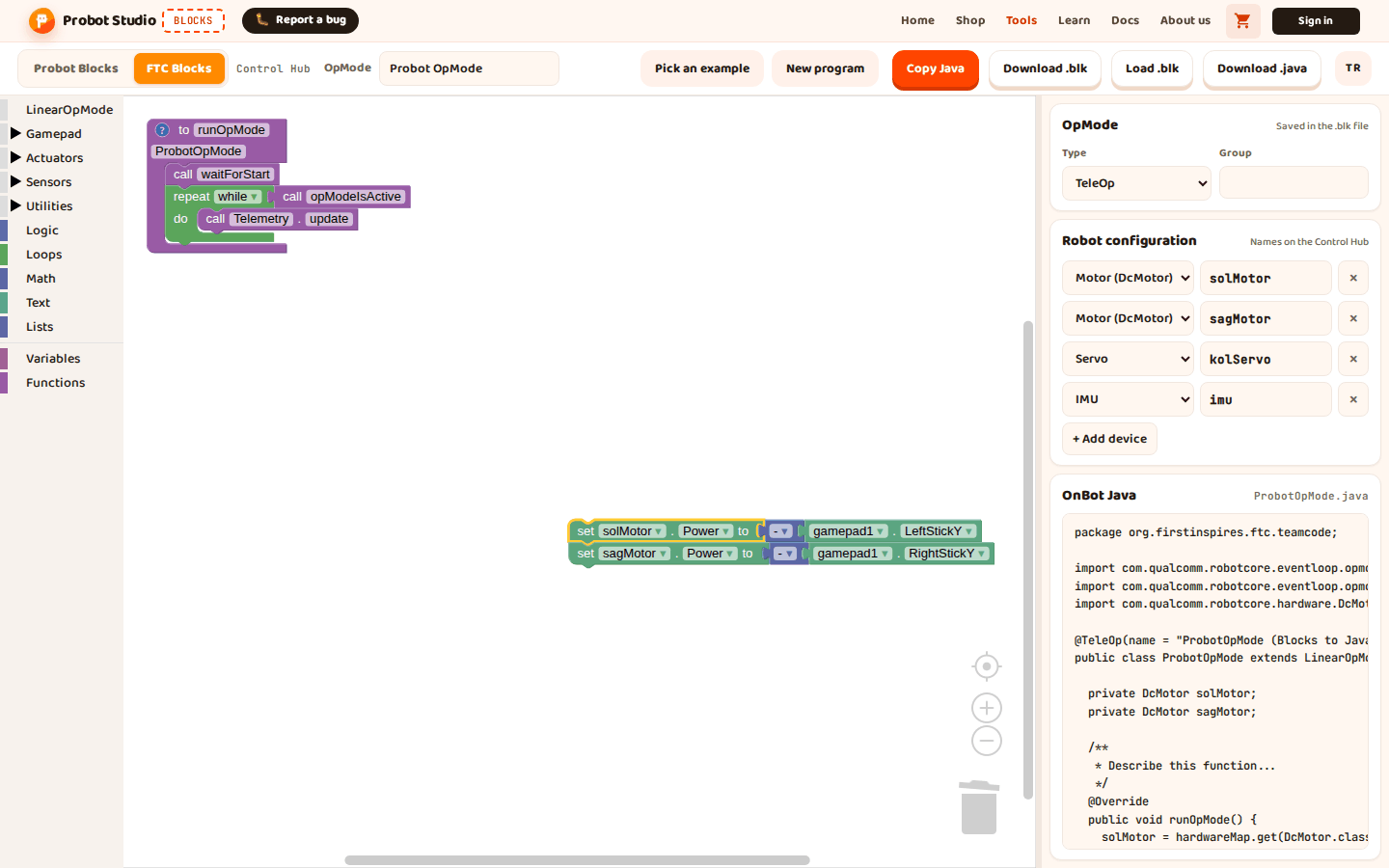
- Drag the pasted blocks to the right place inside the to runOpMode block. The table below shows where each section goes.
Result: The blocks sit inside to runOpMode as their FTC versions. In the Tank Drive example, you get
two set ... Power to blocks, for solMotor and sagMotor. If a motor or servo name used in the
blocks is not in the list, it is added to the Robot configuration.
| Probot section | Place in FTC |
|---|---|
| robotInit | Before call waitForStart |
| teleopInit, autonomousInit | After call waitForStart, before the loop |
| teleopLoop, autonomousLoop | The do slot of the repeat while call opModeIsActive block |
| robotEnd | After the loop |
What each block becomes in FTC
| Probot block | FTC version |
|---|---|
| drive motor | The Power block of the DcMotor with the same name (solMotor.Power) |
| stop motor | The Power block of the same motor, value 0 |
| tank drive | Two Power blocks: left power to the left motor, right power to the right motor |
| arcade drive | Two Power blocks: forward/back + turn to the left motor, forward/back - turn to the right motor |
| define motor | If reversed is checked, the motor's Direction value becomes REVERSE. If it is not checked, the block is skipped. |
| servo angle | The Position block of the Servo with the same name. The angle is divided by 180: 90 degrees becomes 0.5. |
| precise power | The value cubed (^ 3) |
Gamepad blocks (js): stick, trigger, button and D-Pad direction |
gamepad1 |
| left stick ↕ (forward +), right stick ↕ (forward +) | - gamepad1.LeftStickY, - gamepad1.RightStickY: in FTC, forward is negative, so a minus block is added by itself |
| write to telemetry, Serial print line, Serial print | Telemetry text block (telemetry.addData) |
| write value to telemetry | Telemetry block with the same label (telemetry.addData) |
| wait ... ms | sleep |
| elapsed time (ms) | getRuntime × 1000 |
| The in autonomous?, in TeleOp? and missed a deadline? options of the robot block | false |
| Control, Logic, Math, Text, Variables blocks | The same block |
| Pin blocks (except Serial print), stop servo signal, clear telemetry, read gamepad, D-Pad angle, connected?, raw axis number, raw button number, gamepad mapping, the robot: block (for example battery voltage (V)) | No FTC version, skipped |
A call Telemetry.update block is added by itself after the telemetry blocks. If a value block with
no FTC version is in a slot of a Probot block, a 0 takes its place. In the text slot of
write to telemetry, Serial print line and Serial print, an empty text block takes its place.
If the value block is inside a Control, Logic or Math block, that slot stays empty.
After pasting, check that the motor names match the names on the Control Hub. See Set up the robot configuration.
Having trouble?
- Pasting adds no block, or adds the previous copy: The block you selected has no FTC version, so nothing was written to the clipboard. Look at the What each block becomes in FTC table and use an FTC block that does the same job.
- No notification on the second copy: The "Block copied" notification appears only once per page. The block is still copied to the clipboard.
- An empty slot is left: The Probot block in that slot has no FTC version. Plug an FTC block into the slot.