Try the robot in Sim
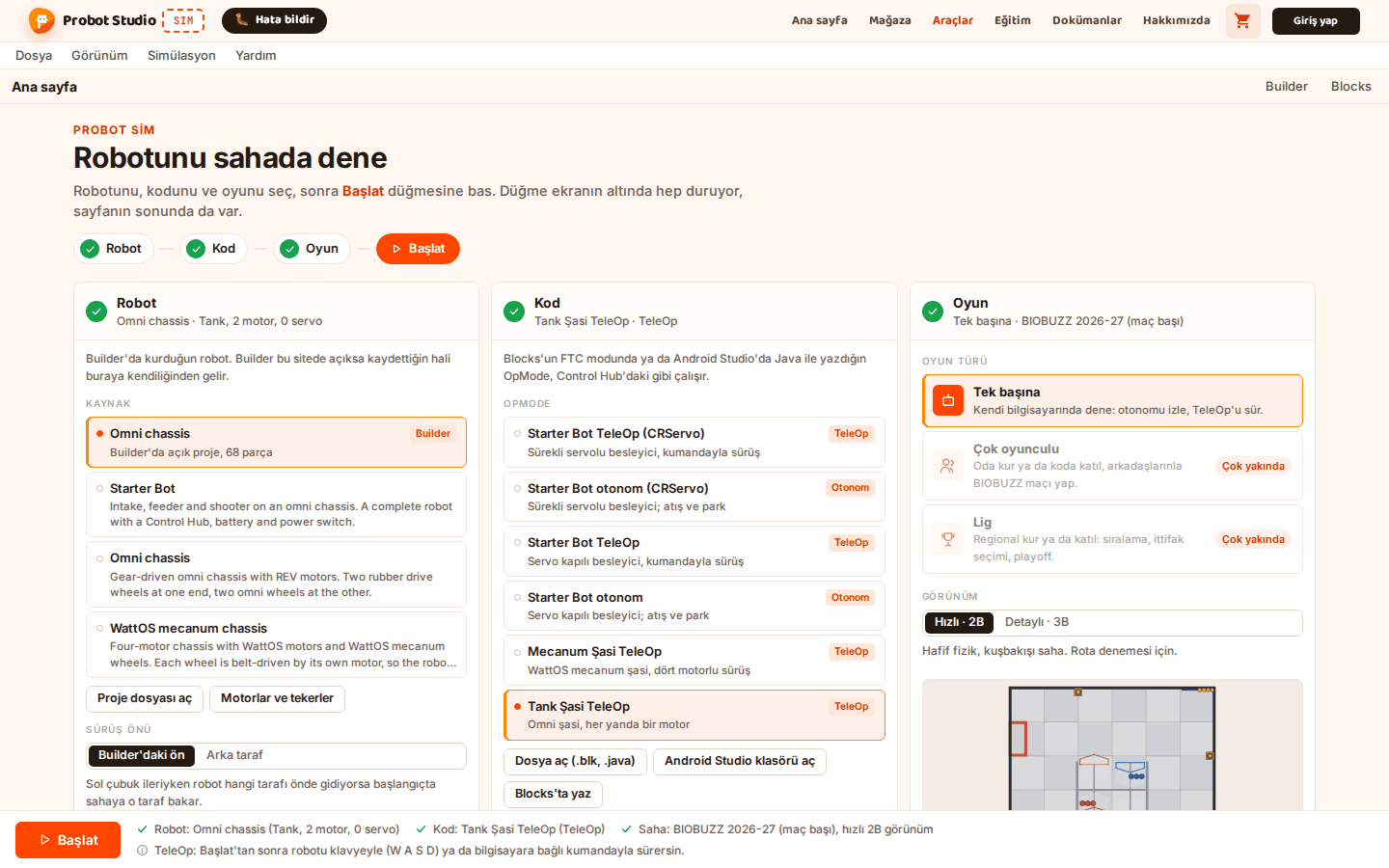
On this page you will send the robot that is open in Builder to Sim. Sim opens in a new tab, and your robot is already selected there. The Sim docs explain how to use Sim itself. Sim's interface is in Turkish for now.
Before you start
- There is a robot in the scene. To start with a ready-made robot, load the Omni chassis. See Start with a ready-made robot.
- If you gave your motors a name and a port, these go to Sim too. See Give motors and servos a name and a port.
- Your browser lets this site open new tabs.
Try in Sim from the File menu
- In the Menu bar, press File.
- Select Try in Sim.
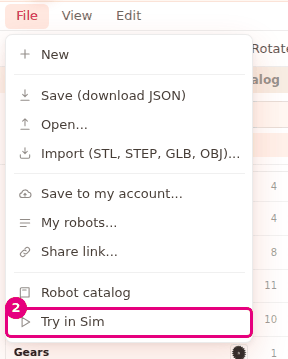
- Switch to the new tab that opens.
Result: Sim opens in a new tab. The project open in Builder is selected as a robot, with the project's name. The Builder tab stays open, and your work stays there.
Try in Sim from the Robot catalog
- In the Left panel, select the Robot catalog tab.
- Next to the Search robots... box, press Try in Sim.
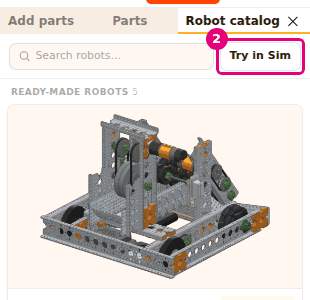
- Switch to the new tab that opens.
Result: Sim opens in a new tab, and your robot is selected. The two buttons do the same thing.
What goes to Sim
Whatever is in the scene at the moment you press Try in Sim goes to Sim. Builder first saves the project in this browser, then opens Sim on the same site. Sim reads the robot from this save.
What goes to Sim:
- All the parts in the scene, with their positions and angles.
- The attachments and joints between the parts. Wheels and gears that have no joint get their missing joints set up automatically. The joints you set up are left as they are.
- The Name, Hub, Port and Reverse direction of each motor and servo. If you did not give a motor a name or a port, Sim fills in what is missing.
- The project name. The robot shows up in Sim with this name.
After that:
- After you change the robot in Builder, press Try in Sim again. Each press opens a new tab.
- Changes you make in Sim do not come back to Builder.
- You do not need an account.
When Try in Sim is faded
- When the scene is empty, Try in Sim is faded in both places. In the catalog, its tooltip says "Load a robot into the scene first". When there is a robot, the tooltip becomes "Open the robot from the scene in Sim in a new tab".
- If Sim does not respond on this site, Try in Sim does not appear in either place. Builder checks for Sim once, while the page loads.
Having trouble?
- Try in Sim is faded: The scene is empty. Load a robot or add parts. See Troubleshooting.
- Try in Sim is missing from the menu and the catalog: Builder could not reach Sim. Refresh the page. See Troubleshooting.
- No new tab opened: The browser may have blocked the pop-up window. Use the warning in the address bar to allow this site, then press Try in Sim again. See Troubleshooting.
- The "The autosave could not fit the imported models. Download the project with Save in the File menu" notification appears: The large models you imported did not fit in the autosave in this browser. Sim may not get the shape of these models. Download the project with File > Save (download JSON). See Troubleshooting.
- Sim shows the old robot: In Builder, press Try in Sim again and switch to the new tab that opens.
- The "Autosave failed because the browser storage is full" notification appears: The project could not be saved in this browser. Instead of your latest version from Builder, Sim selects an old save or another robot (for example Starter Bot). Pressing Try in Sim again does not fix this by itself, and the notification does not appear again until you refresh the page. First, download the project with File > Save (download JSON). Then free up space in this site's storage in your browser. This can also delete what the site's other tools saved in the browser. After that, refresh the page, open the project and press Try in Sim again. See Troubleshooting.