First 10 minutes
On this page you open a ready-made drive program for your Probot kit. You look at its code and download it to your computer. You do not need to install anything or create an account.
Before you start
- Computer and browser: What you need.
- You do not need the Probot kit yet. Uploading the code to the board is covered on the Upload the code to the Probot board page.
- If you are on an FTC team, follow these pages in this order instead: Start with an FTC example, Set up the robot configuration, Write a new FTC program, Save the program, open it and get the Java code, Upload the program to the Control Hub.
Open Blocks
- In your browser, go to probotstudio.com/blocks.
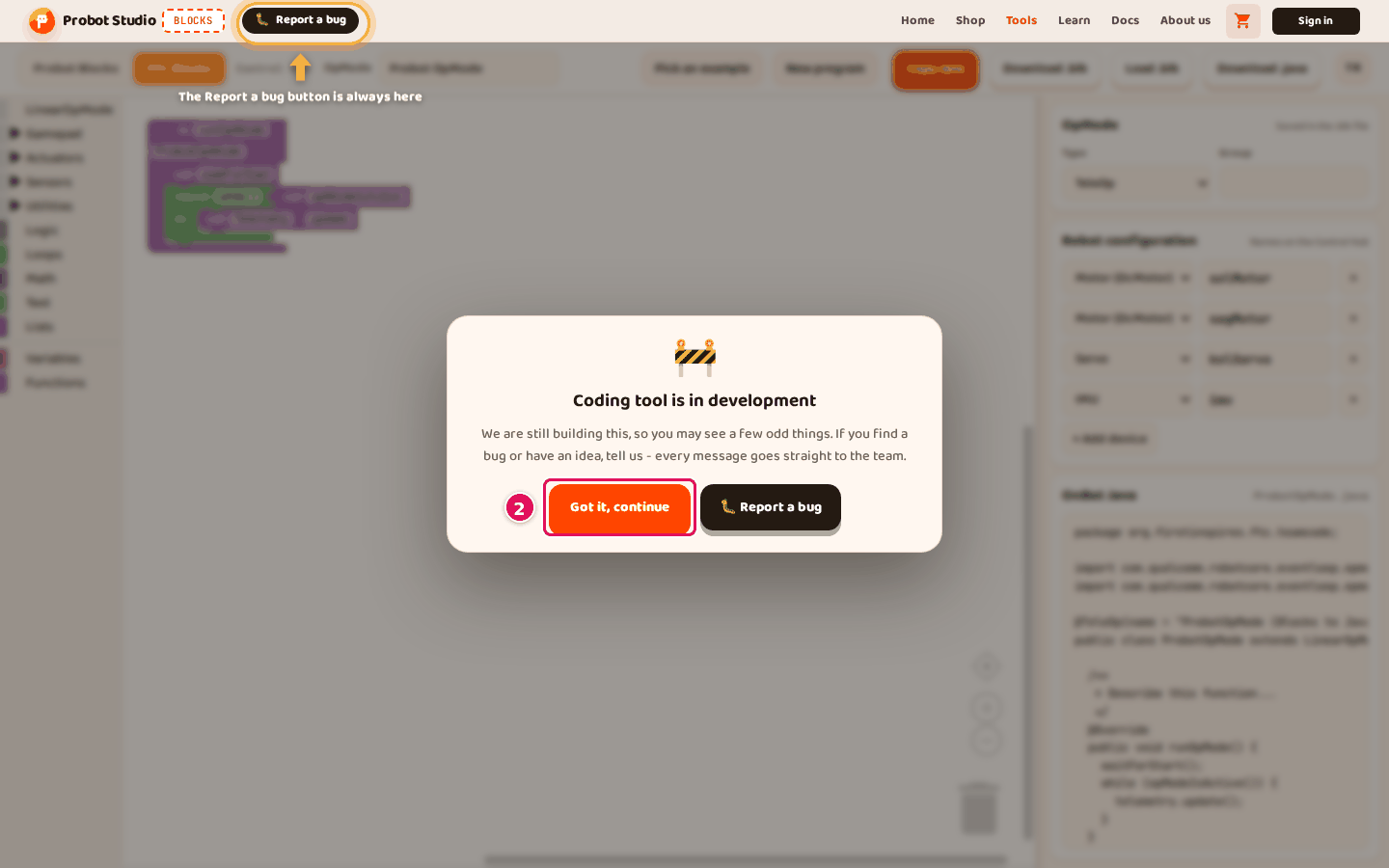
- On the "Coding tool is in development" card, press Got it, continue.
- If the cookie banner appears, press Accept or Only necessary.
Check: There is no card on the screen. You can see the toolbar and the workspace.
Load the Tank Drive example
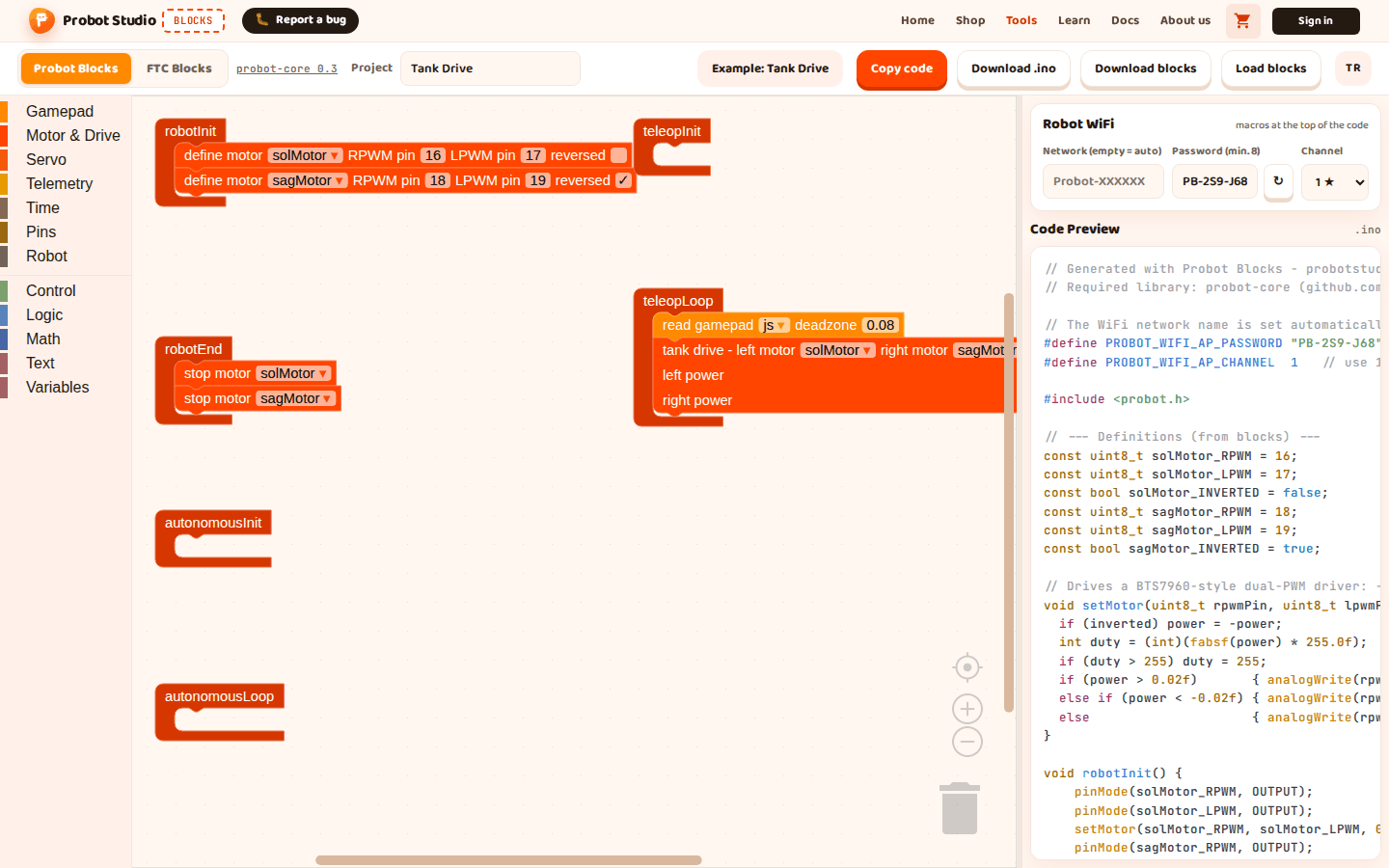
A Probot program has six ready-made blocks. robotInit runs once when you press Init on the Driver Station. teleopLoop runs about 50 times a second during TeleOp. Only the blocks you put inside these six blocks go into the code (Glossary).
Warning
Loading an example replaces the project in the workspace without asking. If you already made a project, save it first with Download blocks.
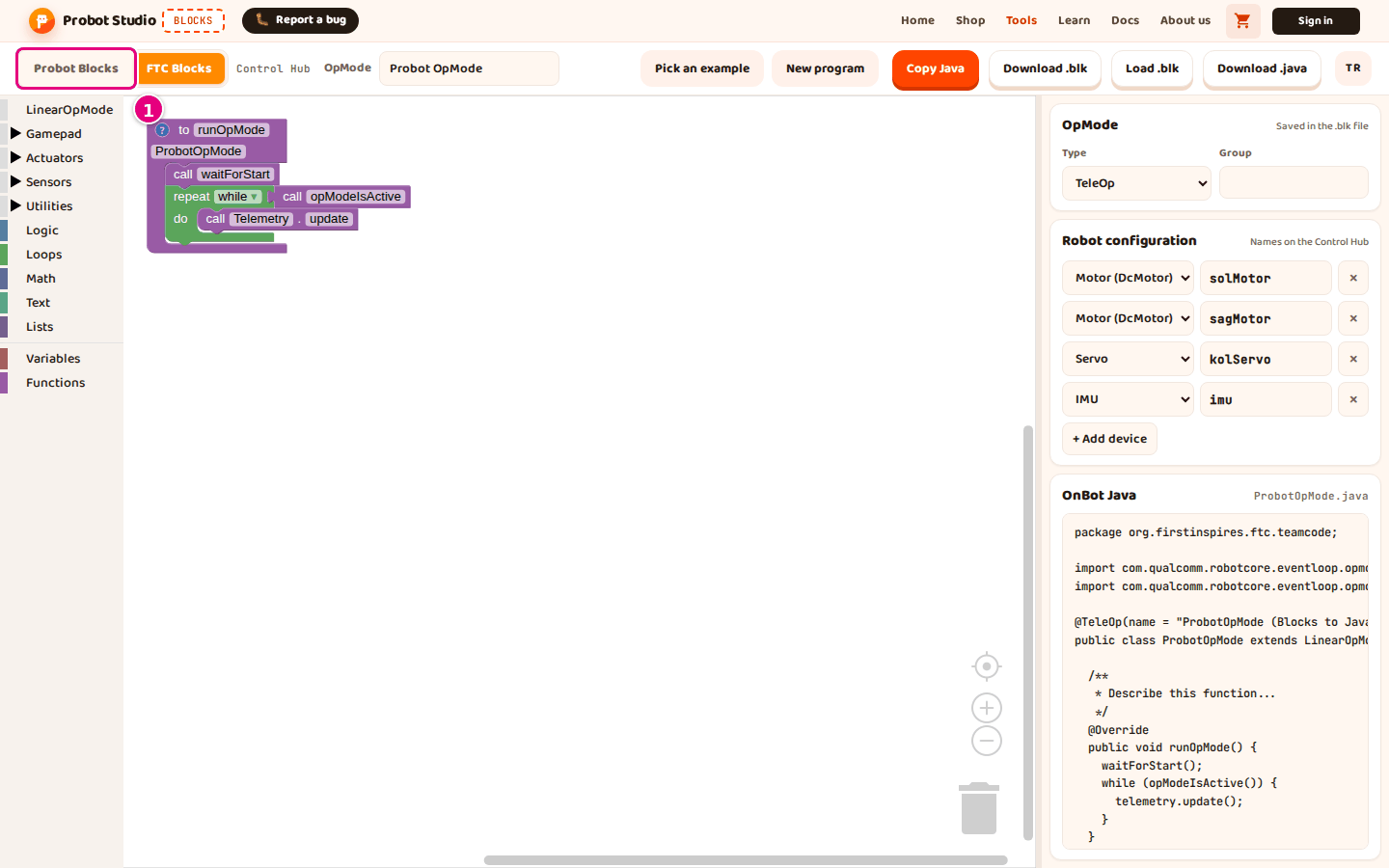
- In the toolbar, select the Probot Blocks tab. On your first visit the tool opens with the
FTC Blocks tab. After that it opens with the tab you picked last.
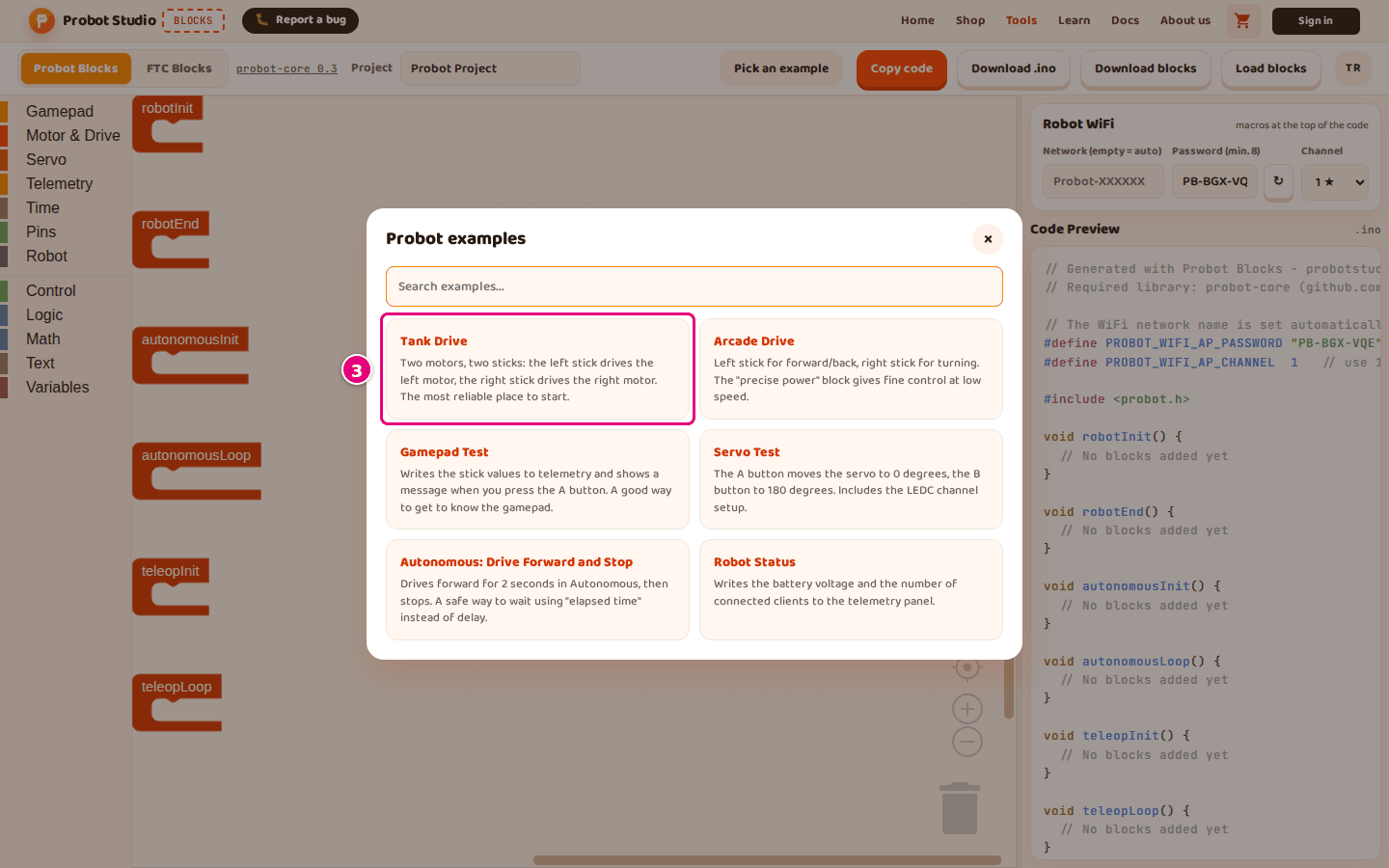
- In the toolbar, press Pick an example.
- In the "Probot examples" window, select the Tank Drive card. A "Tank Drive example loaded."
notification appears in the corner.
Check: The Probot Blocks tab is orange. The button in the toolbar reads "Example: Tank Drive". robotInit holds two define motor blocks, and teleopLoop holds the read gamepad and tank drive blocks.
Look through the code
- In the side panel, move the mouse over Code Preview.
- Turn the mouse wheel down. The lines of code scroll up.
- When the
void teleopLoop()line appears, stop turning the wheel.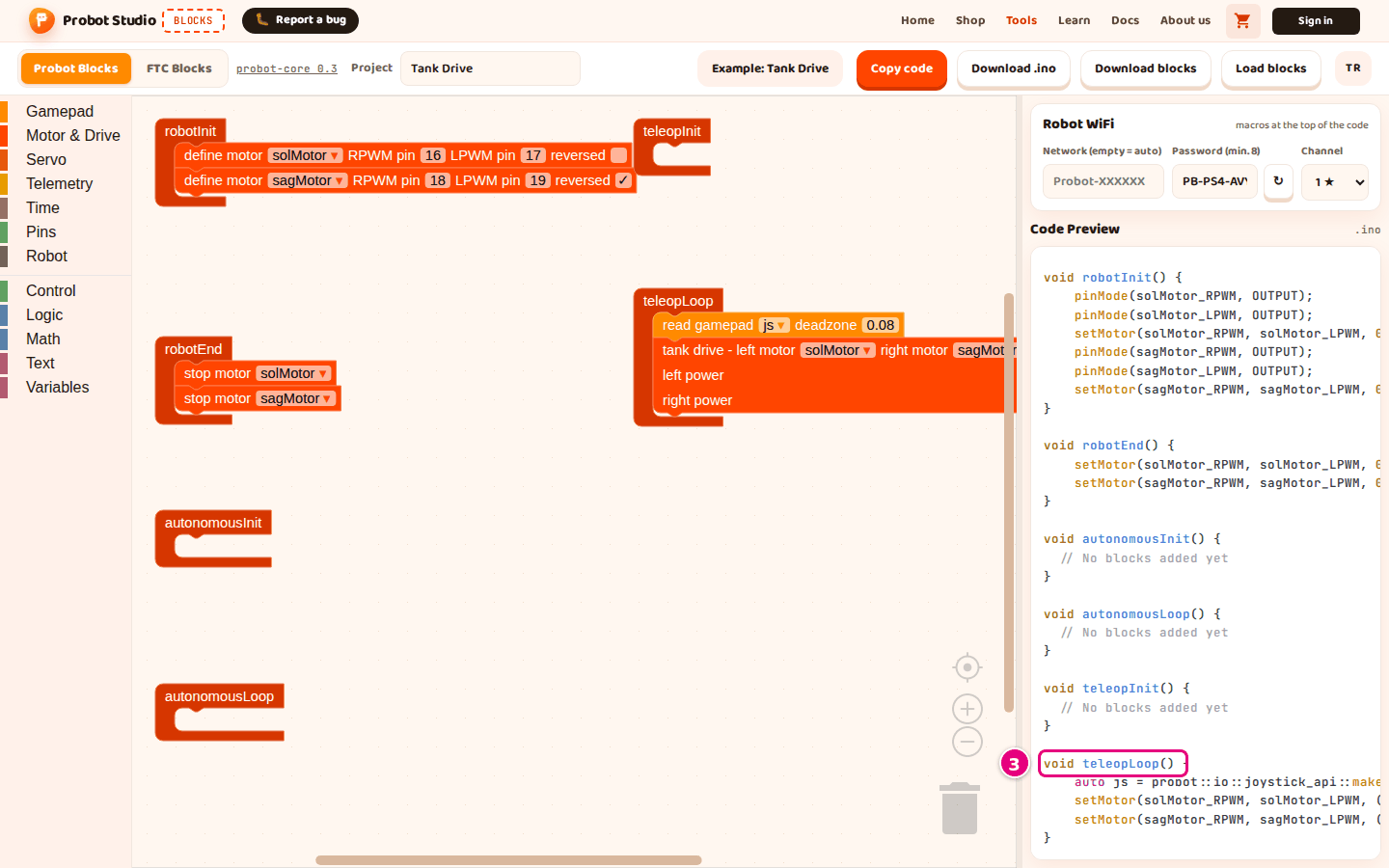
Check: Inside void teleopLoop() there are two lines that start with setMotor(. The left stick
drives the left motor, and the right stick drives the right motor. When you change a block, the
code changes right away.
Type the WiFi password
The robot broadcasts its own WiFi network, and Blocks keeps its password in this browser. If you do not open Blocks in this browser for 30 days, the saved password is deleted. The tool then makes a new one. If that happens, type the password you wrote down into the box again.
- In the Robot WiFi section, clear the Password (min. 8) box.
- Type
TEAM-2026into the box. The box turns lowercase letters into capitals (ı becomes I too). It removes letters outside A to Z, spaces, and every symbol except-.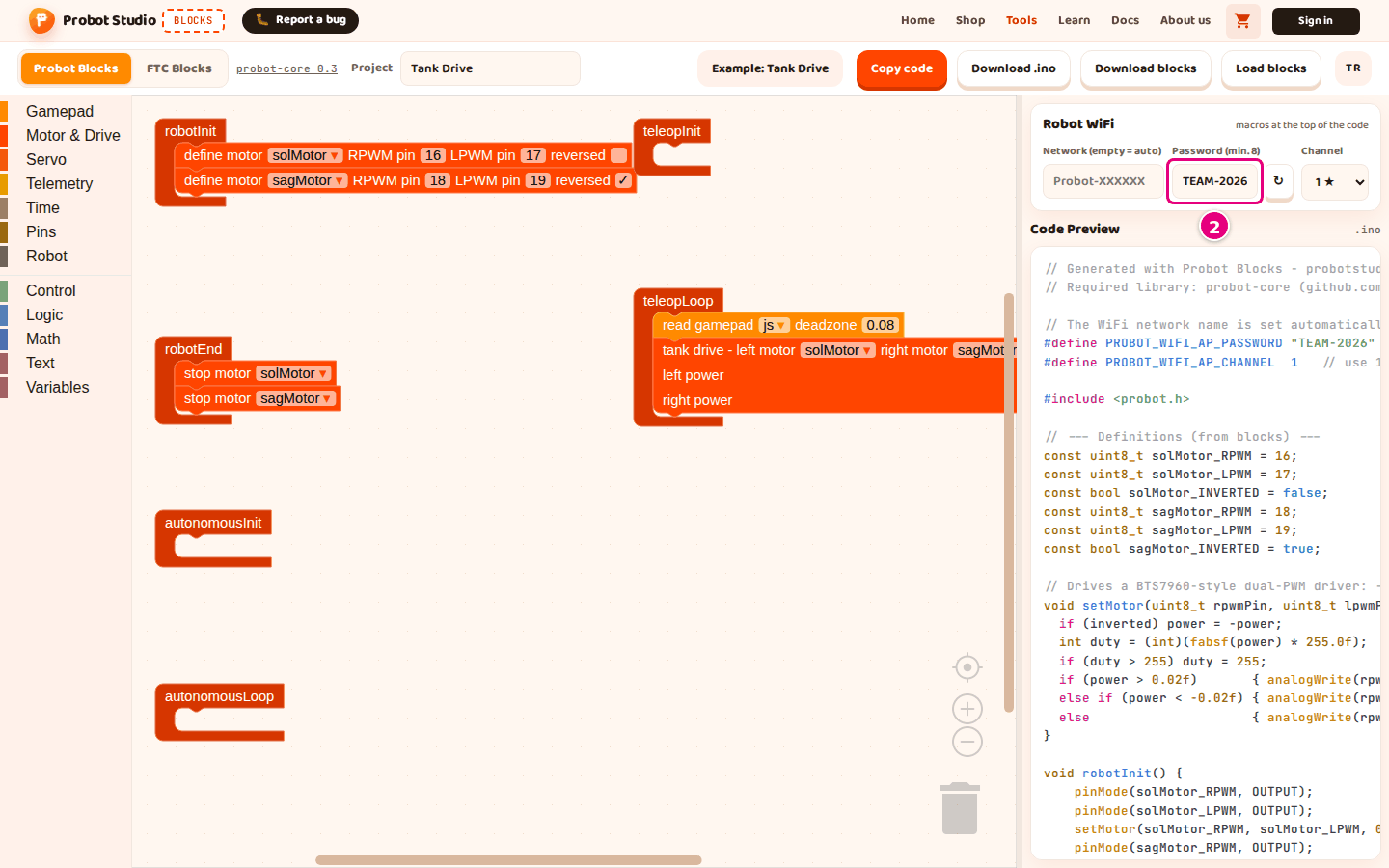
- Write the password down somewhere. You need it to connect to the robot.
Check: At the top of Code Preview there is the line #define PROBOT_WIFI_AP_PASSWORD "TEAM-2026".
Download the project and the code
- In the toolbar, press Download blocks.
tank-drive.probot.jsondownloads. - In the toolbar, press Download .ino.
tank-drive.inodownloads.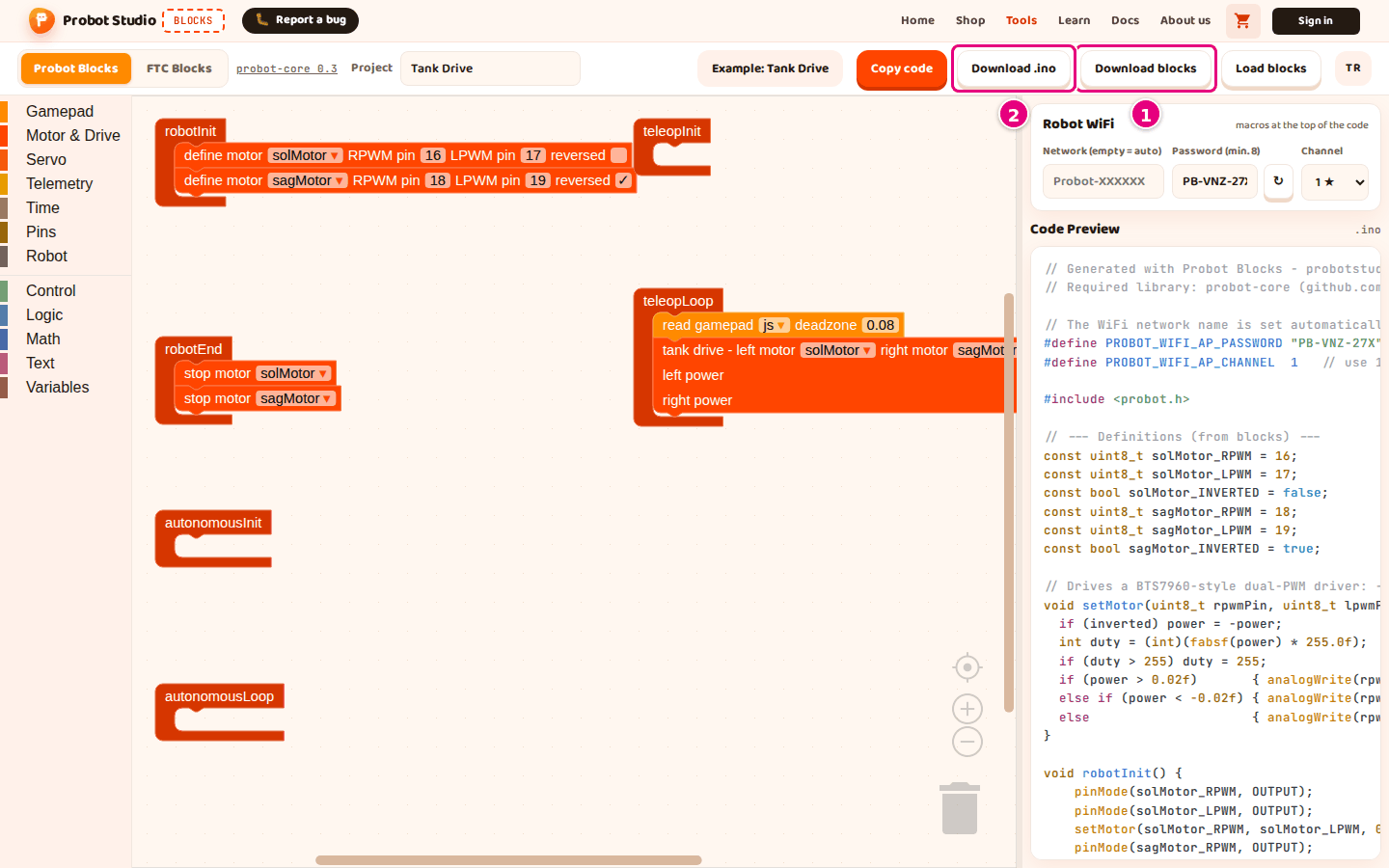
- On your computer, open the Downloads folder.
Check: The "Block project downloaded." and ".ino file downloaded." notifications appeared. The
Downloads folder has tank-drive.probot.json and tank-drive.ino.
The .probot.json file is for opening the project later. The .ino file is the code you upload to
the board.