Duplicate, mirror and pattern parts
On this page you will copy the selected parts. You will place a copy next to the original, paste it at the spot you want, make a mirror copy and pattern parts in a row at equal spacing.
Before you start
- The scene is empty. Add parts > Structure > Structure > 5 holes is added and selected (see Add parts).
- For the mirror section, you will also add Add parts > Wheels > Mecanum Wheel > Left.
- Measure, Mate and Sketch are off. While one of them is on, A and D do not open a window.
Duplicate the selection
- In the Scene, select the Structure part.
- In the Menu bar, open the Edit menu.
- Select Duplicate (Ctrl+D). The copy sits 20 mm away from the original in the X and Z
directions.
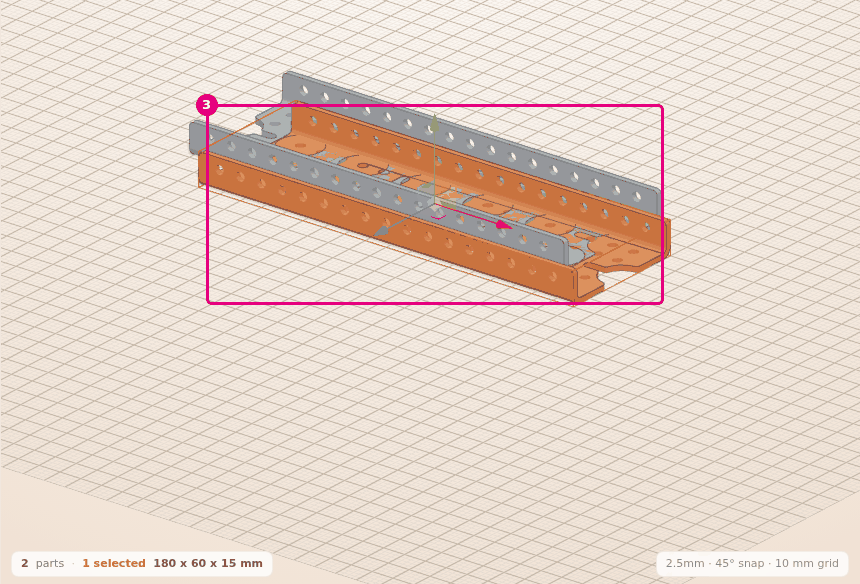
Result: The status bar says "2 parts · 1 selected". The selected part is the copy.
- Duplicate is also in the context menu and in the Properties panel.
- If more than one part is selected, they are all duplicated together. Groups stay groups in the copy.
- Duplicate also copies the selection to the clipboard. Your earlier copy is removed from the clipboard.
Copy and paste
- In the Scene, select the Structure part.
- Right-click the part. The context menu opens.
- In the menu, select Copy (Ctrl+C). "1 part copied" appears in the corner.
- In the Scene, right-click an empty spot.
- In the menu, select Paste here.
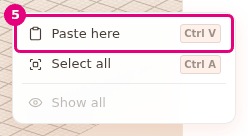
Result: The copy is placed at the spot on the floor where you right-clicked, and it is selected. Its height is the same as the original's.
- Ctrl+V places the copy 20 mm away from the original in the X and Z directions. Every Ctrl+V places it at the same spot. To keep the copies apart, move them or use Paste here.
- If the clipboard is empty, Paste here is faded.
- The clipboard is emptied when the page is reloaded.
Make a mirror copy
The Mirror window makes a left-right or front-back mirror copy of the selection. Parts that have a right and a left model switch to the opposite model: the mirror of Mecanum Wheel Left is Mecanum Wheel Right.
- Select Add parts > Wheels > Mecanum Wheel > Left. The wheel is added and is selected.
- Select Edit > Mirror... (A). The top of the window says "Mirror" and "1 part".
- Under Plane, select Left-right mirror.
- Under Where the plane passes, select Next to the selection.
- Press Mirror.
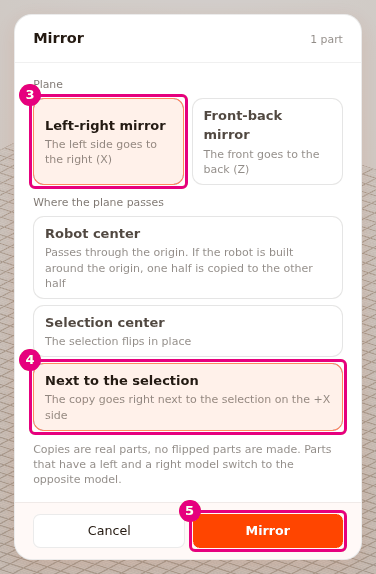
Result: A Mecanum Wheel Right appears to the right of the wheel and is selected. The notification "1 part mirrored, 1 part switched between its right and left model" appears in the corner. The mirror is a single undo step.
Options in the Mirror window
| Group | Option | What it does |
|---|---|---|
| Plane | Left-right mirror | The left side goes to the right (X axis). Default. |
| Plane | Front-back mirror | The front side goes to the back (Z axis). |
| Where the plane passes | Robot center | The plane passes through the origin. If the robot is built around the origin, one half is copied to the other half. Default. |
| Where the plane passes | Selection center | The copy stays where the selection is, flipped over. |
| Where the plane passes | Next to the selection | The copy lands right next to the selection. |
The note in the window says this: copies are real parts, no flipped parts are made. So a copy of a part that has no right and left model is placed in the closest pose. Cancel closes the window without making a copy.
Pattern parts at equal spacing
The Pattern window patterns the selection in a row in one direction, at equal spacing.
- In the Scene, select the Structure part.
- Select Edit > Pattern... (D).
- Under Direction, select Z front-back.
- In the Total count box, type
4. The count includes the selection itself. - In the Spacing (mm) box, type
60. - Press Pattern.
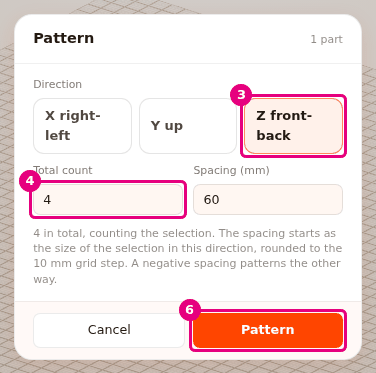
Result: There are 4 Structures in the front-back direction, 60 mm apart. The parts do not overlap. The whole pattern stays selected.
- The Direction options are X right-left, Y up and Z front-back.
- Total count is from 2 to 50. The default is 3.
- Spacing (mm) starts as the size of the selection in that direction, rounded up to the 10 mm grid step. When you change the direction and have not typed a spacing yourself, the spacing follows the size in the new direction. A spacing you typed yourself is kept when you change the direction. A negative spacing patterns the other way. The spacing can be at most 2000 mm.
- One pattern adds at most 1000 parts.
- If the values are not valid, red text appears below the boxes and Pattern stays faded.
While the window is open
While the Mirror or Pattern window is open, the other shortcuts do not work. Esc or a click outside the window closes it.
The last plane, position, direction and count you applied (when you pressed Mirror or Pattern) are remembered for this session. If you close the window with Cancel, Esc or a click outside, your changes are not kept.
When you reload the page, these settings go back to the defaults. The spacing is worked out again from the selection each time the window opens.
Ways to open the window: the Edit menu, a right-click on a part (Mirror..., Pattern...), Mirror and Pattern in the Properties panel, and the A and D keys.
Having trouble?
- A or D does not open the window: Select a part first. If Measure, Mate or Sketch is on, turn it off.
- "Count must be between 2 and 50" appears: In the Total count box, type a whole number from 2 to 50. See Troubleshooting.
- "Spacing cannot be 0" appears: In the Spacing (mm) box, type a number other than zero. See Troubleshooting.
- "The selection is on the mirror plane and is its own mirror, no copy needed" appears: The selection is already symmetric and sits on the plane. Under Where the plane passes, select Next to the selection. See Troubleshooting.
- "No exact mirror part for .... Placed in the closest pose, check it" appears: The part has no opposite model. Check the pose of the copy and rotate it if needed. See Troubleshooting.
- "The part model did not load, nothing was mirrored" appears: Check your internet connection and try again. See Troubleshooting.
- The copies I pasted sit on top of each other: Every Ctrl+V places the copy at the same spot. Choose a spot with Paste here.