Save the project, open it and start over
On this page you will save your Probot project as a file on your computer, open the file you saved and start over with an empty project.
Blocks has no accounts and no cloud save. The reliable way to keep your project is to save it to a file with Download blocks.
Before you start
- Blocks is open and the Probot Blocks tab is selected.
- To try it out, open an example: Pick an example > Arcade Drive.
Name the project
- In the toolbar, press the Project box.
- Delete the name in the box and type a new one, for example
Team Robot. It can have at most 60 characters. - Click anywhere outside the box.
Result: The files you download get this name: team-robot.probot.json, team-robot.ino. Turkish letters
become plain letters; spaces, _, . and other characters that are not letters or digits become -. A
capital İ becomes i- (İleri → i-leri). If the box is empty, the file name is probot-projesi.
Save the project to a file
Warning
Blocks autosaves your project only in this browser. Another browser or computer does not see this
save, and if you clear your browser data, the save is deleted. To keep a lasting copy, download the
project to a .probot.json file with the steps below.
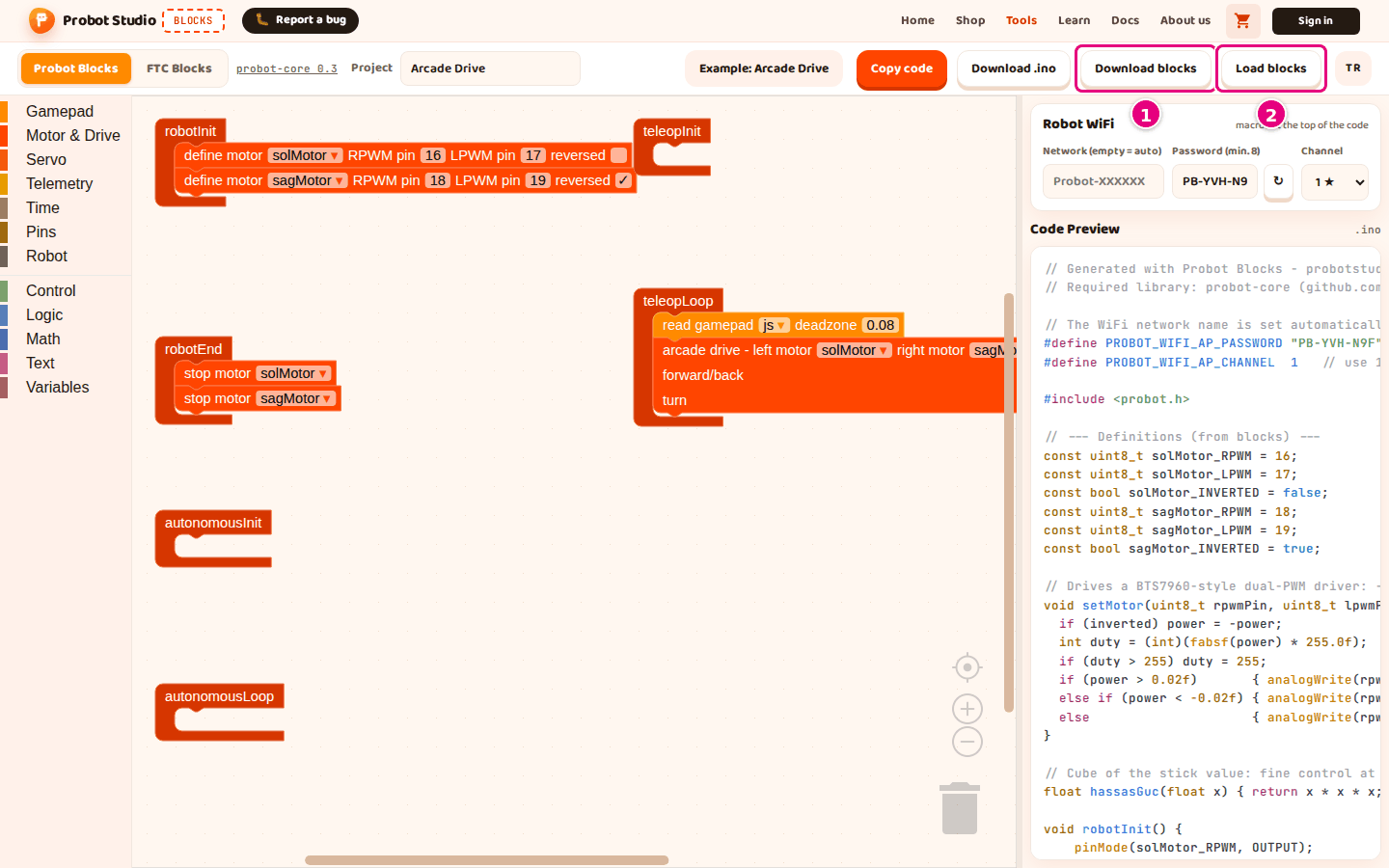
- In the toolbar, press Download blocks. A "Block project downloaded." notification appears.
- Open your browser's Downloads folder.
- Move the
<project-name>.probot.jsonfile to a safe place.
Result: The file holds the blocks, the project name and the WiFi settings. The WiFi password is stored in the file as plain text.
Open a saved project
Warning
Opening a file replaces the project in the workspace, and Blocks does not ask first. A broken file can also delete your current project. Save your project with Download blocks first.
- In the toolbar, press Load blocks.
- In the window that opens, select the
.probot.jsonfile. - Press Open.
Result: A "Block project loaded." notification appears. The blocks, the project name and the WiFi settings come from the file. The blocks, the project name and the password go into autosave. The network name and channel from the file do not: see How autosave works.
If the file is not JSON, or does not have the structure of a Probot Blocks project, "Could not load the block project." appears and the current project does not change.
If the file has the right structure but contains a block type that the tool does not have, the same
message appears. This happens with a file from another Blockly app or with a .probot.json file edited by
hand. Then the current project is deleted and the workspace is left empty or half full. The project name
and WiFi settings may also have changed to the ones in the file.
Start over
Probot Blocks has no New button. You get back to an empty project by deleting the blocks in the workspace.
Warning
This deletes all the blocks in the workspace. If you want to keep your project, do not skip step 1.
- In the toolbar, press Download blocks.
- Right-click an empty spot in the workspace.
- Select Delete <n> Blocks (for example "Delete 12 Blocks").
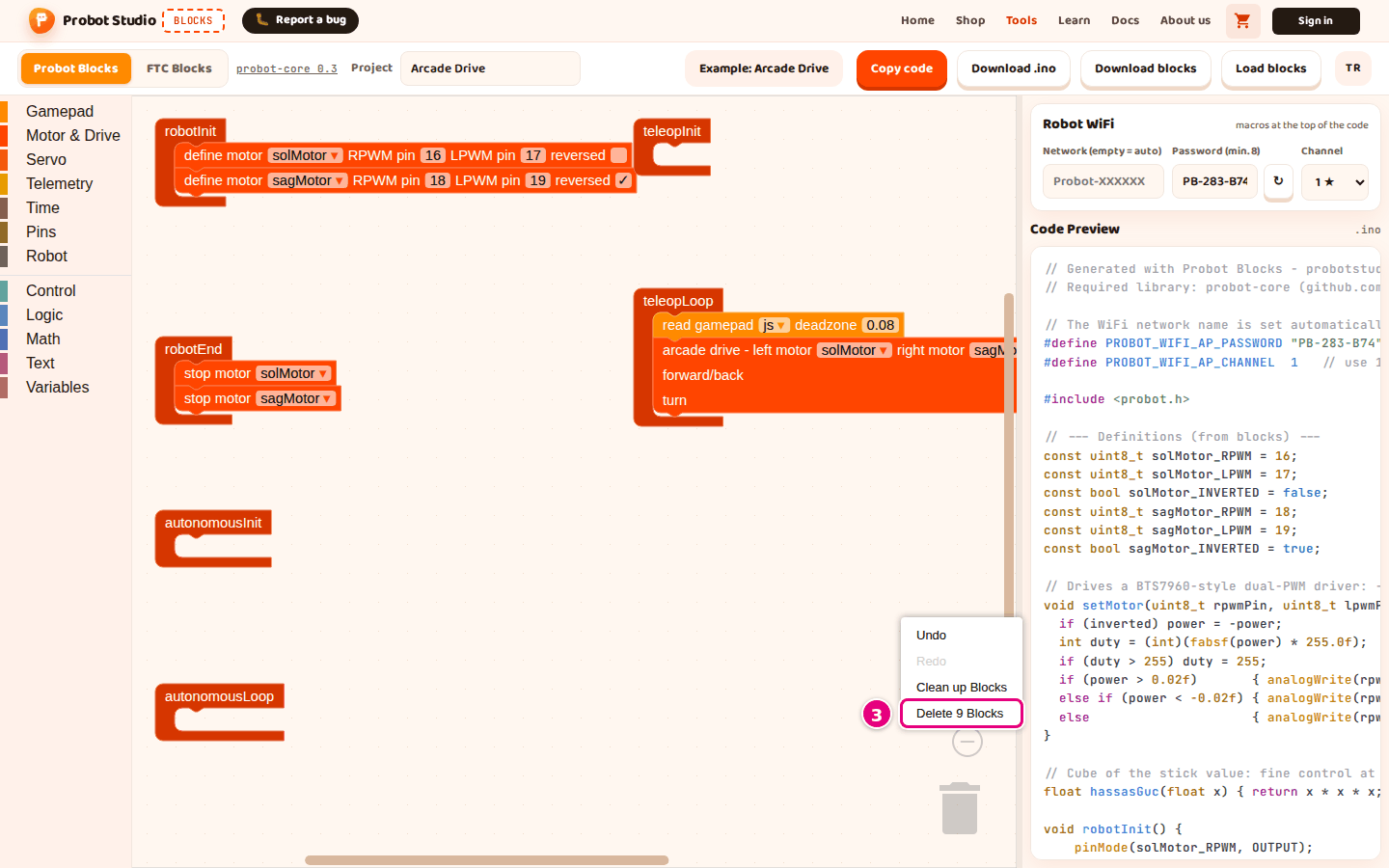
- When "Delete all <n> blocks?" appears, press OK.
- In the Project box, type the new project's name.
Result: Only the six lifecycle blocks are left. They are not deleted.
How autosave works
Blocks saves your project in the browser by itself. When you open the page again in the same browser, the project comes back.
| What | When it is saved | How long it is kept |
|---|---|---|
| Blocks | On every change. A large project is saved too. | It does not expire. |
| Project name | Every time it changes: when you type it, pick an example or open a file. | 30 days from the last day you opened Blocks in this browser. |
| WiFi password | Every time it changes: when Blocks generates it on the first visit, when you type it, when you press ↻, or when you open a file. | 30 days from the last day you opened Blocks in this browser. |
| Network name and channel | Only when you type the name or select the channel from the list yourself. | 30 days from the last day you changed them by hand. |
| Side panel width, selected tab | When you change them. | The width is kept for 30 days from the last day you changed it; the tab does not expire. |
A project that an older version of Blocks saved in a cookie is moved into the new save once, on the first visit.
Warning
In these cases autosave misses part of your work without a warning:
- If you load an example and do not change any block, the blocks are not saved. When the page is refreshed, the previous project comes back.
- The network name and channel that come in with Load blocks are not saved until you change each of them by hand once: Save the settings from a file in the browser.
Another browser or computer does not see the save, and if you clear your browser data, the save is deleted. Save an important project to a file with Download blocks.
Having trouble?
- "Could not load the block project." appears: The file is not a
.probot.jsonfile, it is broken, or it contains a block the tool does not have. Select a file you got with Download blocks. - A different project came back after a refresh: See Troubleshooting.
- The network name or channel changed after a refresh: The network name and channel from a file do not go into autosave. Change both of them by hand once, or load the file again. See Troubleshooting.