Save the program, open it and get the Java code
On this page you will save an FTC program as a .blk file, open a saved .blk file and get the
OnBot Java version of the program.
Before you start
- Blocks is open and the FTC Blocks tab is selected.
- To try it out, press Pick an example and select Tank Chassis TeleOp.
Save the program as a .blk file
- In the toolbar, type the program's name into the OpMode box, for example
Tank Sasi TeleOp. It can have at most 60 characters. - In the toolbar, press Download .blk. A "TankSasiTeleOp.blk downloaded." notification appears.
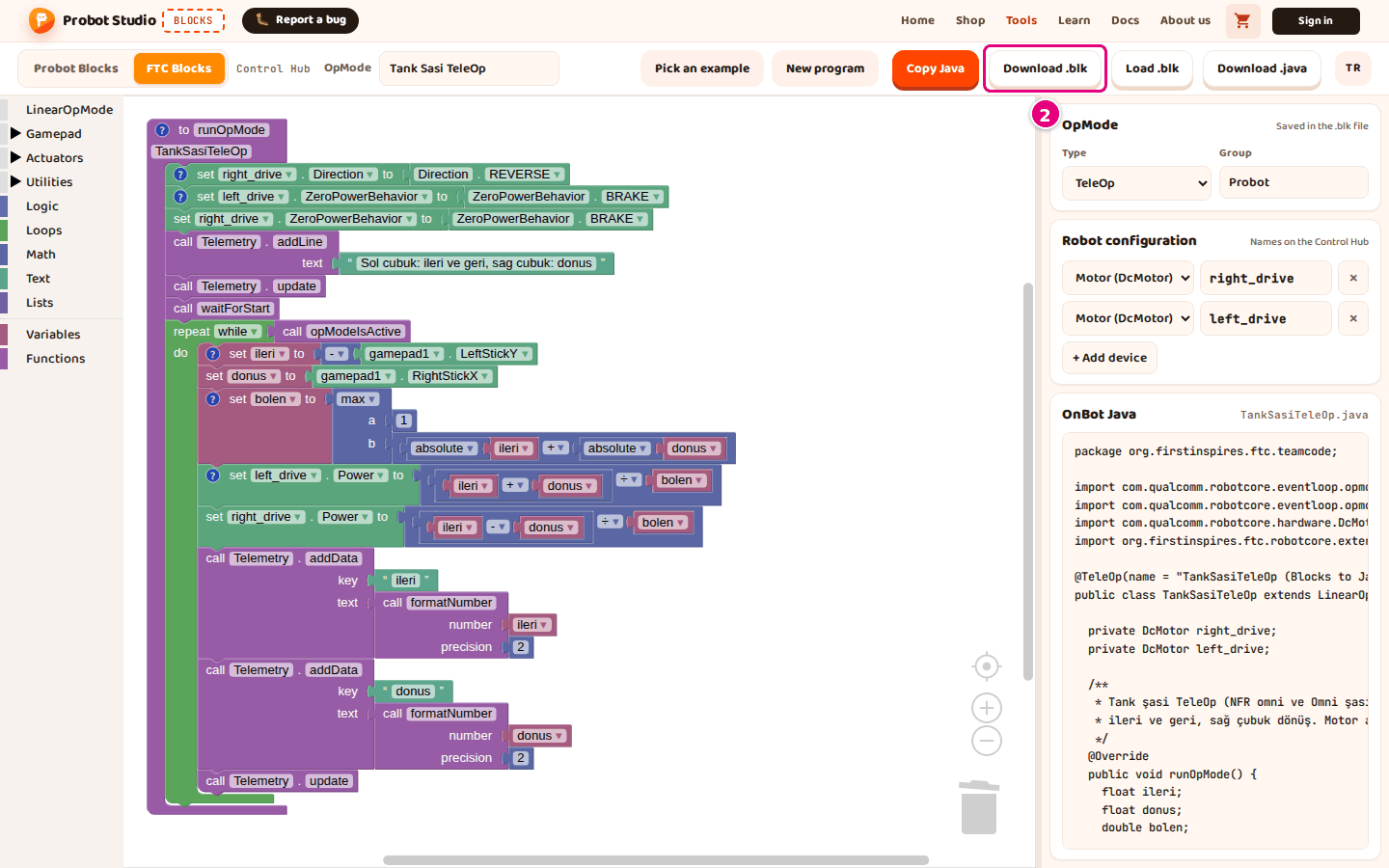
- Move the
TankSasiTeleOp.blkfile from your Downloads folder to a safe place.
- Move the
Result: You have the TankSasiTeleOp.blk file. The file holds the blocks and the Type and Group
settings from the side panel.
The file name comes from the name in the OpMode box. Turkish letters become plain letters (ş becomes s),
spaces and symbols are removed, and each word starts with a capital letter. If the box is empty, the name is
ProbotOpMode; if the name starts with a digit, Op is added in front.
You upload this file to the Control Hub. See Upload the program to the Control Hub.
Open a saved .blk file
Warning
Opening a file replaces the program in the workspace, and Blocks does not ask first. A file that fails to open can also delete the program on the screen.
- In the toolbar, press Load .blk.
- In the window that opens, select the
.blkfile. - Press Open.
Result: A "<file> loaded." notification appears. The OpMode name comes from the file name. Devices that the program uses but that are not in the Robot configuration yet are added to it.
You can also open .blk files downloaded from the Blocks editor on the Control Hub. This works only if
they use blocks that Blocks has (motor, servo, continuous rotation servo, IMU, gamepad, telemetry and so on).
Some files do not open: files with color, distance or touch sensor blocks, digital/analog input blocks, or AprilTag/vision blocks. "This file is not an FTC Blocks (.blk) file." appears, and the program on the screen is deleted or only partly loaded. So save your work with Download .blk before you open a file.
Copy the Java code
Tip
If the browser does not allow access to the clipboard, "Copy failed." appears. Then use Download .java.
- In the side panel, write down the file name next to the OnBot Java heading, for example
TankSasiTeleOp.java. - In the toolbar, press Copy Java. An "OnBot Java copied to the clipboard." notification appears.
- In the OnBot Java file on the Control Hub, paste the code with Ctrl+V.
Result: All of the Java code is now in the OnBot Java file. On a Mac, use Cmd+V. To open the file and build it, see Upload the program to the Control Hub.
Download the Java code as a file
- In the toolbar, type the program's name into the OpMode box, for example
Tank Sasi TeleOp. - In the toolbar, press Download .java. A "TankSasiTeleOp.java downloaded." notification appears.
- Move the
TankSasiTeleOp.javafile from your Downloads folder to a safe place.
Result: The file name and the class name inside the file are the same (TankSasiTeleOp). OnBot Java
needs them to match.
Autosave
The FTC program, the Robot configuration, the OpMode name and the side panel width are saved in the browser by themselves. If you switch to the Probot Blocks tab and come back, the program is still there. Another browser or computer does not see this save, so use Download .blk to move the program.
Having trouble?
- "This file is not an FTC Blocks (.blk) file." appears: The file you picked is not a
.blkfile, or it has blocks that Blocks does not have. See Open a saved .blk file. - "Copy failed." appears: The browser did not allow writing to the clipboard. Press Download .java to get the file.
- Other problems: Troubleshooting.