Measure a distance
On this page you use the Measure tool to measure the distance between two points in millimeters. You can read the distance between holes, between surfaces or to the ground.
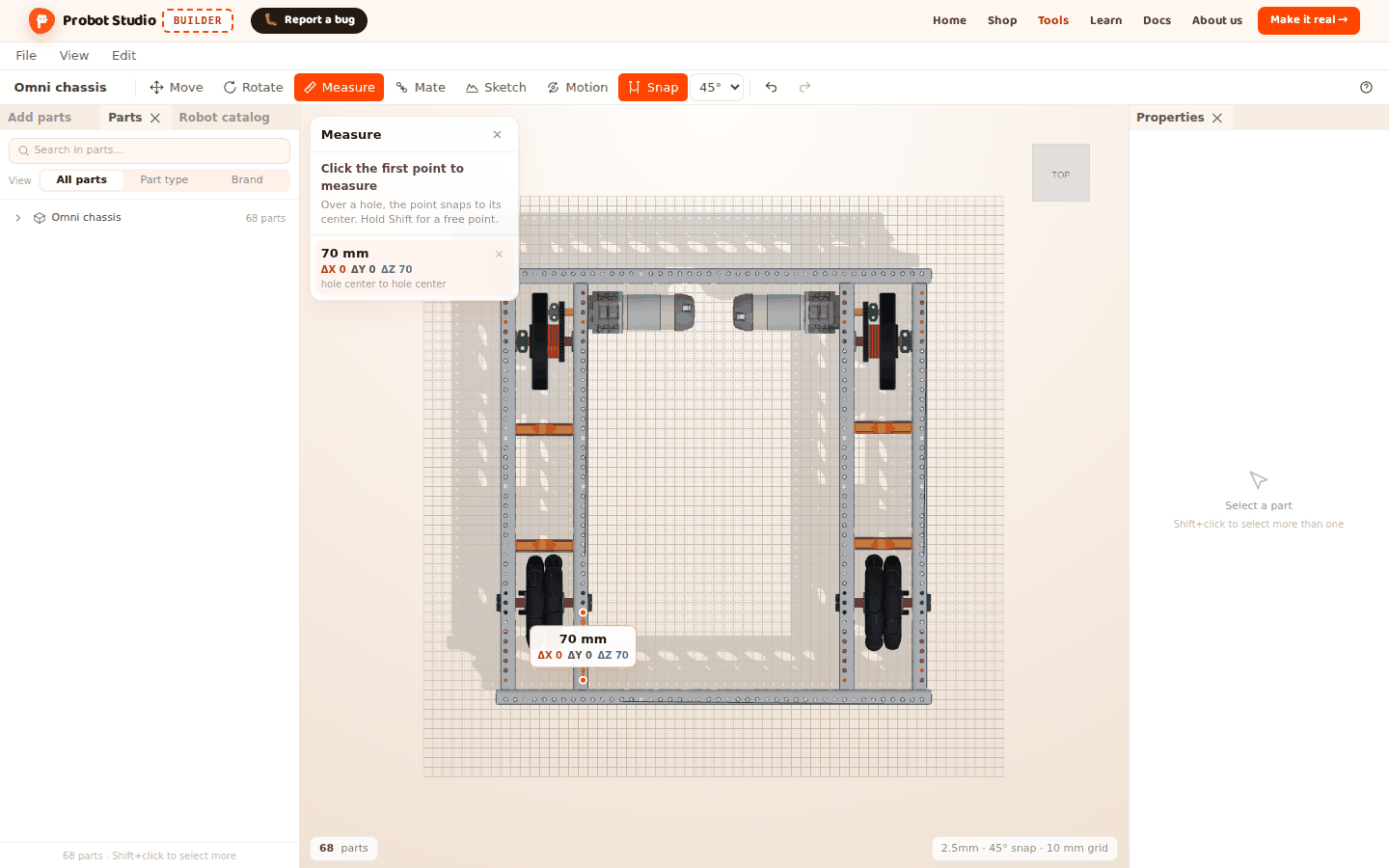
Before you start
- The Omni chassis is open in the scene (see Start with a ready-made robot).
- Measurements are not saved in the project and are not part of the undo history. When the tool closes, they are all deleted.
Measure between two points
- In the Toolbar, press Measure (Ö or I). The Measure panel opens in the corner of the Scene and says "Click the first point to measure".
- In the Scene, click a hole of the chassis. The point snaps to the center of the hole. The panel says "Click the second point" and "First point on the hole center".
- Click another hole.
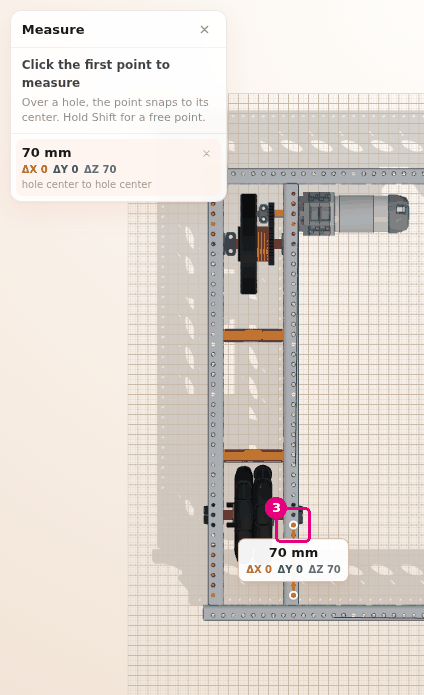
Result: The panel shows the distance in "mm". Below it, you see the colored ΔX, ΔY and ΔZ values and the line "hole center to hole center". In the Scene, a line and a label appear between the two points.
Builder picks the point under the mouse pointer in this order: hole center, surface, ground. You cannot put a point on a hidden part. While Measure is on, you cannot select or move parts, and the right-click menu does not open.
Measure without snapping to a hole center
To measure the edge of a hole or a surface point near a hole, use Shift.
- With the Measure panel open, move the mouse pointer to the edge of a hole in the Scene.
- Hold down Shift.
- Click.
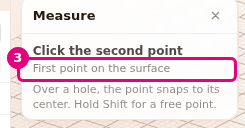
Result: The point stays where you clicked. The panel says "First point on the surface" (if you clicked empty space, it says "First point on the ground").
Take several measurements and delete one
When a measurement is done, the next two clicks make a new one. In the panel, the newest measurement is at the top and highlighted. At most 5 measurements stay at a time, so a sixth one deletes the oldest.
- In the Scene, click two more points. A second measurement appears in the list.
- In the Measure panel, in the row of the measurement you want to delete, press the × (Delete this measurement).
- To delete the last measurement, press Del or Backspace.
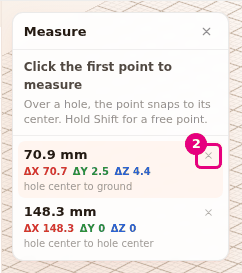
Result: The measurement you picked leaves the list and the Scene. The others stay.
While Measure is on, Del does not delete parts. It deletes only the last measurement.
Clear the measurements and close the tool
Warning
Esc deletes all measurements, not only one. Closing the tool also deletes all measurements. To delete only one, use Delete this measurement.
Each time you press Esc, it does the next thing on this list:
- After you click the first point, while Builder waits for the second, press Esc. The first point is deleted.
- Press Esc again. All measurements are deleted and the panel stays open.
- Press Esc one more time. The Measure panel closes.
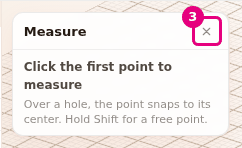
Result: The panel closes, and Measure in the Toolbar is no longer selected.
You can also close the tool in these ways: press the × in the panel (Close measure (Esc)), press Measure again (Ö), or select Move, Rotate, Mate or Motion.
Having trouble?
- The point jumps to the center of a hole I did not want: Hold Shift while you click.
- I cannot select a part or open the right-click menu while Measure is on: While the tool is on, you cannot select parts and the context menu does not open. Close the tool first.
- Del did not delete the part: While Measure is on, Del deletes the last measurement. Close the tool and try again. See Troubleshooting.
- My measurements are gone: You pressed Esc or closed the tool. Measurements are not saved, so measure again. See Troubleshooting.
- The oldest measurement was deleted by itself: At most 5 measurements stay at a time.
- I cannot put a point on a hidden part: Hidden parts are not measured. Show the part (see Select, hide and delete parts).
Next step
- Mate a part where you measured: Mate parts by their holes
- See the length a belt needs: Add a belt to two pulleys