Save to your account and share
On this page you will save your robot to your Probot account, manage your saved robots and share your robot with a link or through the community catalog.
Before you start
- There is a robot in the scene. Example: on the "The scene is empty" card, select Omni chassis (see Start with a ready-made robot).
- You have a Probot account and you have verified its email address. You create the account in the shop (in Turkish).
- The account items are in the File menu: Save to my account..., My robots..., Share link.... They look faded with the note "Connecting" while Builder connects to the server. If Builder cannot reach the server, they stay faded with the note "Not available right now".
| Limit | Value |
|---|---|
| Size of one robot (including imported models) | 5 MB |
| Robots in an account | 50 |
| Total size of the robots in an account | 50 MB |
| Parts in one robot | 2000 |
| Robot name | 80 characters |
Sign in to your account
Builder has no sign-in screen of its own. When a job needs you to sign in, Builder sends you to a new tab. Your robot stays in this tab.
- Select File > Save to my account... and press Save.
- If you are not signed in, the window says "Sign in to save to your account. Your robot stays in this tab."
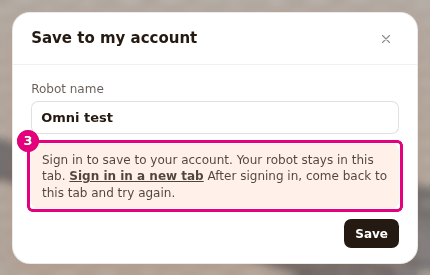
- Press the Sign in in a new tab link. The sign-in page (in Turkish) opens in a new tab.
- In the new tab, sign in with your account.
- Go back to the Builder tab and press Save again.
Result: The window shows the save result instead of the sign-in prompt.
If your account's email address is not verified, "Hesabına kaydetmeden önce e-posta adresini doğrulamalısın" (Verify your email address before you save to your account) appears. Messages like this one come from the server and appear in Turkish. Open the verification link in your email, then try again.
Save the robot to your account
- Select File > Save to my account....
- Type the robot's name in the Robot name box. The box already holds the project name.
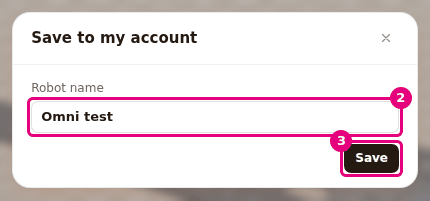
- Press Save (Enter). While it saves, the button says "Saving...".
Result: "Your robot was saved to your account." appears, and the notification ""<name>" saved to your account" shows up. In the Toolbar, "Saved" appears next to the project name.
- When you change the scene, the text changes to "Not saved". Press the text to open the Save to my account window.
- If the scene is tied to a robot in your account, Save writes over that robot. If there are changes, the window says "Save overwrites "<name>" in your account." If nothing has changed, it says "This scene is the latest version of "<name>" in your account."
- For a separate save, press Save as a new robot.
- Imported models are saved with the robot and count toward the 5 MB limit.
- File > New, Open... or loading a ready-made robot unties the scene from the robot in your account.
Create a share link
A share link is the way to show your robot to your team without waiting for review. Anyone with the link opens the robot without signing in and edits their own copy. Your account details are not shown. The link does not appear in the community catalog.
- Save the robot to your account. In the Save to my account window, after saving, press Share link. Or select File > Share link....
- Press Create link. While the link is being made, the button says "Creating...".
- Next to the link, press Copy. "Link copied" appears.
- Send the link to your team.
Result: The window shows a link in the form https://probotstudio.com/builder/?paylasim=....
- The link shows the last saved version. If you made changes, the window says "The link shows the last saved version. Save again to show your changes." Press Save again.
- If the robot is not saved to your account, the window first asks you to save it: "To create a link, save the robot to your account first."
- To turn the link off, press Turn off link. Anyone who opens a turned-off link sees "This share link is turned off or was not found".
- If the browser cannot write to the clipboard, "Link selected, press Ctrl+C to copy" appears. Press Ctrl+C.
Open a shared link
The person who gets the link does not need an account.
- Open the link in a browser. Builder opens.
- If the scene is empty, the robot loads directly.
- If the scene has parts, "The shared robot "<name>" (N parts) will open as a copy." appears. Press Replace. To keep what is in the scene, press Cancel.
Result: "A copy of "<name>" is open. Your changes do not affect the person who shared it" appears. The copy is kept in your browser. The original robot of the person who shared it does not change.
Open, rename and delete robots in My robots
- Select File > My robots.... While the list loads, it says "Loading...".
- In the list, go to the robot's row. Each row shows the date, the part count and, when they apply, "Link on" and "In the scene". The "N / 50 robots" counter is below the list.
- Choose what to do:
- Open: brings the robot into the scene. If the scene has parts (unless that robot is already in the scene and saved), "The N parts in the scene will be removed and replaced by this robot." appears. Press Replace or Cancel.
- Press the robot's name (tooltip: Rename): the name becomes editable. Type the new name and press Enter. Esc closes the whole My robots window without changing the name.
- Copy link and Turn off link: show only on a robot whose link is on.
- Delete: asks you to confirm.
Result: The robot you opened is in the scene, and ""<name>" opened" appears. "Saved" shows next to the project name.
Warning
Delete removes the robot from your account for good and turns off its link. The confirmation says "This cannot be undone." If you still need the robot, open it before you confirm and download it with File > Save (download JSON).
To delete, press Delete in the row, then press Delete in the confirmation. Cancel closes the confirmation. If there are no robots in your account, the note "There are no robots saved in your account yet." appears instead of the list.
Share with the community
The community catalog is where approved robots are shown to everyone. A robot you send is reviewed first.
- In the Left panel, select the Robot catalog tab.
- Next to the COMMUNITY heading, press Share your robot. It is faded while the scene is empty.
- Type the name in the Robot name box (at most 80 characters).
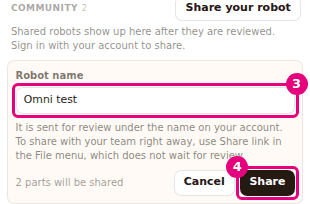
- Press Share. While it sends, the button says "Sharing". If you change your mind, press Cancel.
Result: "Your robot was sent for review. It will show in the catalog once it is approved." appears. After approval, the robot shows in the COMMUNITY section under the name on your account.
- The form says "N parts will be shared". You can send a robot with at most 200 parts to the community.
- At most 5 of your robots can wait for review at the same time.
- You cannot send a robot that has imported parts. Delete those parts first. A share link does not have this limit.
- If you are not signed in, the form shows the note "Sign in to share." and Sign in in a new tab. After signing in, come back to the tab and press Share again.
Having trouble?
| Text on the screen | What to do |
|---|---|
| "Sign in to save to your account." | Follow the "Sign in to your account" section on this page. See Troubleshooting. |
| "Hesabına kaydetmeden önce e-posta adresini doğrulamalısın" (Verify your email address before you save to your account) | Open the verification link in your email. |
| "Paylaşım linki için önce e-posta adresini doğrulamalısın" (Verify your email address before you make a share link) | Same as above. |
| "There are no parts in the scene. Build your robot first, then save." | Add at least one part to the scene. See Troubleshooting. |
| "The robot is X.X MB, at most 5.0 MB can be saved. Use fewer imported models and try again" | Delete the imported models or make them simpler. See Troubleshooting. |
| "The robot is too big to send to the server. Use fewer imported models and try again" | Same as above. See Troubleshooting. |
| "Robot en fazla 5 MB olabilir" (The robot can be at most 5 MB) | Same as above. See Troubleshooting. |
| "Hesabına en fazla 50 robot kaydedebilirsin. Eski bir robotu sil" (You can save at most 50 robots to your account. Delete an old robot) | Delete an old robot in My robots. |
| "Hesabındaki robotlar için yer kalmadı. Eski bir robotu sil" (There is no room left for the robots in your account. Delete an old robot) | Your account's 50 MB of robot space is full. Delete old robots. |
| "Robot 1 ile 2000 geçerli parça içermeli" (The robot must have 1 to 2000 valid parts) | Bring the part count below 2000. |
| "Robot adı 1 ile 80 karakter arasında olmalı" (The robot name must be 1 to 80 characters) | Make the name shorter, or do not leave it empty. |
| "Could not reach the server. Check your connection and try again" | Check your internet connection. See Troubleshooting. |
| "The server is not responding right now. Try again in a little while" | Try again in a few minutes. See Troubleshooting. |
| "Kayıt alanı şu an dolu. Biraz sonra tekrar dene." (The save space is full right now. Try again in a little while.) | Try again later. Also save the robot to a file. |
| "Hesap doğrulanamadı. Biraz sonra tekrar dene." (Could not check the account. Try again in a little while.) | Try again later. |
| "Çok hızlı istek yapıldı. Bir dakika sonra tekrar dene." (Too many requests too fast. Try again in a minute.) | Wait one minute. See Troubleshooting. |
| "Bu hesap askıya alınmış" (This account is suspended) | Write to Probot about your account. |
| "This share link is turned off or was not found" | Ask the person who shared it for a new link. See Troubleshooting. |
| "Could not open the shared robot" | Reload the page and open the link again. See Troubleshooting. |
| "Imported parts cannot be shared in the catalog. Remove them first" | Delete the imported parts, or use a share link. See Troubleshooting. |
| "Sign in to share." | Press Sign in in a new tab in the form. See Troubleshooting. |
| "Paylaşmadan önce e-posta adresini doğrulamalısın" (Verify your email address before you share) | Open the verification link in your email. |
| "İnceleme bekleyen paylaşım sınırına ulaştın" (You reached the limit of shares waiting for review) | 5 of your robots are in review. Wait for them to be approved. |
| "Robot 1 ile 200 geçerli parça içermeli" (The robot must have 1 to 200 valid parts) | The community limit is 200 parts. Use a share link. |
| "Çok hızlı paylaşım yapıldı. Bir dakika sonra tekrar dene." (Too many shares too fast. Try again in a minute.) | Wait one minute. |
| "Katalog şu an yeni paylaşım alamıyor" (The catalog cannot take new shares right now) | Try again later. |
- Account items are faded and say "Not available right now": Builder cannot reach the account server. Save your robot to a file with File > Save (download JSON), then try again. See Troubleshooting.
- "Saved" does not show next to the project name: The scene is not tied to a robot in your account. Save to my account or My robots > Open ties it to one.