Save to a file and open it
On this page you will name your project, download it to your computer as a .json file and open it
again later. You will also learn how Builder autosaves your work in the browser.
Before you start
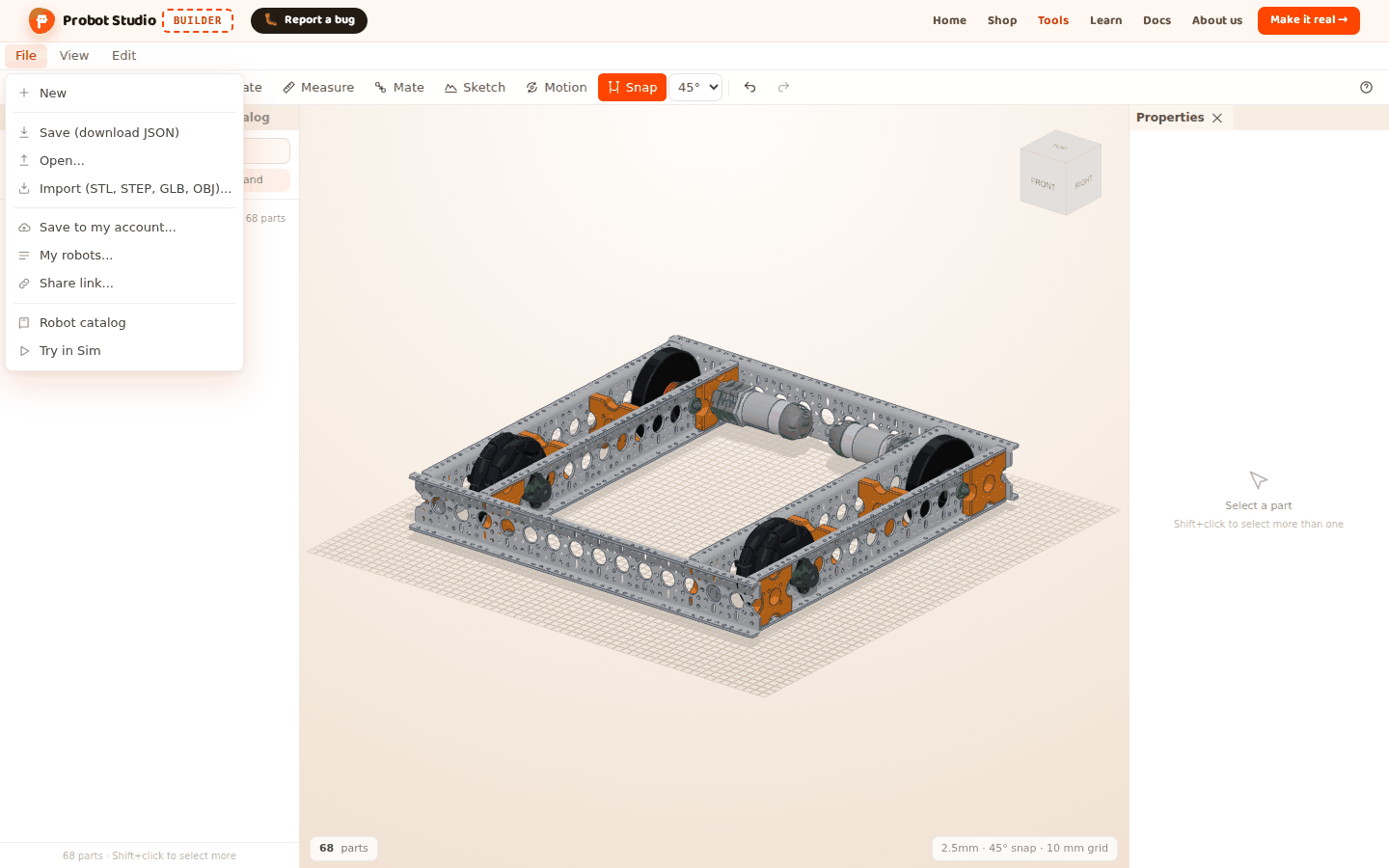
- Builder is open and there is a robot in the scene. For example, on the "The scene is empty" card, select Omni chassis (see Start with a ready-made robot).
- You do not need an account. To save to your account, see Save to your account and share.
Name the project
- In the Toolbar, press the project name. A new project is named "Untitled robot".
- Type the new name, for example
Omni test. - Press Enter. To cancel, press Esc.

Result: The new name appears in the Toolbar. If you leave the box empty, the name becomes "Untitled robot".
Understand autosave
Builder saves your work in this browser by itself. You do not need to do anything else.
- Builder saves 1 second after every change, and again when the page closes.
- When you open Builder again, your last session comes back and "Last session restored" appears.
- The undo history is not saved. After you refresh the page, there is nothing to Undo.
- If the browser storage is full, "Autosave failed because the browser storage is full" appears. With any other problem, "Autosave failed" appears. In both cases, save the project to a file.
- Large imported models may not fit in the autosave. See Import a 3D model.
Warning
The autosave is only in this browser. It is lost if you clear your browser data, work in a private window or move to another computer. To keep a lasting copy, save the project to a file.
Save the project to a file
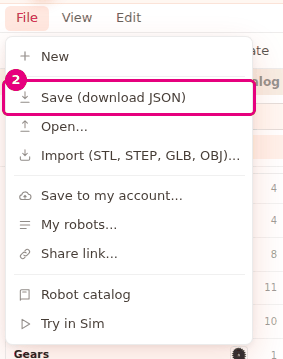
- In the Menu bar, press File.
- Select Save (download JSON).
- If the browser asks, select the folder to save the file in.
Result: The browser downloads the Omni test.json file.
- The file name is the project name. Letters of the Turkish and English alphabets, digits and spaces
are kept. Other characters (hyphens, periods, letters with a circumflex such as â) become
_. For example, the namefirst-robotdownloads asfirst_robot.json. - Imported models are stored inside the file. When you open the file on another computer, the models come with it.
- The file has no undo history.
Open a project from a file
Warning
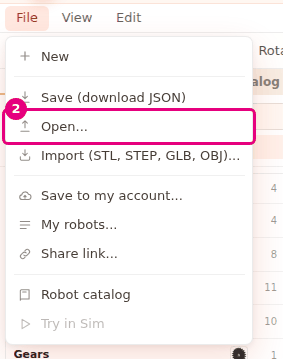
Open... replaces the project in the scene without asking, and you cannot undo it. If you want to keep the work in the scene, download it first with Save (download JSON).
- In the Menu bar, press File.
- Select Open....
- In the window that opens, select the
.jsonproject file.
- In the window that opens, select the
- In the window, press Open.
Result: The project appears in the scene. The project name from the file appears in the Toolbar. A notification shows the project name and "loaded".
If some parts in the file cannot be read, they are skipped and "N damaged parts were skipped" appears. The other parts open.
A file saved with an empty scene opens too. The scene opens empty, and the project gets the name saved in the file.
Start a new project
Warning
New deletes all the parts in the scene, and you cannot undo it. Save the project to a file first.
- In the Menu bar, press File.
- Select New.
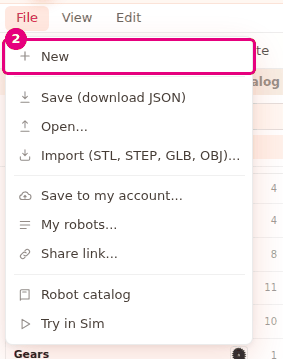
- If there are parts in the scene, the browser asks "The parts in the scene will be deleted. Start a new project?". Press OK.
Result: The scene empties, the project name becomes "Untitled robot" and "New project created" appears.
After New, Open... or loading a ready-made robot, the scene is also no longer tied to the robot in your account. The "Saved" or "Not saved" text next to the project name goes away.
Having trouble?
- "Could not read the project file" appears: The file is not a Builder project file, it is damaged, or all the parts in it are damaged. Try another copy. See Troubleshooting.
- "N damaged parts were skipped" appears: These parts are missing or wrong in the file. The others opened. Add the missing ones again. See Troubleshooting.
- "The models of N imported parts are not in the file. Choose the file again" appears: See Choose a missing model again, Troubleshooting.
- "Autosave failed because the browser storage is full" appears: First download the project with Save (download JSON). Then free up space for this site in your browser (for example, clear the site data for probotstudio.com). This also deletes the autosave and the other local settings of this site. Before this error, Builder also tries the autosave without the models. So having fewer imported models does not fix this error. See Troubleshooting.
- My earlier work is gone when Builder opens: The browser data was cleared, or you are using another
browser or a private window. Open the
.jsonfile you saved with Open.... - The file downloaded with a different name: Hyphens, periods and letters with a circumflex such as â
in the project name become
_. - "Editing is off in assembly mode" appears: In the Assembly strip, press Switch to editing, then try again. See Troubleshooting.