Set up the robot WiFi
The Probot board broadcasts its own WiFi network. Your computer or phone connects to this network and drives the robot. On this page you set the network's name, password and channel. The settings are written at the top of the code and take effect when you upload the code to the board.
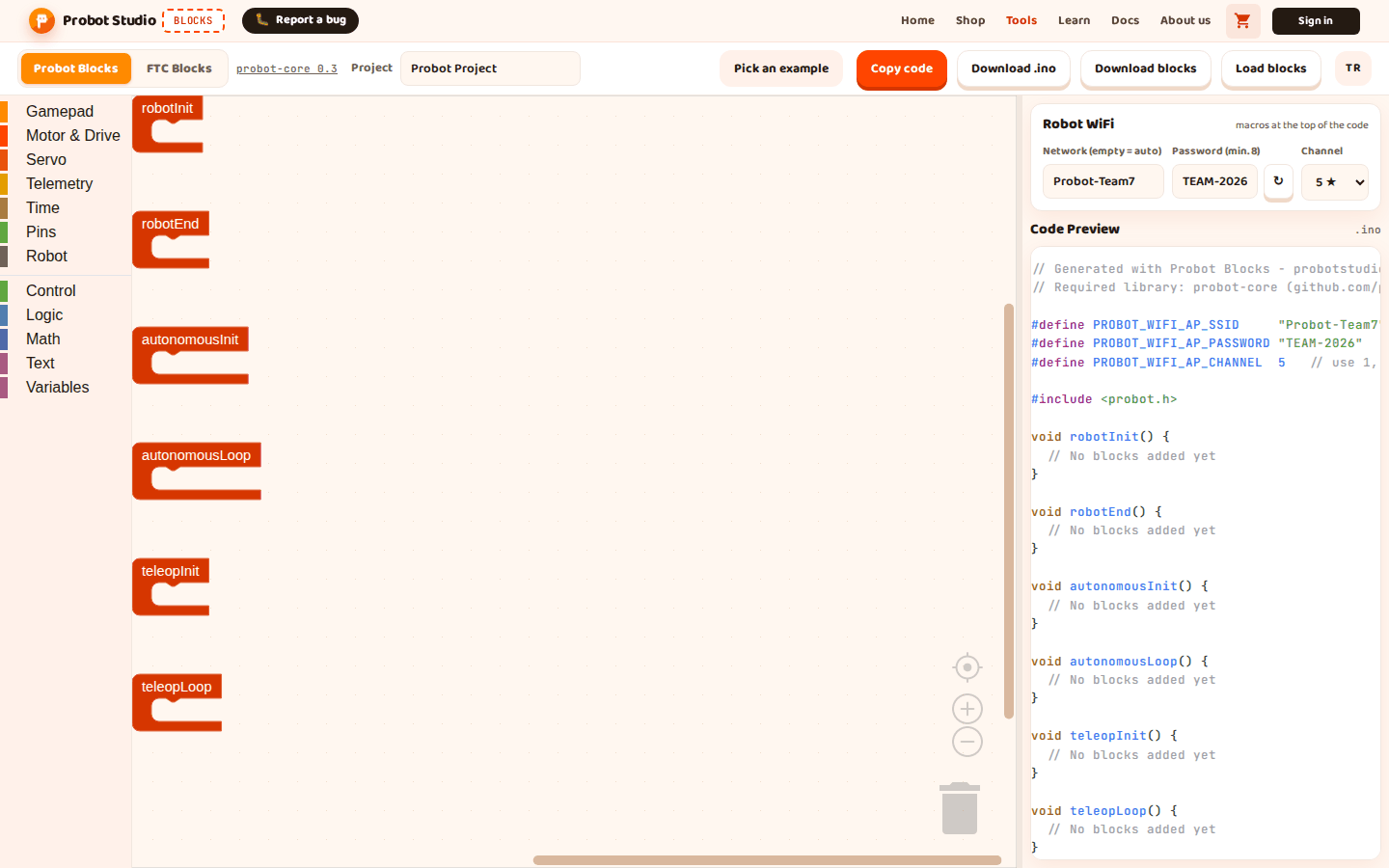
Before you start
- Blocks is open and the Probot Blocks tab is selected.
- The Robot WiFi section is visible in the side panel.
Note
Blocks generates a password the first time it opens and keeps it in this browser, and another browser or computer generates its own. Type the password yourself once, or press ↻ and write down the new password.
Type the network name and password
Warning
If the password is shorter than 8 characters, the code will not compile. With 1-7 characters, the box gets a dark orange border and the text "The password needs at least 8 characters, or the code will not compile." appears. This warning does not appear while the box is empty.
- In the Robot WiFi section, type the robot's network name in the Network (empty = auto) box, for example
Probot-Team7. The name can be 24 characters at most.- Clear the text in the Password (min. 8) box and type a password of 8-24 characters, for example
TEAM-2026.
- Clear the text in the Password (min. 8) box and type a password of 8-24 characters, for example
- Write the password down. You need it to connect to the robot.
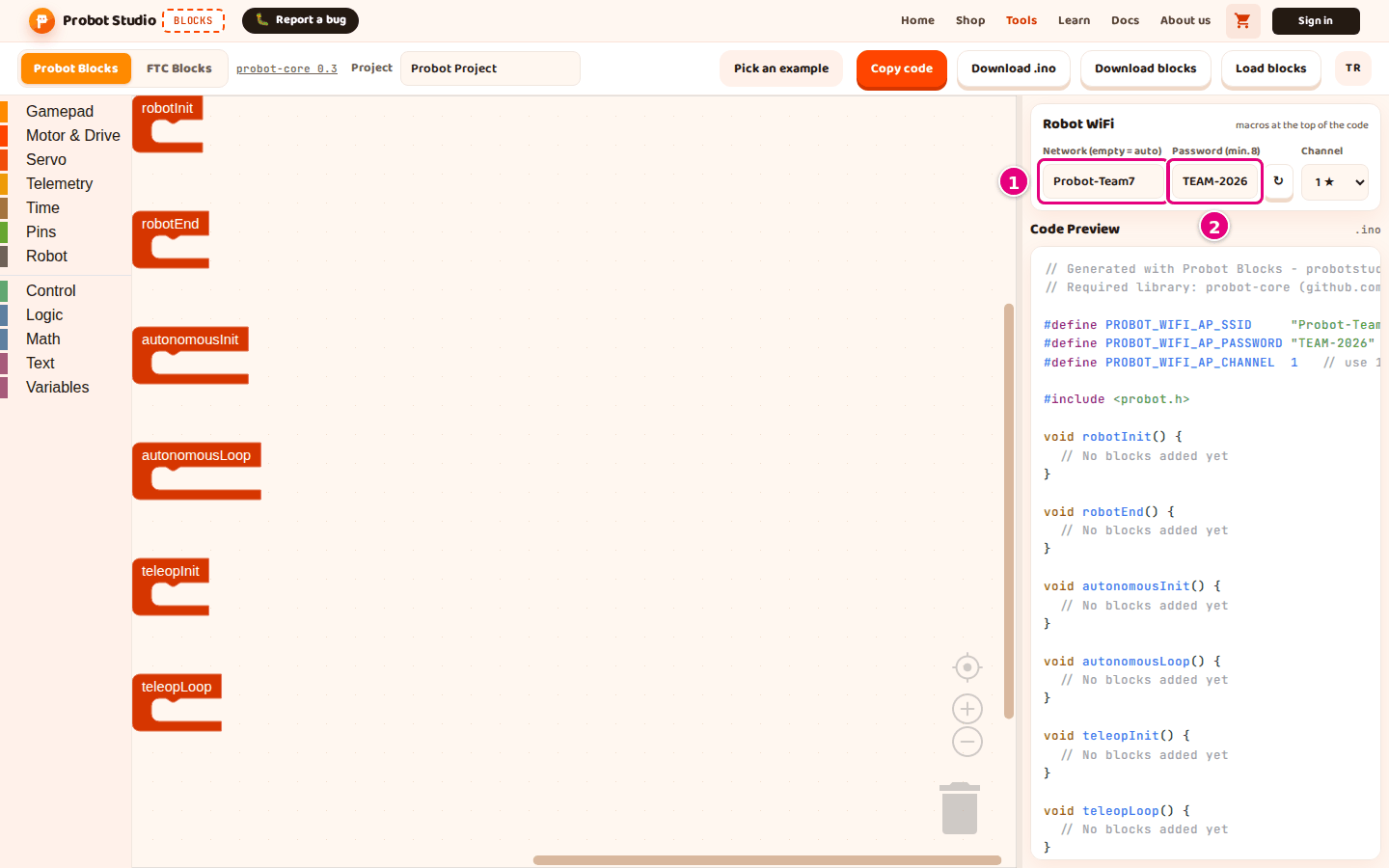
Result: The top of Code Preview shows these two lines:
#define PROBOT_WIFI_AP_SSID     "Probot-Team7"
#define PROBOT_WIFI_AP_PASSWORD "TEAM-2026"   // at least 8 characters
When you upload the code to the board, the Probot-Team7 network appears in the computer's WiFi list.
If you leave the network name box empty, the robot uses its own name in the Probot-XXXXXX format. The code
then has a comment line instead of #define PROBOT_WIFI_AP_SSID. If the class has more than one robot, give
each robot a different name.
The network name does not accept the " and \ characters. The password contains only capital letters (A-Z),
digits and -. The box takes 24 characters at most; anything longer is cut off.
If you type lowercase letters in the password box, Blocks turns them into capital letters (ı becomes I too). The letters Ç, Ğ, İ, Ö, Ş, Ü, ç, ğ, ö, ş, ü and other characters are removed.
If you leave the password box empty, the code is generated with the password Probot1234: the top of the code
reads #define PROBOT_WIFI_AP_PASSWORD "Probot1234".
Generate a new password
- In the Robot WiFi section, press ↻ next to the Password (min. 8) box. A "New WiFi password created." notification appears.
- Write down the password in the box.
- In the toolbar, press Download .ino.
Result: The box shows a new password in the PB-XXX-XXX format, and the browser keeps it. The .ino you
downloaded carries this password. The robot uses the new password once you upload this code to the board.
Select the channel
- In the Robot WiFi section, press the Channel list.
- Select 1 ★, 5 ★, 9 ★ or 13 ★.
- Upload the code to the board. See Upload the code to the Probot board.
- Connect to the robot's network and open the Driver Station (same page, "Connect to the robot's network" section).
- On the Driver Station, press Logs.
Result: In Code Preview, the channel line changes. For example, for 5 ★:
#define PROBOT_WIFI_AP_CHANNEL 5 // use 1, 5, 9 or 13 in a fleet (1-11 if a device cannot see 13)
On the Logs page, the "Channel" line reads "5 (macro)". The robot broadcasts its network on this channel.
If the parentheses say "nvs", a channel was saved earlier with Kanal Değiştir on the robot's Logs page (these controls are in Turkish). That saved channel is used even after you upload the code. To go back to the channel in the code, select Varsayılana dön (açılışta) there and press Uygula. Then restart the robot.
If several robots are in the same room, give each robot a different channel from 1, 5, 9 and 13. These four channels do not interfere with each other.
The list shows all channels from 1 to 13, but some laptops and tablets cannot see 12 and 13. If a device cannot find the robot, give that robot a channel from 1 to 11. Details: Competition day channel plan.
Where the settings are stored
The network name, password and channel are kept in the browser. They are also written into the .probot.json
file you download with Download blocks.
The password that Blocks generates the first time it opens is saved too. When you refresh the page, the same password stays.
When you open the file with Load blocks, the settings come from the file. The password from the file is saved in the browser.
The network name and channel from the file are not saved until you change them by hand. If you refresh the page, the old network name and channel from the browser come back.
What is kept, and for how long: How autosave works.
Warning
The .probot.json file carries the WiFi password as plain text. This is the password of the robot's own
network, not an account password. Still, if you share the file, others can connect to your robot's network.
Save the settings from a file in the browser
To keep the network name and channel of a file you opened with Load blocks, change each of them once by hand. If you do not, load the file again every time you open the page. The password does not need this, because the password from the file is saved by itself.
- In the Robot WiFi section, delete the last character in the Network (empty = auto) box and type it again. If the box is empty, type a letter and delete it.
- In the Channel list, select another channel.
- In the Channel list, select the channel from the file again.
Result: When you refresh the page, the network name, password and channel come back with the values from the file.