Short answer: A maze game in Scratch has three parts. First, you draw walls in a single color and a goal in a different color on the backdrop. Next, you move the ball sprite with the arrow keys inside a "forever" loop. Finally, the "touching color ()?" block sends the ball back to the start when it touches a wall and makes the player win when it touches the goal. The code below and the downloadable project file were tested in Scratch's own engine. A ball that hits a wall goes back to the start, and a player who finishes the maze sees their time in whole seconds.
This game is a good first project for an introduction to block-based coding in middle school. Coordinates, loops, conditions and sensing come together in one project, and students see their mistakes on the screen right away. For the place of block-based coding in lessons, see our post What is block-based coding?.
Before you start
- Scratch is free. According to Scratch's own FAQ, you don't need a license to use it at school or at home.
- An account is not required. You can make projects without creating an account. An account is needed to save and share a project on the Scratch website. If you don't want to create an account, you can download the project as a file with Save to your computer in the File menu.
- No internet? The Scratch app can be downloaded to the computer and used offline.
- Time: Two class periods are enough in class. The backdrop and movement are done in the first lesson, and the walls, goal and timer in the second.
- Negative numbers and coordinates: In this game, positions are written with x and y numbers, and moving left and down is written with negative numbers. In the math curriculum, integers come in grade 7 and the coordinate plane in grade 8. Students in grades 5-6 will see these in Scratch for the first time. That's fine, but teach them as a direction rule, not as numbers: x is right-left, y is up-down. Right and up are plus, left and down are minus. Read the minus sign as "the opposite direction."
1. Draw the maze on the backdrop
The screenshots show Scratch's Turkish interface, and the sprite and costume names in the project file are Turkish.
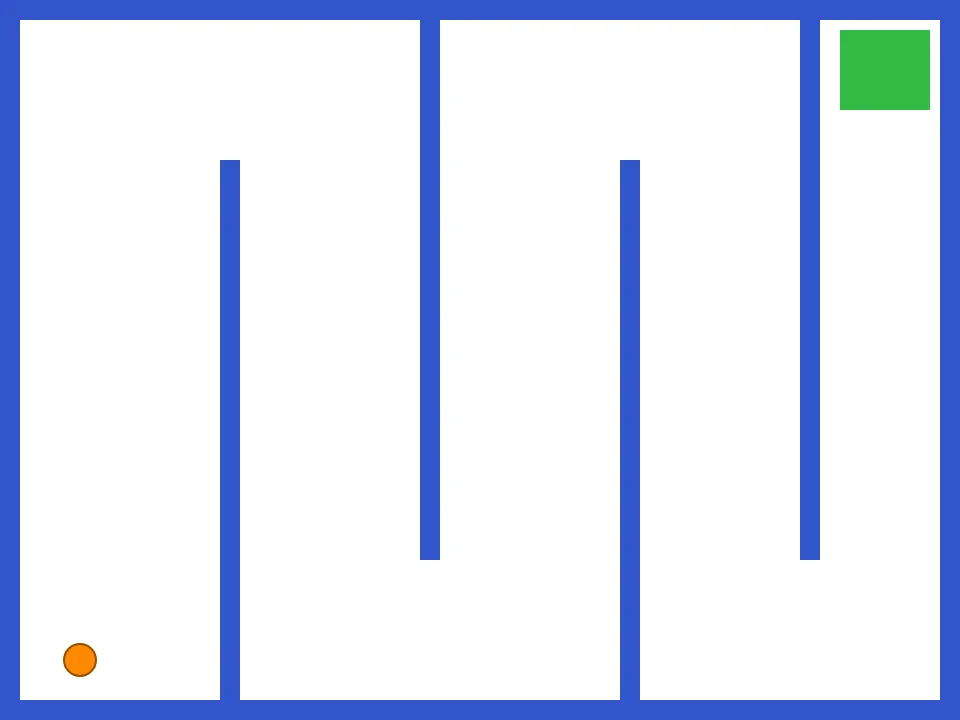
Select the stage, switch to the Backdrops tab and paint a new backdrop. Draw the walls with the Rectangle tool in filled mode.
There are two rules here:
- Make all the walls one color. The code will recognize a wall by its color. If one wall is a different shade of blue, the ball will pass through that wall.
- Make the goal and the ball very different in color from the walls, and from each other. In the example, the walls are blue, the goal is green and the ball is orange. If the ball is green too, the game ends as soon as it starts.
Draw walls on all four edges of the maze, or the ball will leave the maze and go around it to reach the goal. Leave corridors wide enough for the ball to pass through easily. The Scratch stage is 480 x 360. Horizontally, x goes from -240 to 240, and vertically, y goes from -180 to 180. In the example maze, the ball starts at the bottom left (x: -200, y: -150) and travels through corridors that wind like a snake to the green box at the top right.
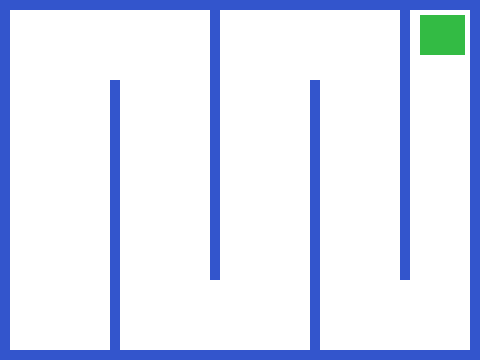
If you'd rather not draw, you can download the example backdrop as labirent-dekor.svg and add it with Upload Backdrop.
For the ball, draw a small circle with Paint, or choose a ready-made sprite and lower its Size value. If the sprite stays big, it won't fit in the corridors.
2. Move the ball with the arrow keys
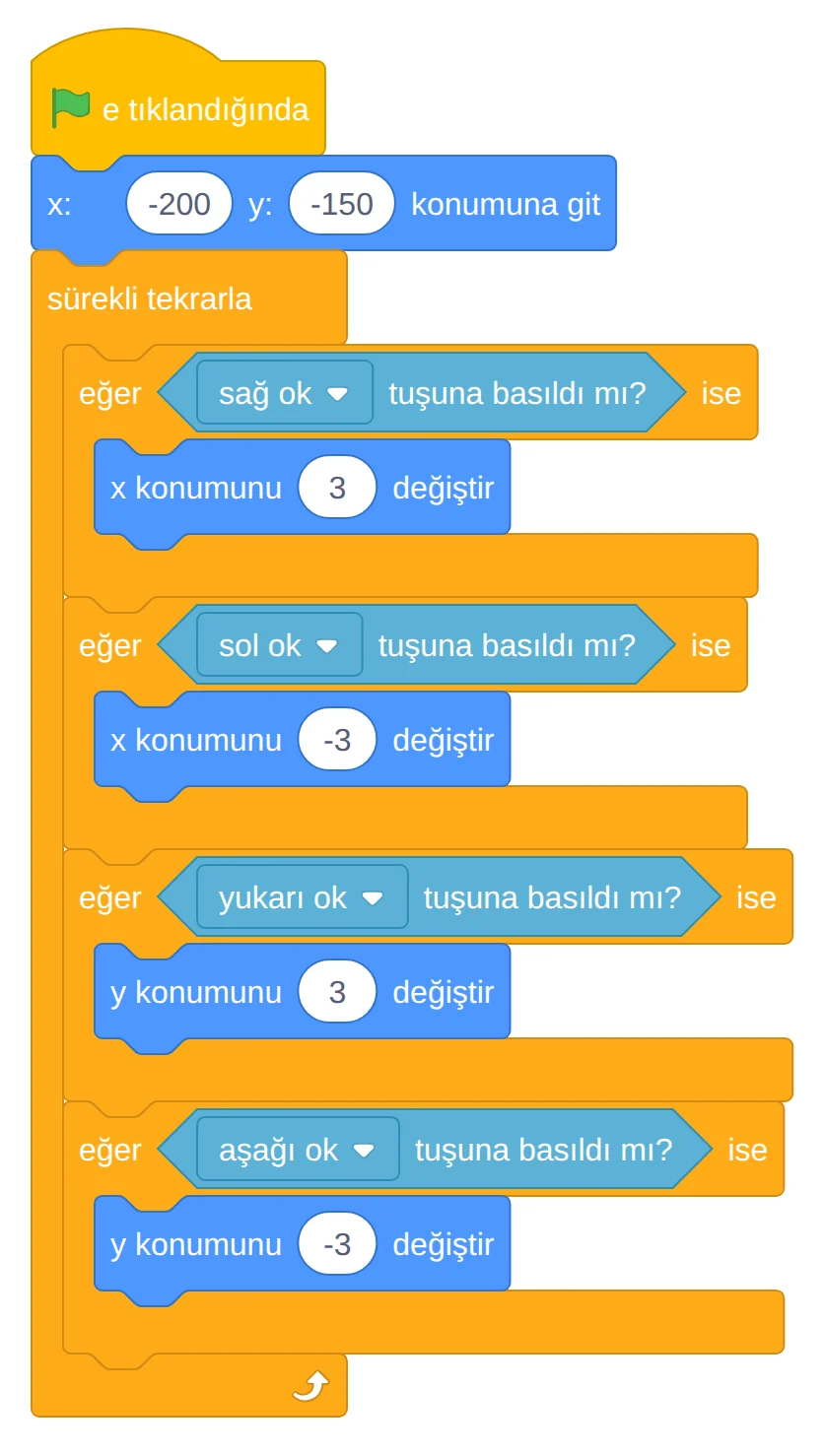
Put this code on the ball sprite. On every repeat, each of the four keys is checked separately. The ball slides 3 steps in the direction of the key being pressed. Right and up are the plus directions, left and down are minus. Read -3 to students as "3 steps in the opposite direction."
Why don't we use "when key pressed"? The ball also moves with the "when (right arrow) key pressed" block, but when a keyboard key is held down, it first responds once, waits a short moment, then continues. The ball moves in jerks. The "key (right arrow) pressed?" question inside "forever," on the other hand, checks the key all the time, so the movement is smooth. Showing students this difference by trying both methods starts a good discussion.
If you make the step value bigger, the ball goes faster. But if the step gets too big (for example 30), the ball can jump to the other side of a thin wall in one move and the hit isn't detected. Start with 3.
3. Go back to the start when touching a wall
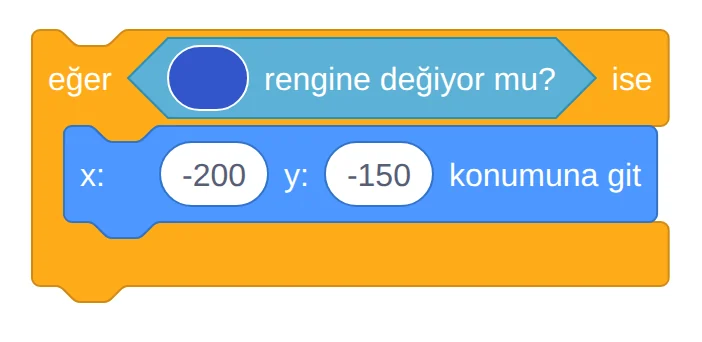
Add this block inside "forever," below the four movement blocks. When you click the color box, there is an eyedropper at the bottom of the window that opens. Use the eyedropper to click a wall on the stage. Don't pick the color by eye. Scratch only matches colors within a very small difference, so "almost the same blue" usually doesn't work.
4. Win and see your time when touching the goal
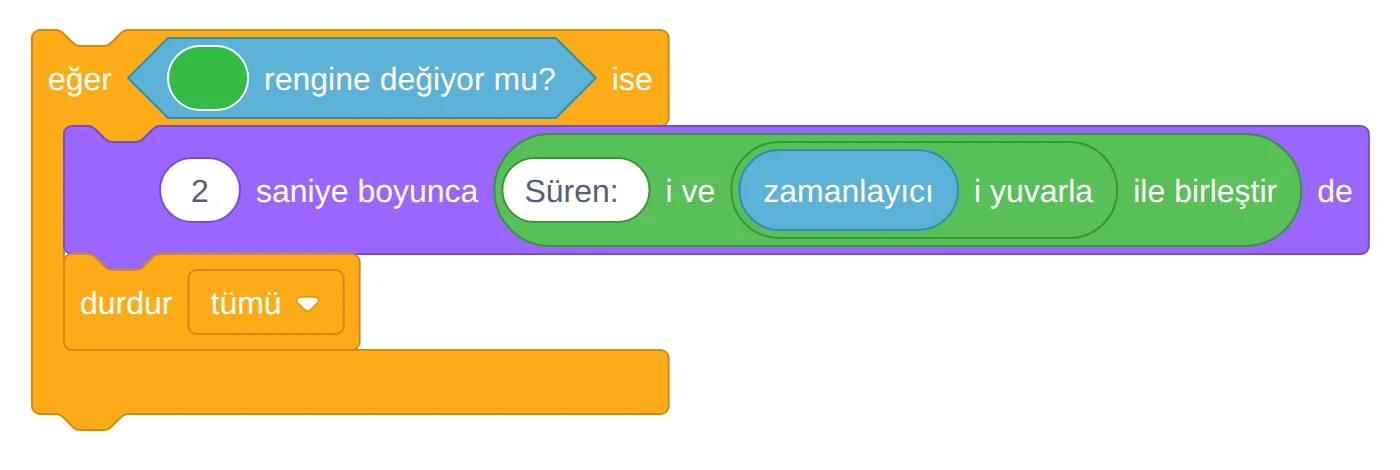
Add this block inside "forever" too. Again, pick the green color from the goal with the eyedropper. "timer" is in the Sensing blocks, and "join" and "round" are in the Operators blocks. The timer shows seconds as a decimal like 10.494, with a dot instead of a comma. A grade 5 student may read this as ten thousand, since decimal notation comes later at school. "round" makes the screen show 10, and time comparisons in class are done with whole numbers too. Finally, put the "reset timer" block right below the flag block.
Clicking the green flag already resets the timer. Still, this block makes sure the time counts from zero if you later restart the game some other way, for example when moving to the next level.
The complete code
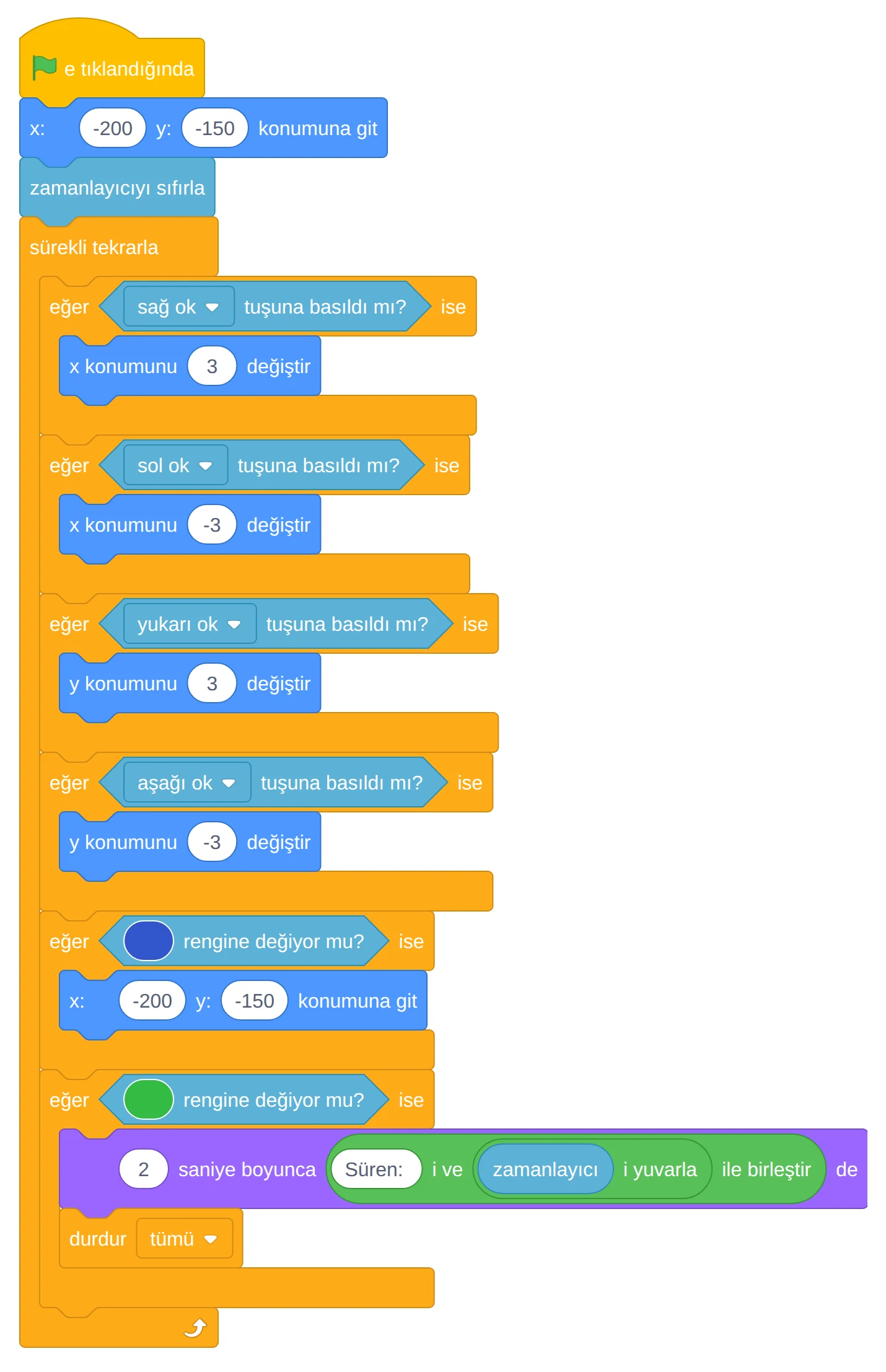
Ready project file: labirent-oyunu.sb3. In Scratch, you can open it from the File menu with the option to load from your computer. In the Turkish interface this item is not translated yet, so it shows the English text "Load from your computer." The file contains exactly the code in this post and the example backdrop. We ran this file in Scratch's project engine and tested two cases. When the right arrow was held down, the ball hit the first wall and went back to the start. When the maze was walked from start to finish, the ball reached the goal without touching any wall, the screen showed "Süren: 11" (Your time: 11), and the game stopped.
Don't give students the ready file at the start. Let them build it themselves first. A student who gets stuck can compare their own code side by side with the ready file.
Common mistakes
| Symptom | Likely cause | Fix |
|---|---|---|
| The arrow keys do nothing | The flag wasn't clicked, or the blocks came loose from the "when green flag clicked" block | Click the flag. Drag the loose blocks and snap them under the flag block |
| The flag is clicked but the arrow keys don't work | The keyboard is stuck in a block's input box. After typing a number, the arrow keys stay inside that box | Click the stage once, then press the arrow keys |
| The ball doesn't move at all | The code was put on a different sprite, or the blocks ended up outside "forever" | Select the ball in the sprite list and check the code. The movement blocks must be inside the loop |
| The ball slides once and stops | A one-time block was used instead of "forever" | Move the four "if" blocks inside "forever" |
| The ball goes through walls | The wall color was picked by eye, the walls are different shades, or the neighboring "color () is touching ()?" block was used instead of "touching color ()?" | Pick the color from a wall with the eyedropper, draw all walls in the same color, check the block name |
| The ball goes through some walls but not others | The step value was increased, and the ball jumps over a thin wall | Lower the step to 3 or make the thin wall thicker |
| The ball leaves the maze | No walls were drawn on the outer edges | Draw walls on all four edges of the maze |
| Nothing happens when the ball reaches the goal | The goal color was picked by eye, or the goal check is outside the loop | Pick the color from the goal with the eyedropper, move the "if" block inside "forever" |
| When the flag is clicked, the ball jumps back to the start right away and shakes | The starting point is on top of a wall | Move the starting coordinates to the middle of a corridor |
| The "Süren" text never shows up | "say ()" was used instead of "say () for (2) seconds" | "stop [all]" also erases the speech bubble. Use the timed "say" block or put a wait in between |
| The time seems to have started before the flag was clicked | There is no "reset timer," and the game was started some way other than the flag | Add "reset timer" below the flag block |
| The ball doesn't fit in the corridor | The sprite is too big | Lower the Size value in the sprite info |
When debugging, ask the student: "What is the ball doing, and what did you want it to do?" A student who describes the symptom in their own words usually finds the cause themselves.
Ideas to improve the game
For students who finish the basic game, in order of difficulty. The first three have no variables, the last two do:
- Play a sound when touching a wall. Pick a sound in the ball's Sounds tab. Add the "start sound ()" block inside the "if" block of the wall check.
- Make a second level. Draw a second maze backdrop. When the ball touches the goal, have "next backdrop" and the go-to-the-starting-point blocks run instead of "stop [all]." Keep the goal color the same green on the second backdrop so the code works on both levels. Also add "switch backdrop to (first maze)" below the flag block. Otherwise, clicking the flag again starts the game from the second level.
- Add a moving obstacle. Add a second sprite that moves back and forth in one of the corridors. In the obstacle's own code, "move (10) steps" and "if on edge, bounce" inside "forever" are enough. The ball should also go back to the start when it touches this sprite. Here the "touching (sprite name)?" block is used instead of "touching color ()?". It's a good chance to talk about the difference between the two sensing methods.
- Add lives. Create a variable named "lives" and set it to 3 at the start of the game. Every time the ball touches a wall, have "change [lives] by (-1)" run. Explain this to students as "take away one life." When lives reach 0, the game ends.
- Keep a record. Store the shortest time with a "record" variable. Careful: if the record starts at 0, no time is ever less than 0 and the record never changes. Make the rule: "if the record is 0 or the time is less than the record, set the record to the time." Don't reset the record in the flag block, or it gets erased every game. Scratch saves a variable's last value with the project, so when the project is opened again, the record is still there.
How to use it in class
Have the computers on and Scratch installed before the lesson starts. In a computer lab, starting up can take 5-10 minutes, and that time comes out of your plan.
First lesson (40 min):
- Have students first draw their mazes on grid paper. Use an area of 12 x 9 squares. Each square equals 40 x 40 pixels in Scratch, and the corridors are one square wide. The maze should have at most 8 walls (10 min).
- Have them draw the backdrop in Scratch and prepare the ball sprite. At minute 15, give the ready backdrop to any student who hasn't finished theirs, so they can get to the movement code (15 min).
- Have them write the movement code and move the ball around the maze (12 min).
- Have them save the project (3 min).
Second lesson (40 min):
- Have them open their projects from the File menu with the option to load from the computer (3 min).
- Have them add the wall and goal checks. The eyedropper and "touching color ()?" appear here for the first time, so don't rush (20 min). Project the common mistakes table at the start of the lesson or hand it out on paper, so a student who gets stuck checks the table first.
- Have desk partners play each other's mazes. For a time race, everyone should play the same maze, for example the ready project file, and the times should be written on the board. If everyone races on their own maze, the times come from different difficulties and the comparison isn't fair. Students who finish early move on to the improvement ideas (17 min).
In most school computer labs, the desktop and downloaded files are erased when the computer shuts down. So the project isn't lost between the two lessons, have students save it at the end of the first lesson with Save to your computer in the File menu. The file name should be the student's name (for example labirent-ayse.sb3), and it should go in a folder you point out or on a USB drive.
Don't skip the paper drawing step. This is where the idea of coordinates first starts to make sense. Students begin thinking "my ball is at the bottom left, so both numbers are on the minus side" on paper. If there aren't enough computers, working in pairs also works. One drives, the other reads the code, and they switch every five minutes. Call out the switch time yourself, or most pairs never switch.
Frequently asked questions
What grade is the Scratch maze game suitable for? It's a two-class-period project for middle school grades 5-6. It's not a problem if they haven't covered coordinates and negative numbers at school yet. Explain x as right-left and y as up-down, and read minus as "the opposite direction." With younger students, you can give them the backdrop ready-made and have them write only the movement code.
Can I make this game with ScratchJr? The code in this post is for Scratch 3. ScratchJr has no color sensing block, so hitting a wall is set up another way.
Why won't the project file open? The file is in Scratch 3 format (.sb3). It won't open in the old Scratch 2.0. Open it from the File menu on the current Scratch website or in the Scratch app.
Do students need to create an account? No. Keeping the project as a file with Save to your computer doesn't require an account. An account is only needed to save and share the project on the Scratch website.
Sources
- Scratch, Frequently Asked Questions (cost and license, offline app, account requirement). scratch.mit.edu
- Scratch, app download page. scratch.mit.edu
- Turkish translations of Scratch block and interface text, scratch-l10n repository. github.com
- Scratch interface, block lists and keyboard keys not reaching the game while an input box is active (scratch-gui). github.com
- MEB (Ministry of National Education), Türkiye Yüzyılı Maarif Modeli (Türkiye Century Education Model) Middle School Mathematics Curriculum, 2026 (integers in grade 7 MAT.7.1.1, coordinate plane in grade 8 MAT.8.2.1). tymm.meb.gov.tr
- Scratch project engine, the green flag resetting the timer and "stop all" erasing speech bubbles (scratch-vm). github.com
- Scratch rendering engine, the matching tolerance of color sensing (scratch-render). github.com
- Block images drawn with scratchblocks (MIT license). github.com
Sources accessed: October 8, 2026.