Short answer: An apple catching game in Scratch takes two sprites and two variables. The basket moves with the right and left arrow keys inside a "forever" loop. The apple starts falling from a random spot. If it touches the basket, "puan" (score) goes up by one. If it hits the ground, "kaçan" (missed) goes up by one. Either way, the apple falls again from the top. When three apples are missed, the game ends and the score appears on the screen. The code below and the downloadable project file were tested in Scratch's own engine.
This game is a good second project after the maze game. In the maze, students saw coordinates, loops and conditions. Apple catching adds variables and random numbers. Both do a real job here for the first time: keeping score and making the apple fall from a different spot each time.
Before you start
- Scratch is free. According to Scratch's own FAQ, you don't need a license to use it at school or at home.
- An account is not required. You can keep the project as a file with Save to your computer in the File menu. An account is only needed to save and share the project on the Scratch website.
- No internet? The Scratch app can be downloaded to the computer and used offline.
- Time: Two class periods. In the first lesson, the sprites, basket movement and the falling apple. In the second, the score, missed apples and game over.
- Negative numbers: The basket moving left, the apple falling and the ground limit are all written with negative numbers. In the math curriculum, integers come in grade 7. In grades 5-6, teach the minus sign as a direction, not as a number: right and up are plus, left and down are minus. Read -5 as "5 steps down."
1. Set up the sprites and the backdrop
The screenshots show Scratch's Turkish interface, and the sprite and variable names in the project file are Turkish.
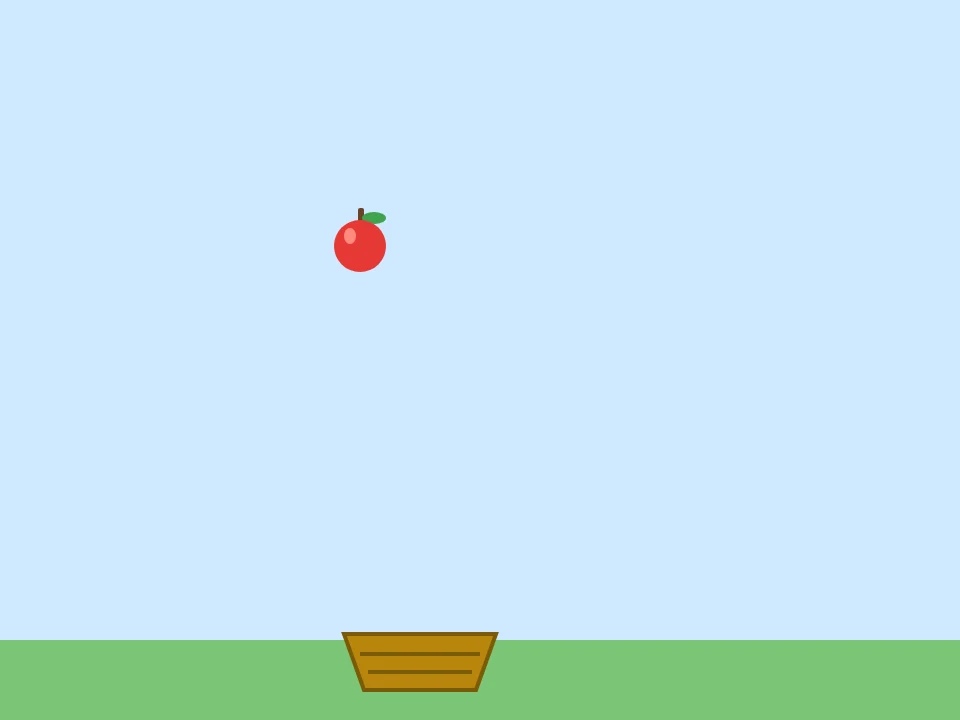
Open the library with the Choose a Sprite button at the bottom right and add two sprites from the Food category: Apple for the apple and Bowl for the basket. The sprite names in the library come in English. In the sprite info, use the Sprite name box to rename them Elma (Apple) and Sepet (Basket). This small step matters. The sprites will show up with these names in the menu of the "touching?" block you will add to the apple's code.
For the backdrop, you can pick a sky from the library with Choose a Backdrop, or select the stage and draw it yourself in the Backdrops tab. The example has a light blue sky with a green strip of grass at the bottom.
The Scratch stage is 480 x 360. Horizontally, x goes from -240 to 240, and vertically, y goes from -180 to 180. The basket will start at the bottom (y: -150) and the apple at the top (y: 170). Below the middle is minus, above it is plus.
2. Create the variables
In the Variables section, click Make a Variable. In the New Variable window that opens, type the name puan (score) and make sure For all sprites is selected. Scratch opens this window with that option selected every time. Create a second variable named kaçan (missed) the same way.
Explain a variable to students as "a box with its name written on top." We put a number in the box and change that number during the game. Leave the checkboxes next to both variables checked. They show the score and the number of missed apples at the top left of the stage. Students follow what the code is doing through these numbers.
3. Move the basket with the arrow keys
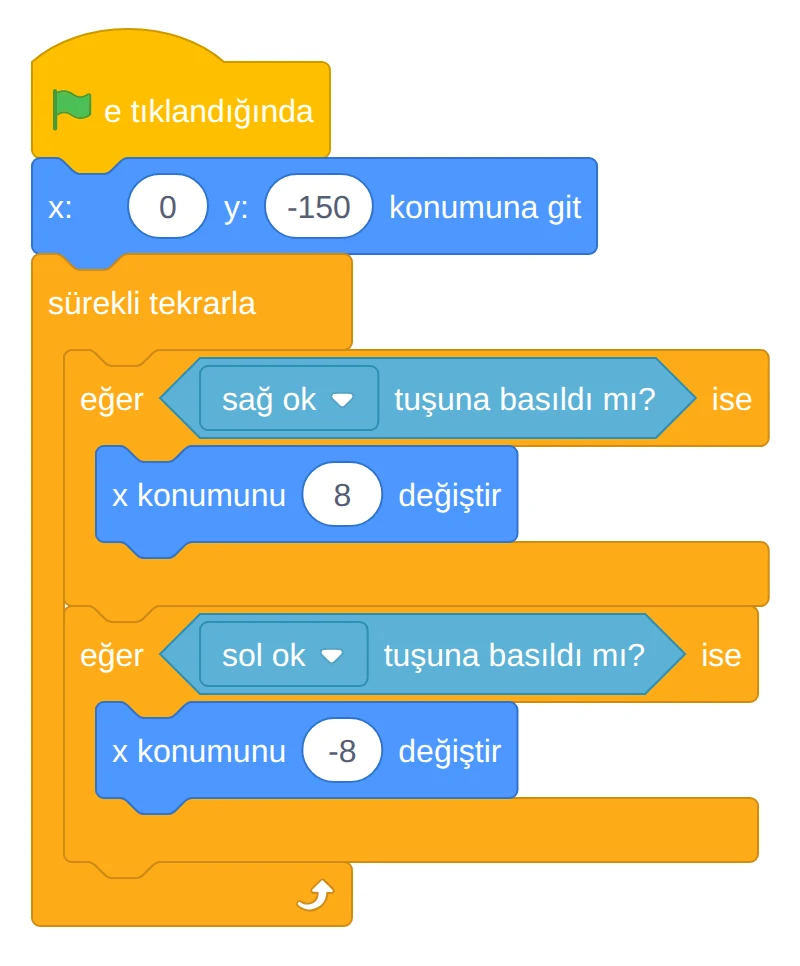
Put this code on the Sepet sprite. The basket only goes left and right, so only its x position changes. Right is the plus direction, left is minus.
Just like in the maze game, instead of the "when (space) key pressed" block, we use the "key (right arrow) pressed?" question inside "forever." When the key is held down, the basket glides smoothly instead of jerking. The step is 8, and since the apple falls 5 steps at a time, the basket can catch up with it. If the basket were slower, the game would get needlessly hard.
4. Drop the apple from a random spot
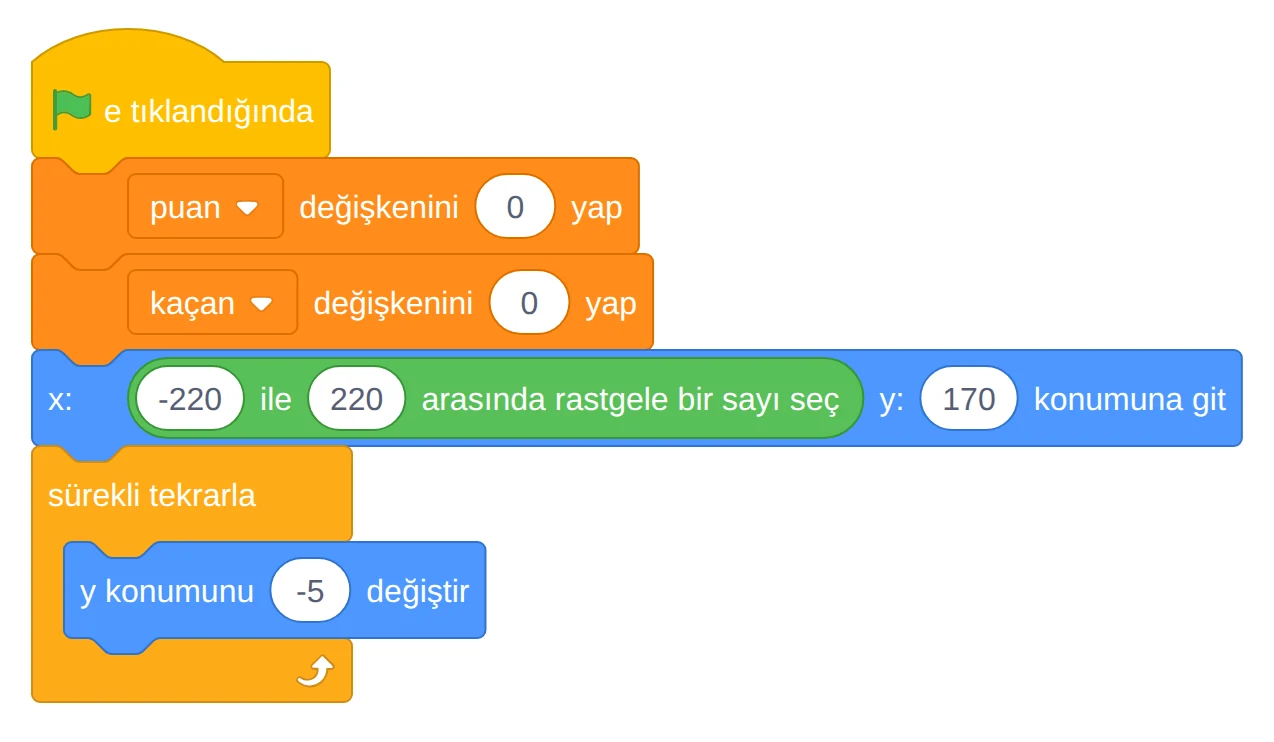
Put this code on the Elma sprite. Every time the game starts, both variables are reset. Then the apple goes to the top of the stage, at a random horizontal spot. From -220 to 220 means from the left edge of the stage to the right edge. Inside the loop, the apple moves down 5 steps each time.
The "pick random" block is in the Operators section. Drag it into the x box of the "go to x: () y: ()" block. Without a random number, the apple always falls from the same spot, the player parks the basket there and waits, and the game gets boring in a minute.
After this step, the apple falls once and stays at the bottom of the stage. If the lesson ends here, add just one block to the loop for now: inside "if <(y position) < (-170)> then," a "go to x: () y: ()" block that sends the apple back to the top. That way students go into the break with an apple that keeps falling. In step 6, the missed counter is added to this block.
5. Score a point when it touches the basket
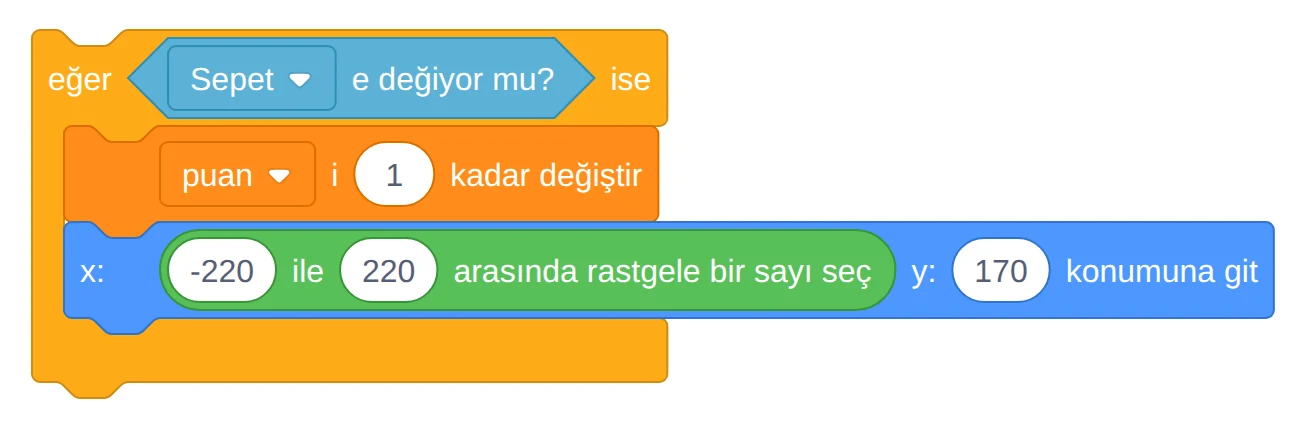
Add this block inside the apple's "forever" loop, below "change y by (-5)." The "touching (mouse-pointer)?" block is in the Sensing section. Choose Sepet from its menu.
Sending the apple back to the top right after the score goes up is a must. Without this line, the apple keeps touching the basket for several rounds while it passes through it, and the score goes up more than once for a single apple. This is the mistake students make most often.
6. Count a miss when it hits the ground
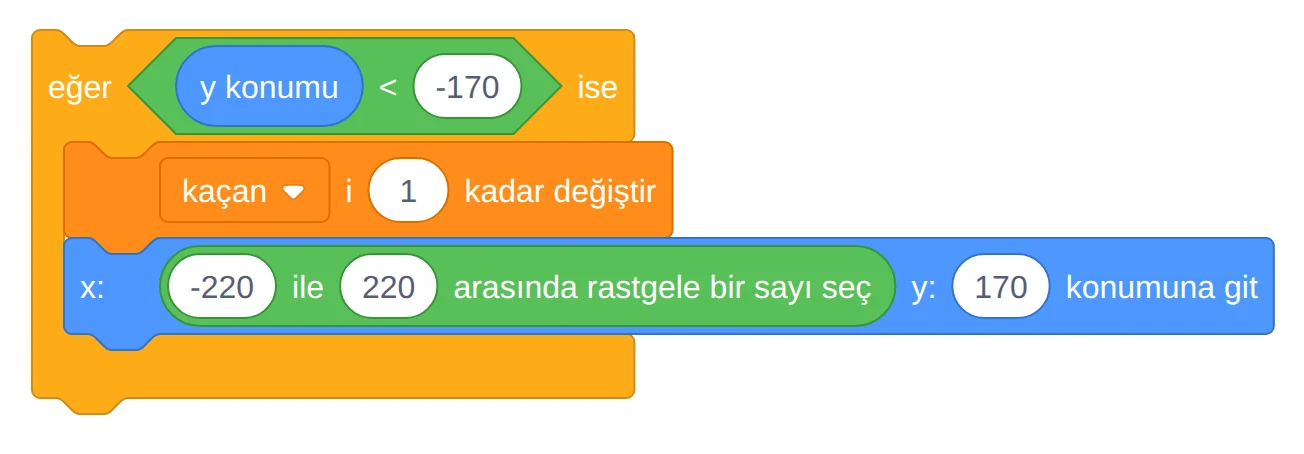
Add this block to the loop too. If you added the "if <(y position) < (-170)> then" block at the end of step 4, just put "change [kaçan] by (1)" inside it. "y position" is the apple's current height. If the apple has gone below -170, the basket has missed it.
-170 is a good value for the limit. Don't choose a lower number, such as -200. Scratch does not let a sprite leave the stage completely. It always keeps part of it on the stage. The apple can't get that low, the missed count never goes up, and the apple gets stuck at the bottom of the stage.
7. End the game when three apples are missed
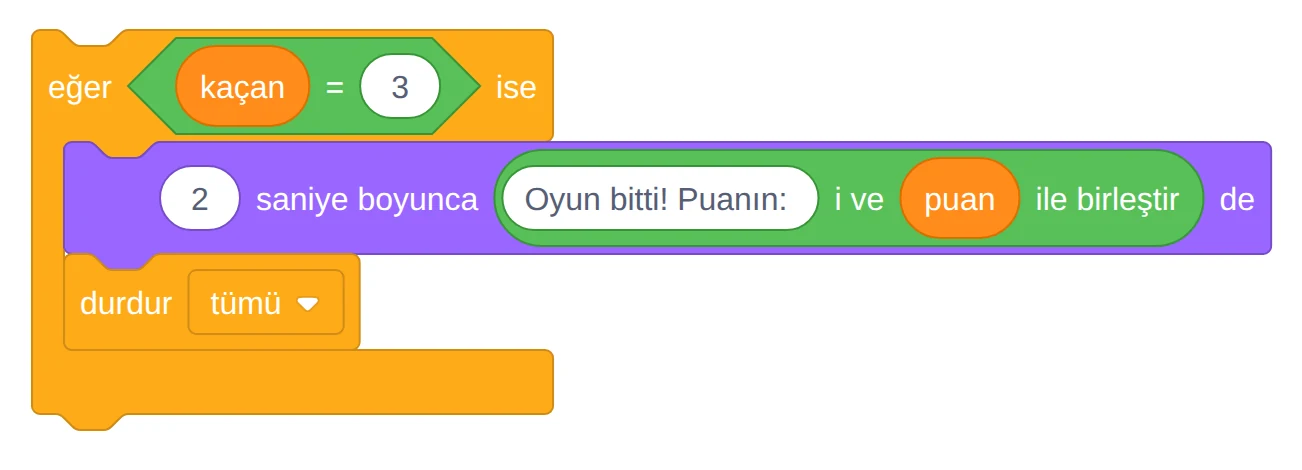
Add the last block to the loop as well. The "join" block puts text and a variable side by side. Leave a space at the end of the text "Puanın:" (Your score:), or the screen will show it run together, like "Puanın:12."
"stop [all]" stops all the code and also erases speech bubbles. That's why we use "say (Hello!) for (2) seconds" here, not the "say (Hello!)" block with no time limit. The bubble stays on the screen for two seconds, then the game stops.
The complete code
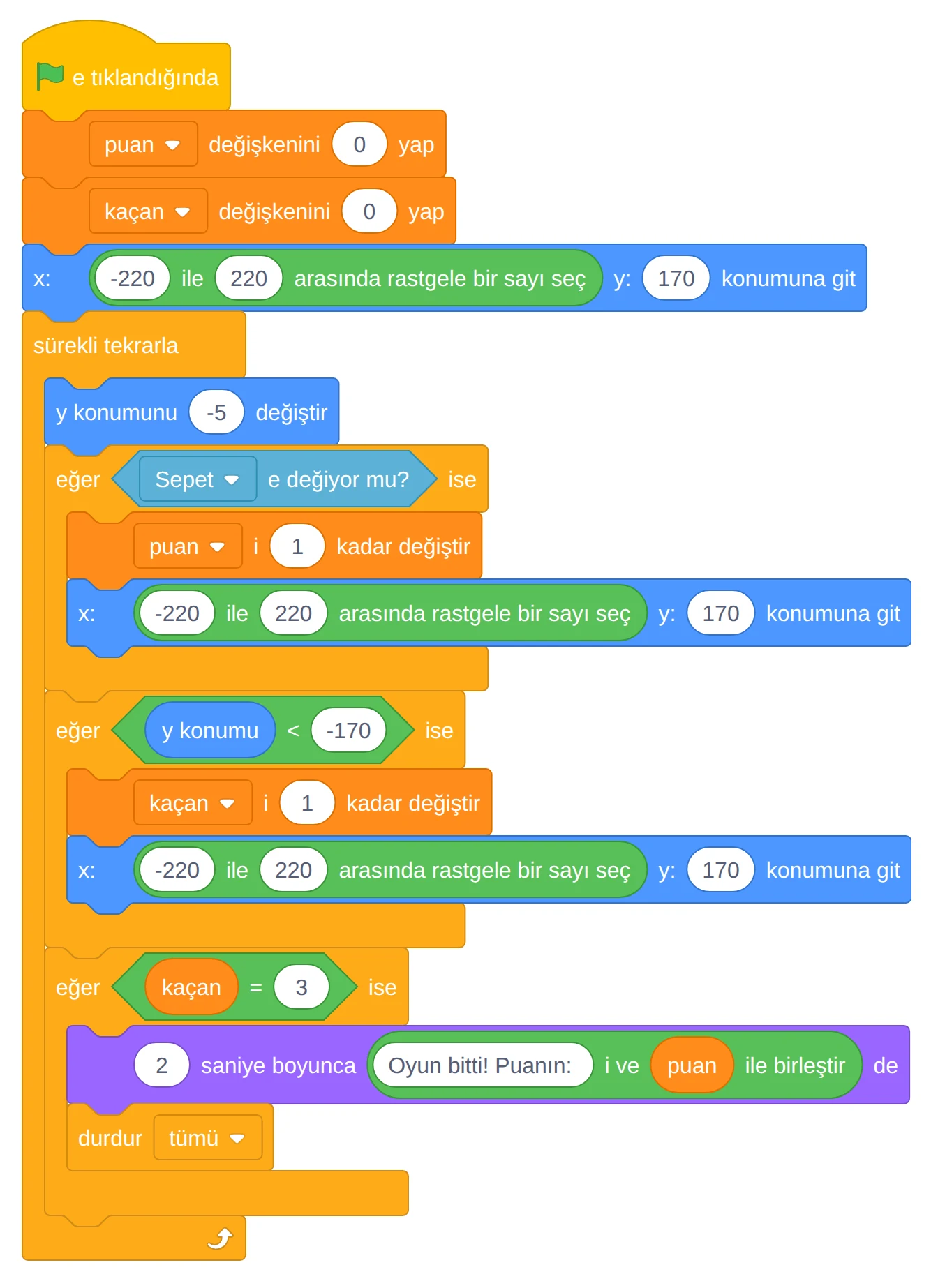
The basket sprite's code is the code from step 3. The apple's complete code is shown above.
Ready project file: elma-toplama.sb3. In Scratch, you can open it from the File menu with the option to load from your computer. In the Turkish interface this item is not translated yet, so it shows the English text "Load from your computer." The file contains exactly the code in this post, plus the apple, basket and backdrop we drew ourselves. We ran this file in Scratch's project engine and tested two cases. When the basket was steered under the apples with the arrow keys, the score went up to 14 and no apple was missed. Then the keys were released and the basket stayed where it was. Three of the randomly falling apples happened to land in the basket and raised the score to 17, and three fell to the ground. The screen showed "Oyun bitti! Puanın: 17" (Game over! Your score: 17) and the game stopped.
Don't give students the ready file at the start. Let them build it themselves first. A student who gets stuck can compare their own code side by side with the ready file.
Common mistakes
| Symptom | Likely cause | Fix |
|---|---|---|
| The arrow keys do nothing | The flag wasn't clicked, or the blocks came loose from the "when green flag clicked" block | Click the flag. Drag the loose blocks and snap them under the flag block |
| The flag is clicked but the basket doesn't move with the arrow keys | The keyboard is stuck in a block's input box. After typing a number, the arrow keys stay inside that box | Click the stage once, then press the arrow keys |
| The score goes up more than once when one apple is caught | The apple isn't sent back to the top after the score goes up | Add the "go to x: () y: ()" block below "change [puan] by (1)" |
| The apple hits the ground and stays there, missed doesn't go up | The ground limit is too low (for example -200) | Set the limit to -170. Scratch doesn't move a sprite completely off the stage |
| The apple doesn't fall, it stops somewhere | "set y to (-5)" was chosen instead of "change y by (-5)" | Use the "change" block. "set" puts the apple at that height once, "change" moves it down a little every round |
| The score always stays at 1 | "set [puan] to (1)" was chosen instead of "change [puan] by (1)" | Use the "change ... by" block |
| The apple always falls from the same spot | A fixed number was typed in the x box | Put the "pick random" block in the x box |
| In a new game, the score continues from the old game | There is no reset under the flag block | At the start of the game, have "set [puan] to (0)" and "set [kaçan] to (0)" |
| There are two "puan" variables, and the number on the stage doesn't go up | The variable was created twice (one "Puan" and one "puan", or one of them for a single sprite only) | Delete the extra one and check that the remaining variable is selected in the code |
| The game doesn't end when three apples are missed | The "(kaçan) = (3)" block ended up outside the loop | Move the game over block inside "forever" |
| The game is too easy, or the basket always misses the apple | The sprites from the library are too big or too small | Change the Size value in the sprite info. Keep the basket a bit bigger than the apple |
| Sepet is not in the "touching?" menu | The sprite is still named Bowl | Rename the sprite to Sepet in the sprite info, or choose Bowl from the menu |
| The puan variable doesn't show up in the basket's code | The variable was created on the apple with "For this sprite only" | Delete the variable and create it again with For all sprites |
| The "Oyun bitti" text never shows up | "say ()" was used instead of "say () for (2) seconds" | "stop [all]" also erases the bubble. Use the timed "say" block |
When debugging, look at the score and missed numbers on the stage together. The question "You caught the apple. How much did the score go up?" uncovers most mistakes in a few seconds.
Ideas to improve the game
For students who finish the basic game, in order of difficulty:
- Play with the mouse. Replace the two "if" blocks in the basket's loop with one block: "set x to (mouse x)". The basket follows the mouse. This also makes it easier to play with a finger on touch screens. If you make the basket bigger, move its y position up a little, or the apple may pass the ground limit without touching the basket.
- Make a timed game. Set a 30-second limit: an "if <(timer) > (30)> then" block ends the game. The green flag already resets the timer. If you delete the "(kaçan) = (3)" block, the game ends only on time. If you keep it, the game ends on whichever comes first.
- Keep a high score. Store the highest score in a "high score" variable. When the game ends, if the score is greater than the high score, set the high score to the score. Don't reset the high score in the flag block, or it gets erased every game. Scratch saves a variable's last value with the project. For the high score to stay, the project must be saved again after playing.
- Add a rotten apple. Add a brown apple sprite. If it touches the basket, the score goes down by one. So that the score doesn't go below zero, make the rule "if puan > 0, decrease it by one." Most students make the rotten apple by duplicating the Elma sprite, and the code gets copied too. From the rotten apple's code, delete the blocks that reset the variables, increase missed and end the game. Otherwise missing a rotten apple also raises the missed count and can end the game early.
- Make the apple speed up over time. Create a variable named "speed" and set it to 5 at the start of the game. In the falling block, use "(0) - (speed)" instead of -5 and read it to students as "down by the speed." Increase the speed by 1 for every five catches. Set a limit: in the sample project, the basket moves 8 steps, and once the speed goes above 6 it can't reach an apple falling at the other edge of the stage. When you increase the speed, make the basket's step bigger too, or put an upper limit on the speed.
How to use it in class
Have the computers on and Scratch installed before the lesson starts. In a computer lab, starting up can take 5-10 minutes, and that time comes out of your plan.
First lesson (40 min):
- Play the game once on the board and ask students: "Which numbers does the computer need to keep in mind in this game?" The answers lead to the score and the number of missed apples. Use this question to introduce what a variable is (7 min).
- Have them add the sprites, rename them and create the variables (10 min).
- Have them write the basket's movement code and the apple's falling code (15 min).
- Have them add the "fall again from the top" block from the end of step 4 so the apple doesn't stay at the bottom (5 min).
- Have them save the project (3 min).
Second lesson (40 min):
- Have them open their projects from the File menu with the option to load from the computer (3 min).
- Have them add the catching, missing and game over blocks (25 min). Project the common mistakes table at the start of the lesson or hand it out on paper, so a student who gets stuck checks the table first.
- Have desk partners play each other's games and write the highest score on the board. Students who finish early move on to the improvement ideas (12 min).
In most school computer labs, the desktop and downloaded files are erased when the computer shuts down. So the project isn't lost between the two lessons, have students save it at the end of the first lesson with Save to your computer in the File menu. The file name should be the student's name (for example elma-ayse.sb3), and it should go in a folder you point out or on a USB drive.
For students seeing random numbers for the first time, a small experiment helps: have them click the "pick random" block on its own a few times. Seeing a different number come out with each click explains why the apple falls from a different spot each time.
Frequently asked questions
What grade is the Scratch apple catching game suitable for? It's a two-class-period project for middle school grades 5-6. It suits students meeting variables for the first time. It's not a problem if they haven't covered negative numbers at school yet: explain minus as "the opposite direction." Having done a movement project like the maze before makes it easier.
I can't find the Apple and Bowl sprites in the library. Type "apple" and "bowl" in the search box at the top of the sprite picker window. Another fruit or container works too. What matters is that the sprite name in the code is the same as the name you choose in the menu.
Why won't the project file open? The file is in Scratch 3 format (.sb3). It won't open in the old Scratch 2.0. Open it from the File menu on the current Scratch website or in the Scratch app.
Do students need to create an account? No. Keeping the project as a file with Save to your computer doesn't require an account. An account is only needed to save and share the project on the Scratch website.
Sources
- Scratch, Frequently Asked Questions (cost and license, offline app, account requirement). scratch.mit.edu
- Scratch, app download page. scratch.mit.edu
- Turkish translations of Scratch block and interface text, scratch-l10n repository. github.com
- Scratch interface: the sprite library list (Apple and Bowl sprites, Food category) and keyboard keys not reaching the game while an input box is active (scratch-gui). github.com
- MEB (Ministry of National Education), Türkiye Yüzyılı Maarif Modeli (Türkiye Century Education Model) Middle School Mathematics Curriculum, 2026 (integers in grade 7, MAT.7.1.1). tymm.meb.gov.tr
- Scratch project engine, the green flag resetting the timer and "stop all" erasing speech bubbles (scratch-vm). github.com
- Scratch rendering engine, keeping part of a sprite on the stage (scratch-render). github.com
- Block images drawn with scratchblocks (MIT license). github.com
Sources accessed: October 8, 2026.